
What your client sees
The client's report page, what it shows before release, the PDF, and reports in the customer portal.
Your client reads the report on a web page made for phones and computers, with your branding, and can download the PDF. They don't need an account.
Before the report is released
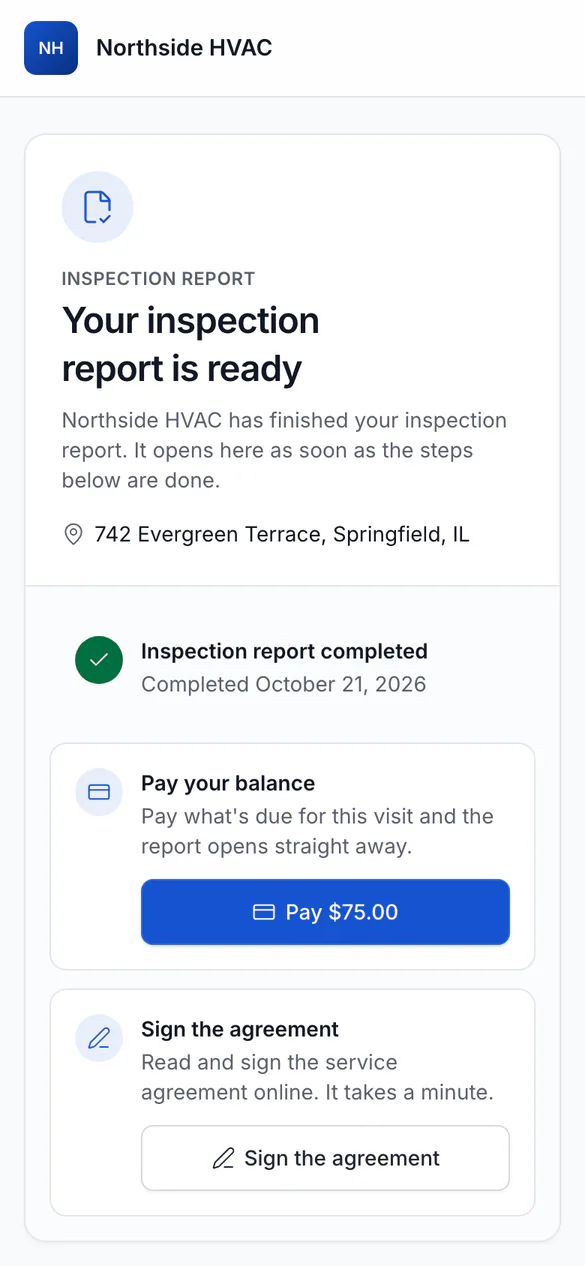
If your release rule is waiting for something, the link opens a page that says Your report is ready and lists What's still needed:
- Pay your balance, with a button to pay what's due online. The report opens straight away once paid.
- Sign the agreement, to read and sign it online.
- If the office is reviewing it, the page says the report is being finalized and the client will get the link when it's ready.
The client can refresh the page after finishing a step.
The released report
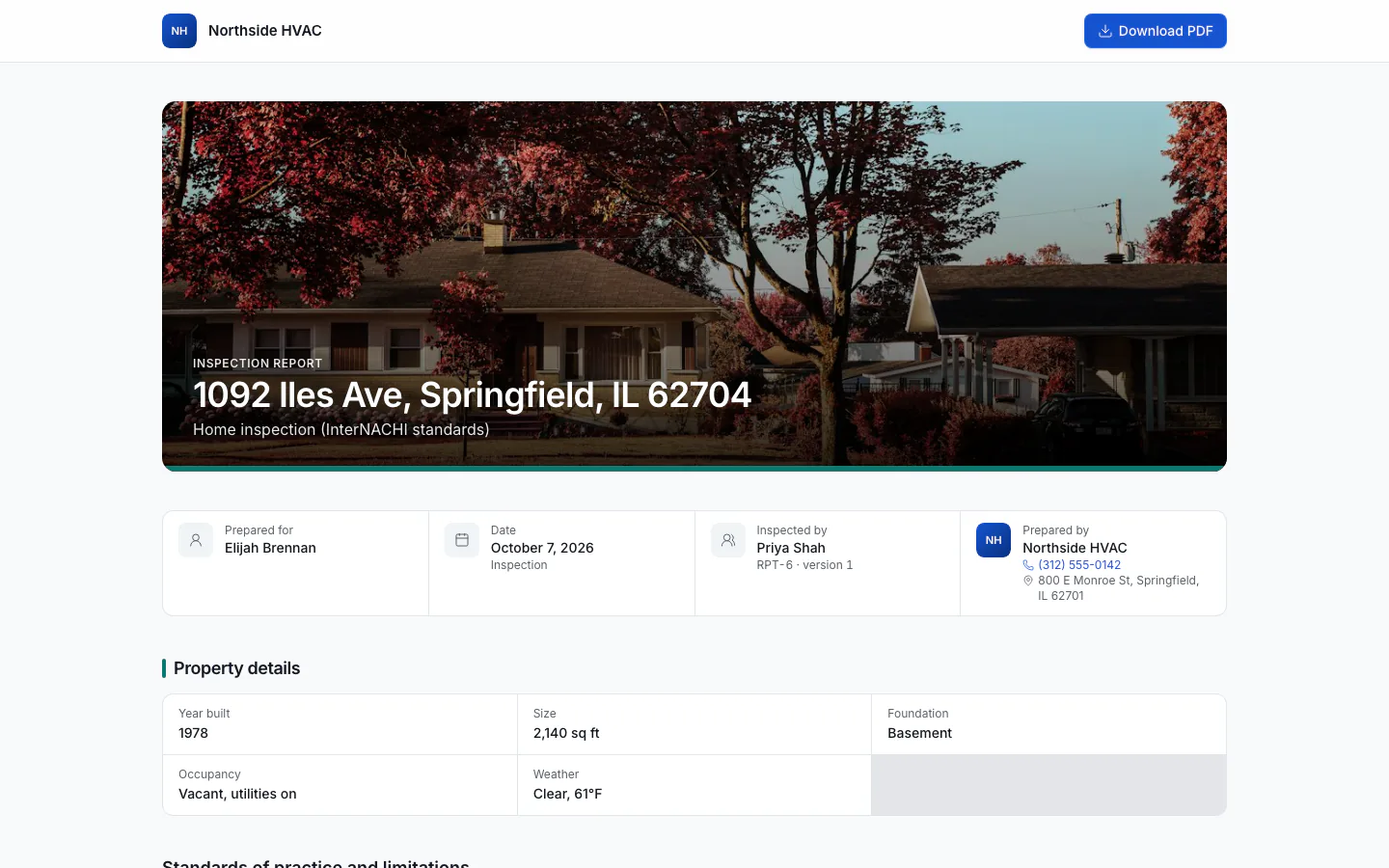
The page shows, in order:
- the cover with your brand color, the cover photo, who it was prepared for, the date and who inspected;
- Property details;
- the Summary: an opening paragraph and the findings by severity. Choose a severity to see only those findings;
- Limitations, apart from defects;
- the Contents, then each section with its items: the Description block, the status, and each finding in three labeled parts (Observation, Implication, Recommendation) with photos (tap to enlarge), videos and, if you show them, cost estimates;
- your Standards of practice and Disclaimer, and any Documents you sent with it.
Wording your team accepted from AI is marked AI-assisted. When a job has several reports (for example Main house and Guest cabin), the client's page lists the others under Reports for this visit.
Clients can Download PDF or Print. The PDF has the same cover, summary, contents, sections and photos, with page numbers and your footer.
What agents see
Agents open their own link and see what your release rule allows: the full report, the summary only (with a note to ask you or the client for the full report), or a page saying it isn't shared with them.
In the customer portal
When your client signs in to your customer portal, Reports lists every report they have a link to, with View report and Download PDF. A report that isn't open yet says what it's waiting for, with Finish steps.