
Create a template from a standards document
Upload your state standards, InterNACHI, a TREC form or your own checklist, and AI drafts a template you review line by line.
If you already follow a written standard, ServFlo can read it and draft a template from it: sections and items, required describe fields, defect comments with their three parts, limitations, and statuses when the document defines them. Every drafted line points back to the page it came from, and nothing becomes a template until you review and save it.
Only owners and admins can create templates.
Open the upload page
Go to Settings → Report templates and click Create from a standards document at the top, or Upload a document on its card at the start of the starter gallery. In the template editor it's also in More template actions.
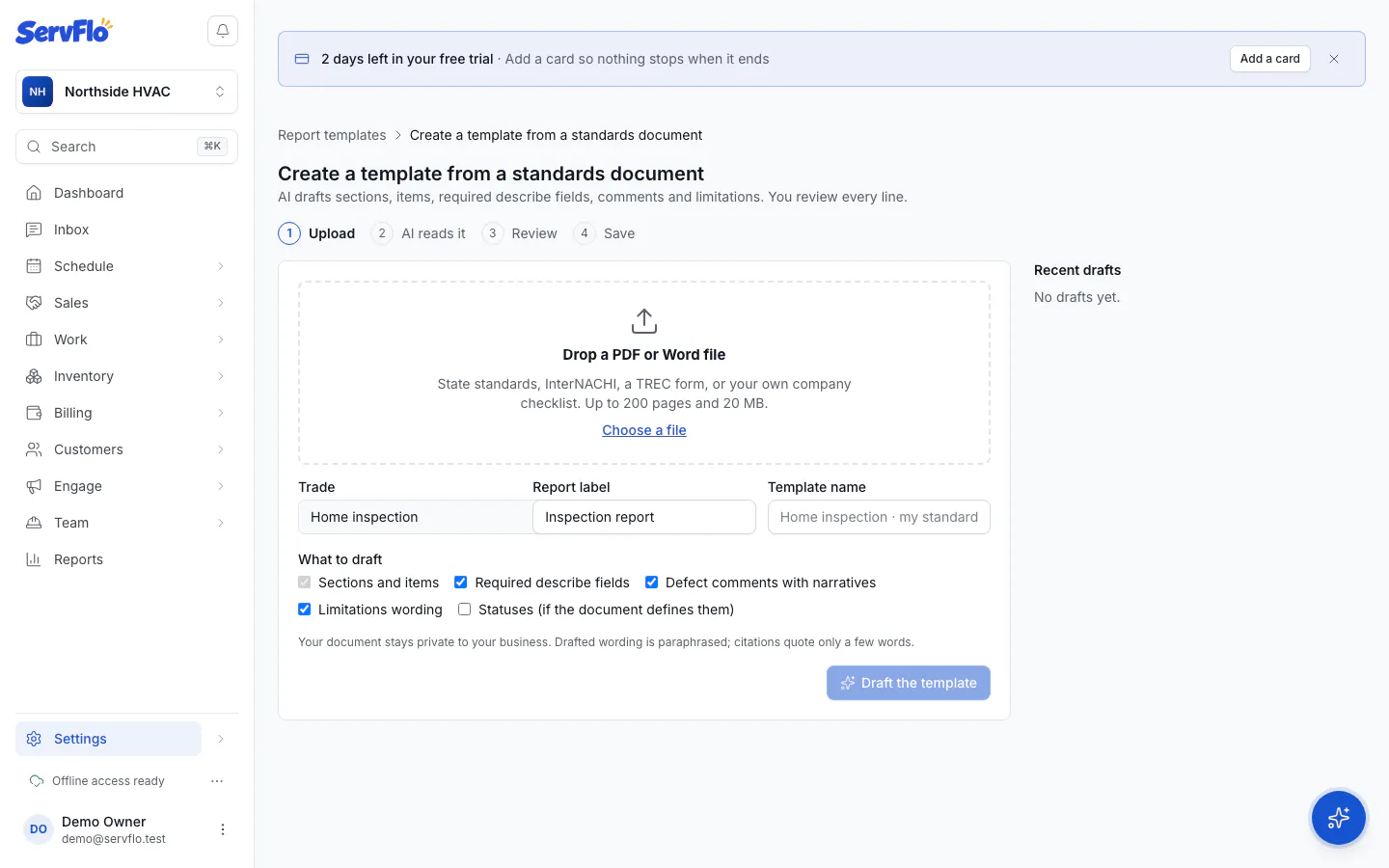
Upload the document
Drop a PDF or Word (.docx) file, or click Choose a file. Up to 200 pages and 20 MB.
Say what you want
Pick the Trade, the Report label (what the document is called) and the Template name. Under What to draft, tick Sections and items, Required describe fields, Defect comments with narratives, Limitations wording and Statuses (if the document defines them).
Start
Check the estimate (about how many AI credits it will use for the number of pages) and click Draft the template.
While AI reads it
The screen shows its progress: first Finding systems and requirements, then Drafting describe fields, comments and limitations section by section, with what it has found so far. A long document takes a few minutes. Click Leave and notify me to carry on working: you get a notification when the draft is ready.
If drafting stops (for example you run out of AI credits), the draft is kept: click Try again to carry on from where it stopped.
Review the draft
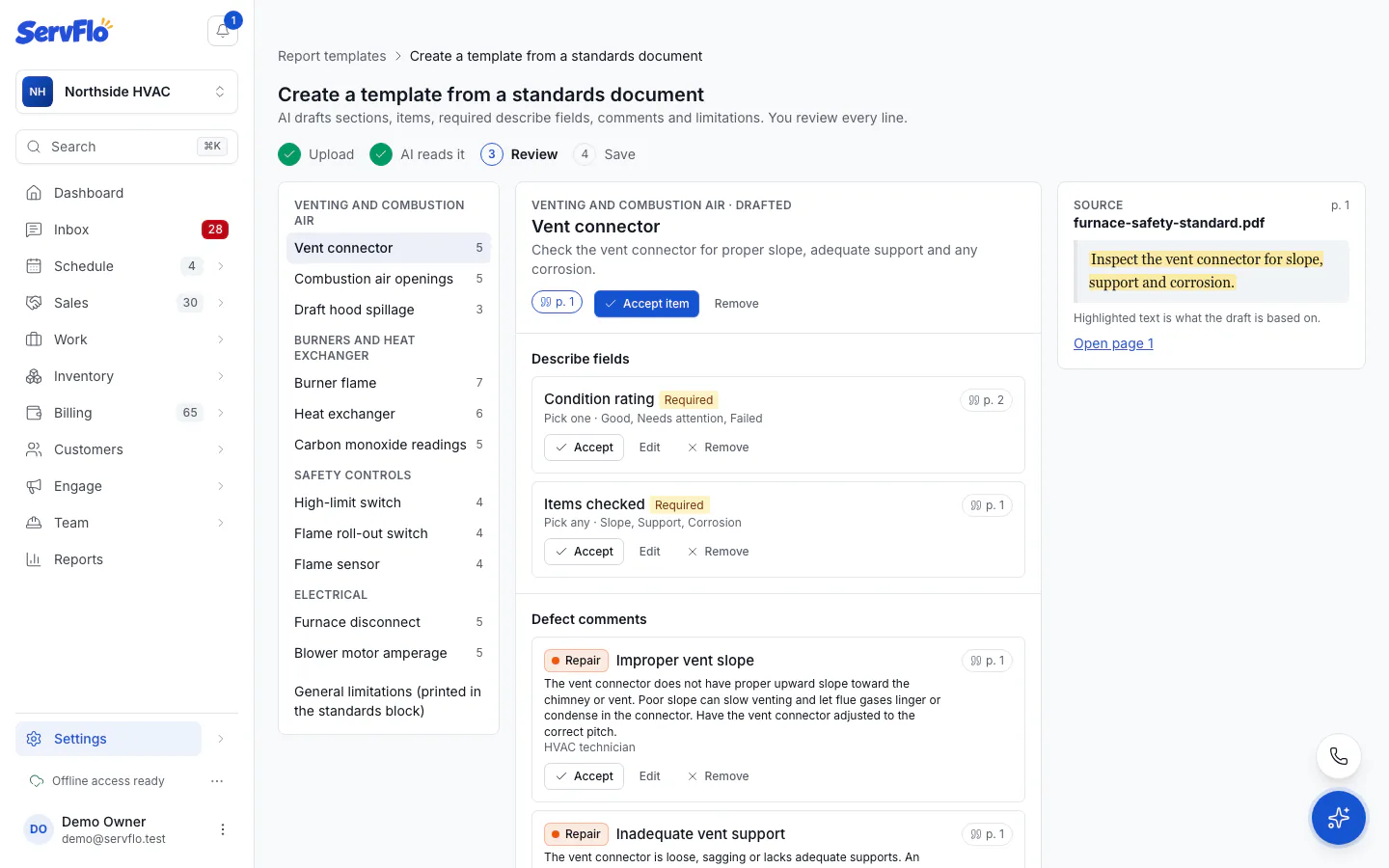
The review has three panes: the Outline, the selected item, and the Source.
- Click a citation chip (p. 12) to see the page it's based on, with the text highlighted.
- Accept each element, Edit it, or Remove it. Accept item accepts an item with everything in it; removing a section or item removes what's inside. Undo brings it back.
- Your progress shows as accepted, removed and drafted counts.
Save it
Click Save as template. Everything you didn't remove becomes a normal template you can edit. General limitations go in the template's standards block. Then Open template and link it to a service type so jobs get it automatically.
To finish later, click Save as draft and come back to it from Recent drafts on the upload page.
Your document stays private to your business. The drafted wording is paraphrased; citations quote only a few words as a pointer. Check the result against your standards before you use it.