
Write a report
Fill in a report item by item in the full-page report writer: status, describe, defects, photos and limitations.
The report writer is a full-page workspace for one report. You go through it one item at a time, and everything saves as you go (the top bar shows Saving… and Saved). Technicians can write reports on their own jobs; the office can write any.
Open the writer
Open the job and click Continue report (or Open report) on its report strip. You can also open a report from Service reports in the left menu.
Start with the overview
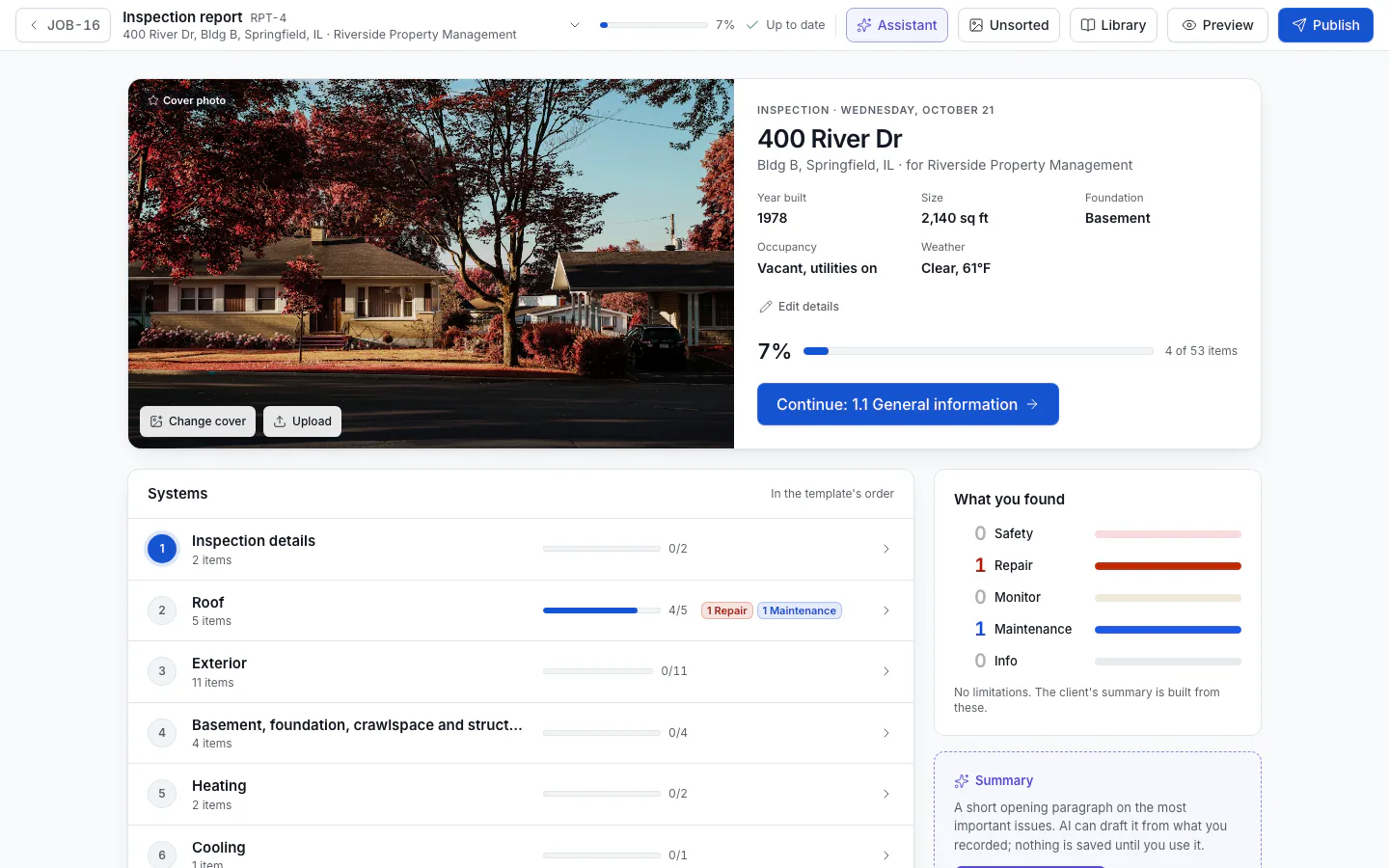
The overview shows the property and your progress:
- Cover photo: the first thing the client sees. Click Pick a cover photo and choose a job photo, or Upload one. A photo of the front of the property works best.
- Property facts, such as year built, square footage and foundation. Click Edit details to add, change or hide them. Leave a fact blank to hide it.
- Overall progress: items with a status and required facts filled in. Continue: takes you to the next item not done.
- Systems: every section in the template's order with its progress and defects by severity.
- Summary: an opening paragraph on the most important issues. Click Draft a summary to have AI write it from the defects you recorded, or Write my own. See AI writing help.
- Before you publish: what still blocks publishing. Click Open checklist to see it.
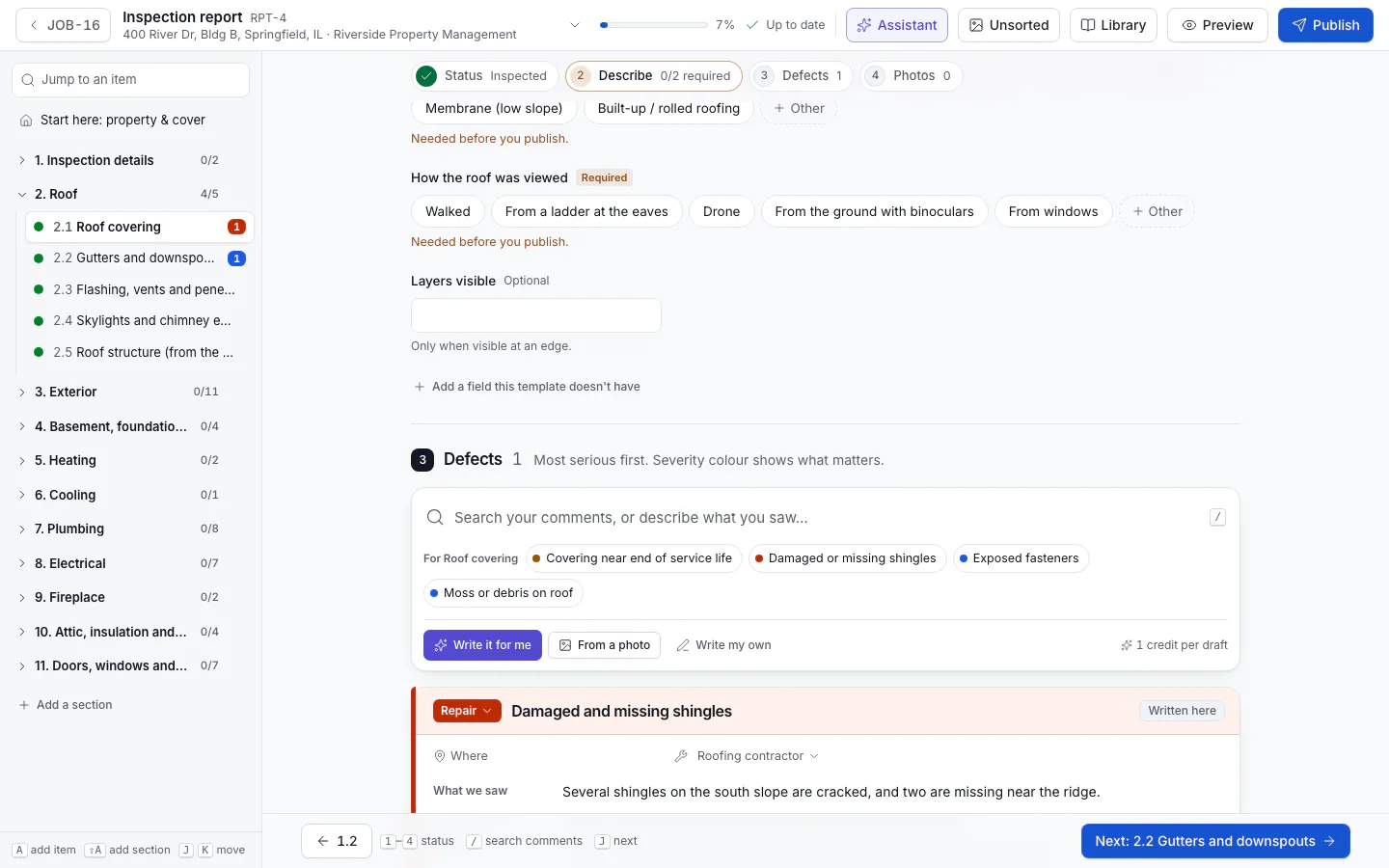
The outline on the left lists every section and item with its status color and defect count. Type in Jump to an item to find one.
Fill in an item
Click an item. It's in four steps, shown at the top: Status, Describe, Defects and Photos. The item's What to check text is under its name.
Status
Did you look at it? Click a status, or press its number key (1, 2, 3…). A status only says whether you looked: problems go in Defects, so an item can be inspected with no defects, or with several.
Some statuses ask Why couldn't you inspect it? Pick a reason and add More detail if you like. The reason prints in the report as a limitation.
Describe
Answer the facts the standards ask you to record, such as the roof covering or the water heater's capacity. Fields marked Required are Needed before you publish. If a list doesn't have your answer, choose Other and type it.
Defects
Search your comment library in Search your comments, or describe what you saw… (press / to jump there). Use ↑ ↓ and Enter to add a comment; it comes with its wording, severity and who should fix it.
If nothing matches, describe what you saw in your own words and click Write it for me to have AI write it up, or Write my own. See AI writing help.
Photos
Drop photos onto the item, or click to add them. Defect photos go on each defect. See Photos and markup.
Click Next: at the bottom to go to the next item, or press J (next) and K (previous).
Edit a defect
Each defect shows its severity color down the edge. Click it to change:
- the Defect title and Severity;
- What we saw, Why it matters and What to do;
- Location and Who should fix it;
- its photos.
From More actions you can Move it to another item, Make it a limitation, or Delete defect. A defect that isn't in your comment library yet offers Save to library (owners and admins), so it's there next time.
Record limitations
Limitations are what you couldn't fully check, for example a roof viewed only from the ground. They print apart from defects. Under Limitations, click Add limitation and say what couldn't be checked and why. A status reason (such as "Inaccessible") adds one for you.
Add what the template doesn't have
Every property is different. You can add to this report without changing the template:
- A section: click Add a section on the overview or in the outline (or press Shift+A). Pick a Common extra (detached garage, outbuilding, well, septic, pool and spa, lawn sprinklers, solar, radon, sewer scope) or type a name such as "Barn" with the items to start with.
- An item: click + on a section in the outline (or press A).
- A describe field: in Describe, click Add a field this template doesn't have.
Owners and admins also see Also add to my template: tick it so the template gets the same section, item or field for the next report. Leave it unticked for a one-off.
The side panel
The top bar opens a side panel with three tabs:
- Assistant: the inspection assistant.
- Unsorted: photos taken on the phone before an item was picked. Drag one onto a defect or onto an item's photos, or use File to…. They stay out of the report until you file them.
- Library: search your whole comment library and click a comment to add it to the item that's open.
Preview shows the report the way the client will see it. When you're done, click Publish (or Review & publish on the overview). See Publish a report.
Keyboard shortcuts
These work when you're not typing in a field.
| Key | Does |
|---|---|
| 1–9 | Set the item's status |
| / | Search comments |
| J / K | Next / previous item |
| A | Add an item to this section |
| Shift+A | Add a section |
Related
Add a report to a job
Add a report in one step from the job, attach one automatically to every job of a service type, or add several reports to one job.
Photos and markup
Add photos to items and defects, choose the cover, file photos taken on the phone, and draw arrows and circles on them in the colour of each defect's severity.