
Edit a template
Lay out a template's sections and items, say what to check, and add the describe fields inspectors fill in.
The template editor is a full-page workspace for one template. Everything saves as you go: the top bar shows Saving…, Saved or Couldn't save. Only owners and admins can change templates; others can look around.
Open the editor
Go to Settings → Report templates and click a template (or Open in its ⋯ menu). The editor opens on its Overview.
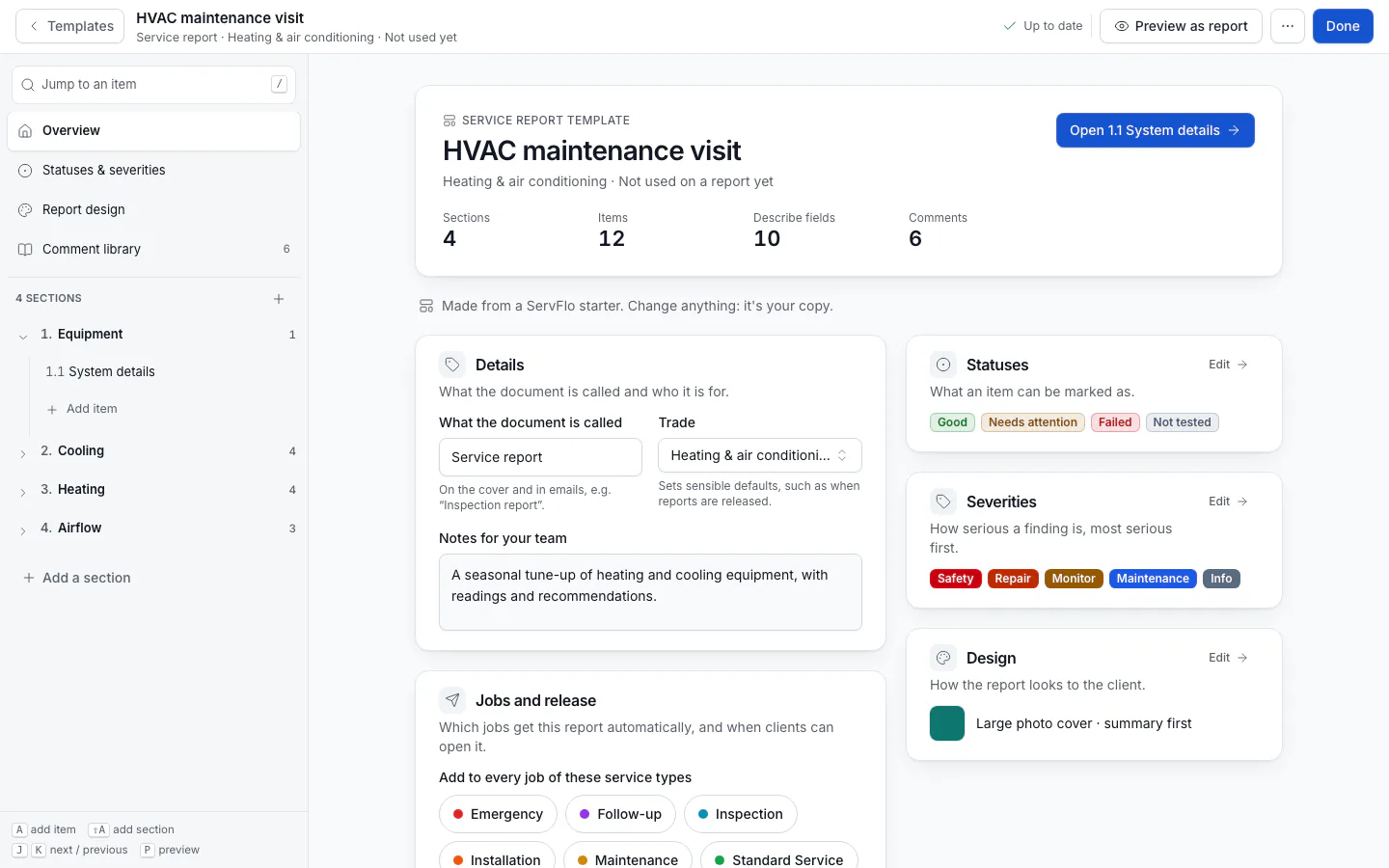
The outline on the left lists Overview, Statuses & severities, Report design and Comment library, then every section and its items. Each item shows its number, a mark when it has required describe fields, and its comment count. Type in Jump to an item (or press /) to find one fast.
The Overview has a Start here checklist with three steps (Sections and items, Describe fields and comments, Design), each ticked when done. It also shows:
- Details: What the document is called (printed on the cover and in emails), the Trade (sets sensible defaults, such as when reports are released) and Notes for your team.
- Jobs and release: Add to every job of these service types, and in words When clients can open it. See Add a report to a job and Release rules.
Add sections and items
Add a section
Click Add a section in the outline. Type a name for A blank section, or pick from or start from a common extra (detached garage, outbuilding, well, septic, pool and spa, lawn sprinklers, solar panels, radon, sewer scope), which comes with its items, describe fields and comments ready.
Add items
Click + next to a section (Add an item to the section) and type an item name, for example "Water heater". Press Enter to add it and keep going with the next one.
Reorder
Drag a section or item by its grip. Drop an item on another section to move it there. From the keyboard, focus a grip and press Alt+↑ or Alt+↓.
Right-click a section or item (or use its ⋯ menu) to Rename, Duplicate, Move to another section, or Delete. A delete waits a few seconds behind an Undo button.
Open a section to write What this section covers: a sentence or two your inspector sees at the top of the section.
Set up an item
Click an item. Its page has four parts:
- What to check: shown to the inspector while writing and printed under the item's name in the report. Say what is looked at, for example "The main panel, its cover, breakers and the service disconnect."
- Statuses: which of the template's statuses this item can use. With none picked, every status can be used. See Statuses and severities.
- Describe fields: the facts recorded for this item (below).
- Comment library for this item: the ready-made findings the inspector picks here, in this order. See Comment library.
Add describe fields
Describe fields are facts your standards ask inspectors to record, such as the roof covering, the panel's rating or the water heater's capacity. The answers print in the item's Description block, before any defects.
Add a field
Under Describe fields, click Add field (or Add the first field).
Fill it in
Give it a Label (for example "Panel brand") and an Answer type: Pick one, Pick any, Text or Number. For a choice, add the Choices (press Enter after each, or paste a comma-separated list); the inspector can also type "Other". For a number, add the Unit (amps, years, gal). Add a Hint if it helps.
Decide if it's required
Turn on Required before publishing for facts that must be filled in. The publish checklist stops on an inspected item with a required field left empty.
Save
Click Save field. Drag fields to reorder them.
Preview and finish
Click Preview as report (or press P) to see a sample report built from the template alone: sample answers and the first comments of your library, as a client would read them. Nothing is saved. Click Done when you're finished.
The More template actions menu also has Duplicate template, Archive, Delete template, Create from a standards document, and Copy the starter's new version when a newer starter exists.
Changes to a template only affect reports added after the change. Reports already on jobs keep their own copy.
Keyboard shortcuts
| Key | Does |
|---|---|
| J / K | Next / previous item |
| A | Add an item to the current section |
| Shift+A | Add a section |
| / | Jump to an item |
| C | New comment on the item |
| P | Preview as report |