
Comment library
Keep ready-made findings with their severity, three-part wording and repair cost, so your team adds them to a report in one tap.
The comment library holds the findings your team reports again and again, such as "Double-tapped breaker" or "Dirty air filter". Each comment is suggested on the items it's tagged to, and can be found by searching from any item. Inspectors can still change the words on a report.
Each comment prints in the client's report in three labeled parts: what was seen, why it matters, and what to do (with who should fix it).
Add a comment to an item
Open the item
In the template editor, click the item in the outline. Its Comment library for this item lists the comments the inspector is offered, in this order.
Write it, or draft it with AI
Click New comment and fill in the comment, or use Draft a comment with AI: type a few words (for example "rust and water staining inside the panel") and click Draft. AI writes the three parts, a severity and who should fix it, and opens the comment for you to review. It uses 1 AI credit.
Fill in the details
- Name: a short title, for example "Dirty air filter".
- What the report says: What we saw, Why it matters and What to do.
- Who should fix it: printed with What to do, for example "Licensed electrician".
- Severity: how serious it is, or Informational (no severity).
- Default location, Limitation and Show in the summary.
- More options: older single-paragraph text, an answer for the technician to give (One choice, Several, Number with a unit, or No answer), an Estimated repair cost range, a linked Pricebook item, and Suggested for these items.
The comment sheet has its own Draft with AI box too.
Save
Click Add comment (or Save comment when editing).
Drag comments by their grips (or Alt+↑/↓) to put the most common first: the writer suggests them in this order.
Mark a comment as a Limitation when it says what couldn't be checked (for example "Not accessible") rather than a problem found. Limitations are listed apart from defects in the report.
Manage the whole library
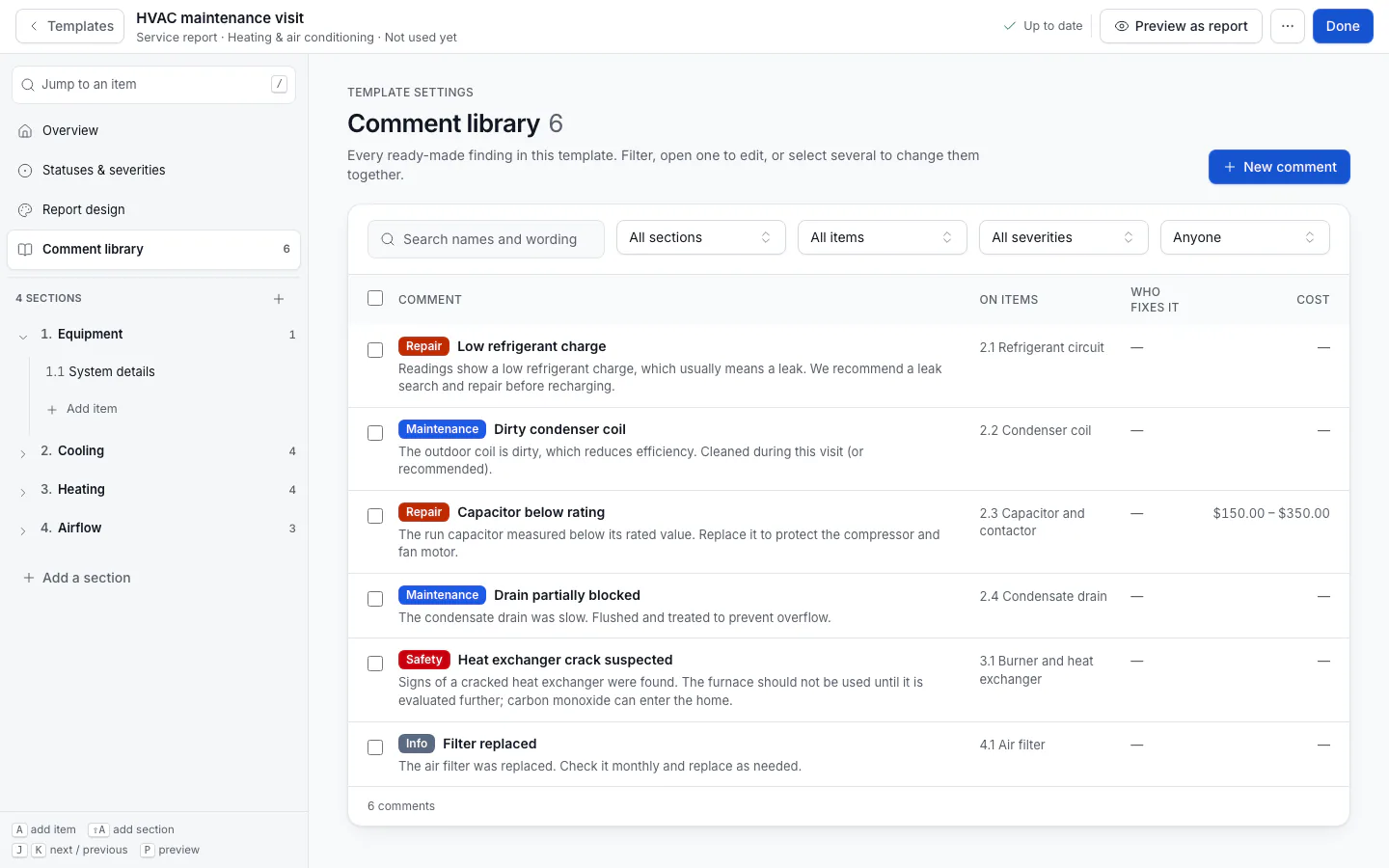
Click Comment library in the outline to see every comment in the template. Search names and wording, and filter by Section, Item, Severity and Who should fix it. Select several rows to Set severity, put them In summary or Not in summary, or Delete them.
Save a finding from a report
When an inspector writes a new defect on a report, Save to library adds it to the template's library for that item, so it's there next time. Only owners and admins can save to the library.
Cost estimates show to clients only when the template's design has Show cost estimates turned on.