
Photos and markup
Add photos to items and defects, choose the cover, file photos taken on the phone, and draw arrows and circles on them in the colour of each defect's severity.
Photos show the client exactly what you found. In the report writer each item has its own Photos (overview shots of the item), and each defect has its own photos showing the problem. Photos are the job's photos, so anything taken on the job can be used.
Add photos
- To an item: open the item and, under Photos, drop photos or click to add them.
- To a defect: on the defect, Drop or add photos. A defect without a photo shows Add a photo before publishing as a reminder (it doesn't block publishing).
Type a caption under any photo (Add a caption). Hover over a photo (or tap it on a touch screen) for Mark up, Cover (makes it the report's cover photo) and Remove photo. Click a photo to see it full size.
Draw on a photo
Open the drawing tools
Hover over a photo and click Mark up. Draw on the photo opens.
Draw
Pick a Drawing tool: Arrow, Circle, Rectangle, Freehand or Text, and a Colour. Drag on the photo to draw. For text, type it, then click where it goes.
The colours are your report's severities, by name: Safety, Repair, Monitor, Maintenance, Info (or whatever your template calls them, in its colours). The drawing starts in the defect's own severity, so a Repair defect gets Repair-coloured arrows; pick another to point at something else on the same photo. White and Black are there too, for text that has to stand out on a dark or light photo.
Save
Click Save drawing. Undo removes the last mark; Clear all starts again.
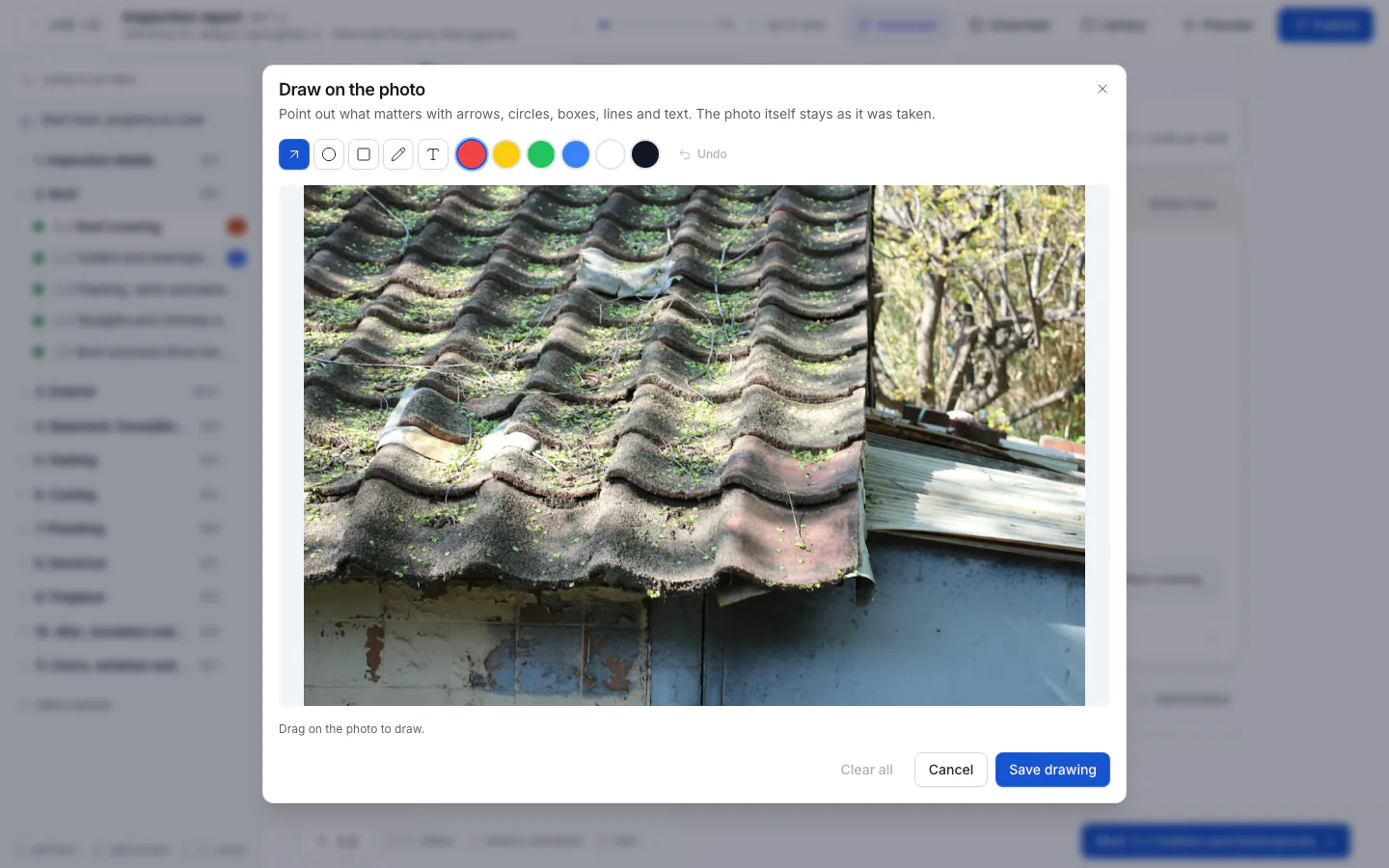
The drawing shows on the photo everywhere: in the writer, on the client's page and in the PDF. The original photo is never changed, so you can always edit or clear the drawing. Photos marked up show Marked up, with a dot for each severity drawn.
What the colours mean to your client
Under a marked-up photo, the client's page, the full-size view and the PDF show a small key of the severities you drew in, for example ● Safety ● Repair. Only the severities used on that photo are listed; white and black marks aren't.
- Renaming a severity changes the key on drafts. A published version keeps the names it was published with.
- Changing a severity's colour in the template doesn't recolour photos already drawn: they keep the colour they were drawn in, and so does their key.
- Removing a severity from the template leaves its marks on the photo, but it's no longer listed in the key.
See Statuses and severities to rename or recolour them.
File photos taken on the phone
Technicians often snap photos before choosing an item. Those land in Unsorted in the writer's side panel. They're not in the report until you file them:
- drag a photo onto a defect or onto an item's Photos, or
- click File to… and choose Item photos, As a new defect here, or Another item….
The publish checklist reminds you about unsorted photos.
Videos
Short video clips taken in the mobile app can go on defects too. The client plays them on the report page; the PDF shows a note to watch the clip in the online report.