
Inspection assistant
Talk, type or send photos as you walk the property; the assistant files your notes into the report as proposals you accept.
The inspection assistant lets you keep your eyes on the property instead of the screen. Say or type what you see ("Furnace is gas, filter is dirty, flue has rust at the joint") and it works out which items that belongs to: the status, describe answers, defects from your comment library, limitations and notes. It then asks about what's still missing.
Nothing changes until you accept a proposal.
Open the assistant
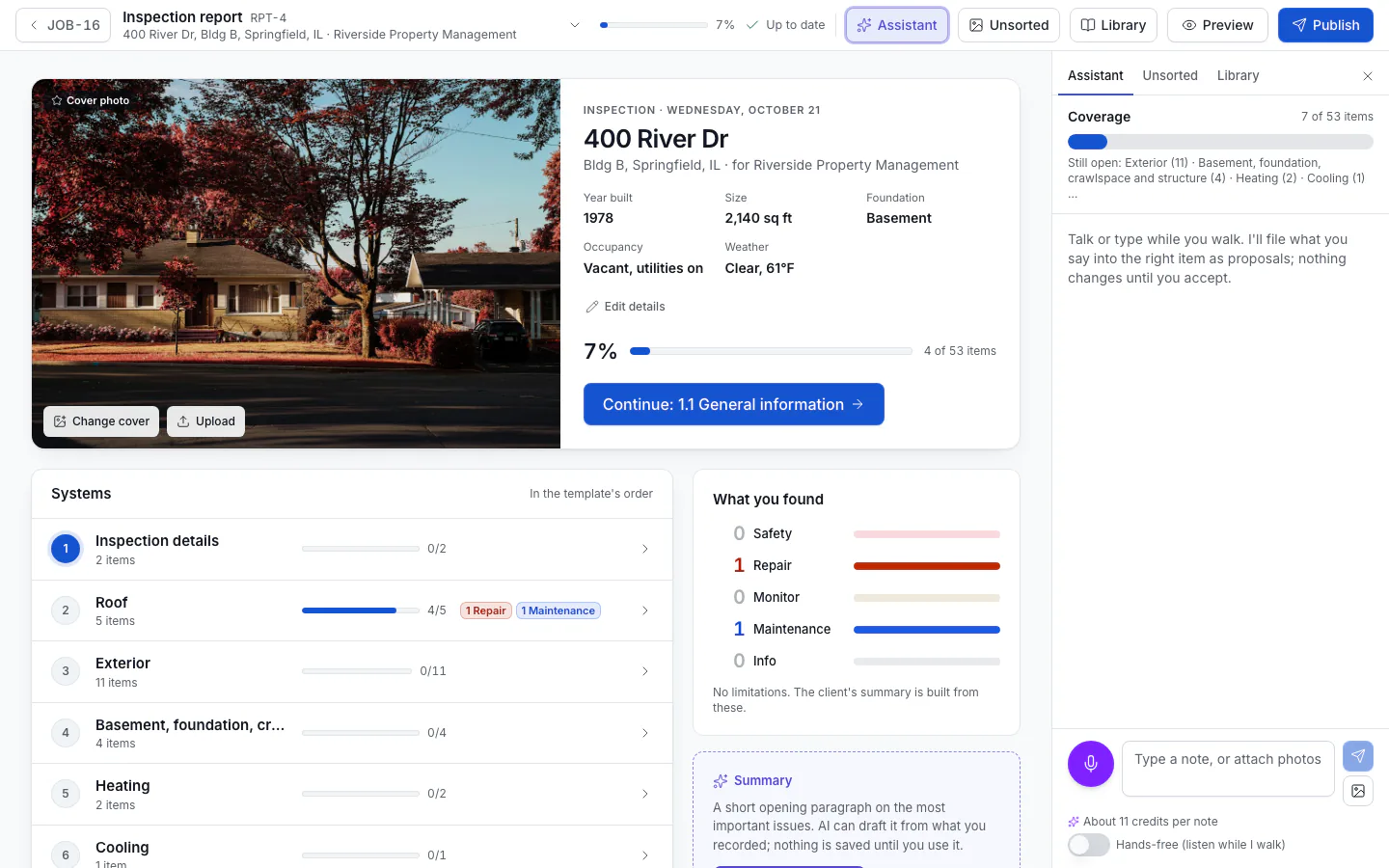
In the report writer, click Assistant in the top bar. The side panel opens with the conversation and a Coverage meter (items with a status, and the sections Still open). In the mobile app, tap the mic in the report's header.
Send a note
- Type in Type a note, or attach photos and click Send.
- Talk: click Push to talk (or hold Space), speak, then stop. Where your browser can't record, use your keyboard's dictation.
- Hands-free: turn on Hands-free (listen while I walk) and the assistant keeps listening and sends each phrase. This is on the web only.
- Photos: click Attach photos to send up to six job photos with the note. The assistant can use them as evidence for a defect.
The composer shows about how many AI credits a note uses. Your audio isn't kept, only the words.
Review the proposals
Each proposal shows the item it's for and what would change, with the old value struck through: Status, describe answers, Defect, Limitation, Note, or Add section.
- Accept applies it to the report.
- Edit in item opens the item so you can correct it there.
- Reject throws it away; Not now leaves it for later.
- Accept all applies every pending proposal, oldest first. If one can't be applied (for example its item was removed), the assistant tells you.
For a new section, owners and admins can also tick Also add to my template.
Defects you accept are marked AI-assisted in the client's report. To undo an accepted proposal, edit the item as usual.
When the assistant asks back
When the checklist still has gaps (an item without a status, a required fact, a reason why something wasn't inspected), the assistant asks about the nearest one and offers quick replies. Tap one to answer, or type your own.
The assistant only uses what you said, typed or showed it, and only the statuses, severities, choices and comments in this report. If it isn't sure where something goes, it asks or puts it under general observations for you to move.
Offline in the mobile app
With no signal, your notes and photos are saved on the phone and turned into proposals when you're back online. The screen shows how many are waiting.