
Add a report to a job
Add a report in one step from the job, attach one automatically to every job of a service type, or add several reports to one job.
A report lives on a job. When it's added, the template's sections, items and settings are copied onto the job, ready to fill in. After that the report is its own copy: later template changes don't reach it.
Add a report from the job
Technicians can add reports to their own jobs; the office can add them to any job.
Open the job
Open the job and find its report strip near the top. With no report yet it says No report on this job yet.
Click Add report
The Add a report to the job dialog lists Your templates and Starter templates, with the best fit marked Recommended for this job (from your trade and the job's service type).
Name what it covers
What this report covers is filled in for you (for example "Inspection report"). Change it when it helps, such as "Main house" or "WDO". The client sees it on the report and the PDF.
Add it
Click Add report. The report writer opens on it.
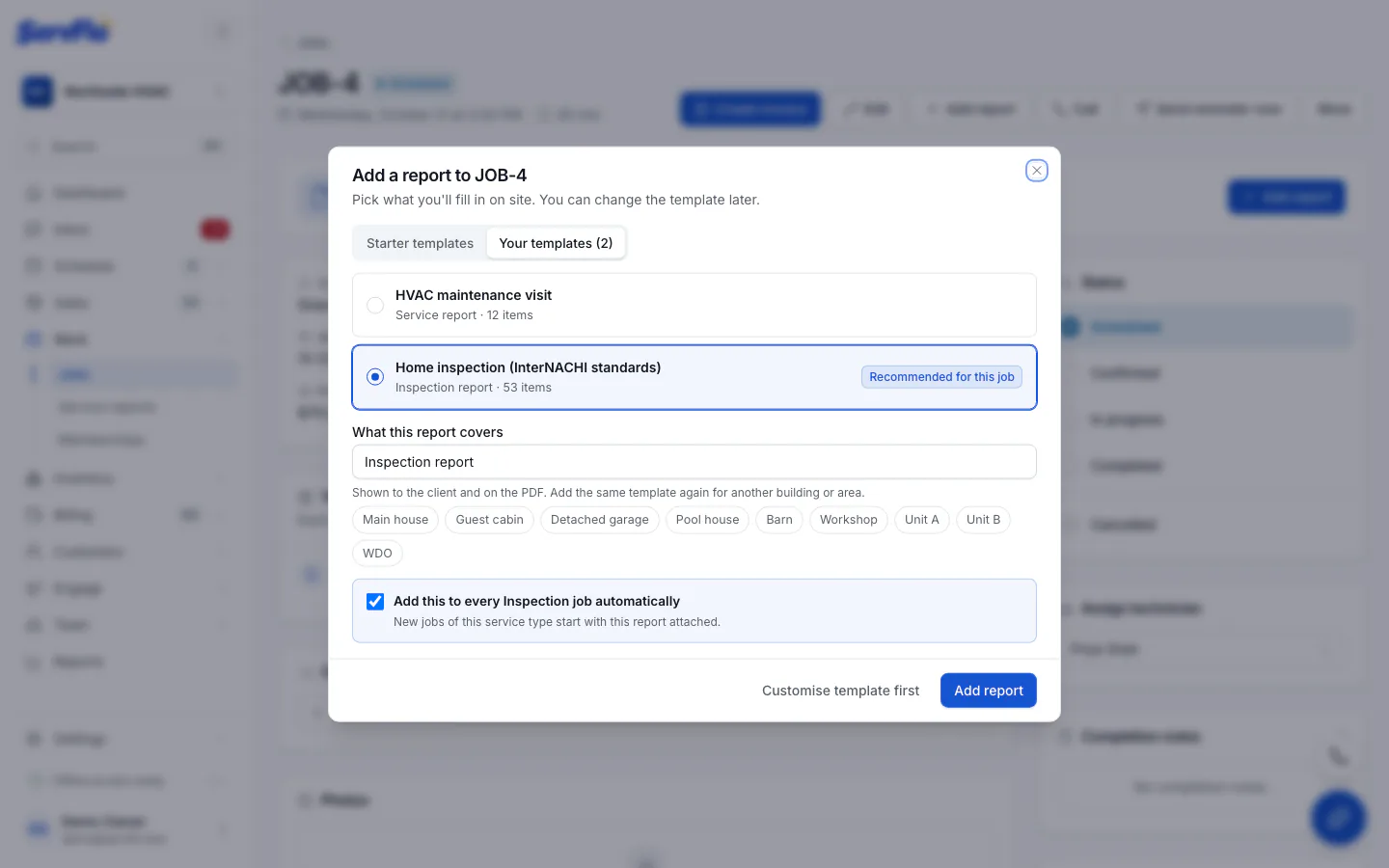
Picking a starter copies it into your templates first, so you can edit it later; only owners and admins can do that. Customise template first opens the template in the editor instead of adding the report.
Add a report to every job of a service type
So that you never forget the report, link a template to service types. New jobs of those types, and jobs changed to one of them, get the report automatically.
- In the Add report dialog, tick Add this to every service type job automatically, or
- In the template editor's Overview, under Jobs and release, choose the service types in Add to every job of these service types.
Only owners and admins can link templates to service types. A template already on the job (added automatically or by hand) is never added a second time.
Several reports on one job
A job can hold as many reports as you need, including several from the same template. For example, one inspection for the Main house and another for the Guest cabin, plus a WDO report.
Add another
On the job's report strip, click Add another report.
Pick the template and name it
Choose the template (it can be one already on the job) and type a different name in What this report covers. The suggestions help. If a report from that template already has that name, ServFlo opens that one instead.
With several reports, the strip lists each one with its name, template, status, progress, severity counts and whether the client can open it, each with Preview and Continue report. In the writer, the report's name in the top bar switches between the job's reports, and Rename… changes what it covers.
Each report has its own cover, facts, summary and release. When several reports on a job are released within a few minutes of each other, the client gets one email and one text listing them all.
Find every report
Service reports in the left menu (under Work) lists every report on every job. Filter by Drafts, Waiting to release or Released and click a report to open it.