
Publish a report
Check the publish checklist, preview the report as the client, publish it, and publish changes as a new version.
Publishing freezes the report into a version your client can read online, makes the PDF, and sends the client their link. Owners, admins and dispatchers can publish. Technicians submit reports for the office to review and publish.
Publish
Open Review & publish
In the report writer, click Publish in the top bar (or Review & publish on the overview).
Work through the checklist
Before you publish lists what's left, each with a Fix link that takes you there:
- Needs attention: items with no status, required facts missing, and items that need a reason they weren't inspected.
- Worth a look: defects that don't say what to do, unsorted photos, defects with no photo, and no cover photo. These don't stop you publishing.
It also reminds you when there's No opening summary.
Preview it
Under See it the way the client will, click Preview as client (or Preview as agent to see what agents get).
Check when the client can open it
When the client can open it shows your release rule in words, and whether the job is paid and the agreement is signed. If the rule would hold the report, the client still gets the link and the page shows them what's needed. To let them in now anyway, click Let them open it now.
Publish
Click Publish report. If anything still Needs attention, ServFlo asks Publish with n open items?: click Go back and fix, or Publish anyway (items with no status print without one, and missing facts print blank).
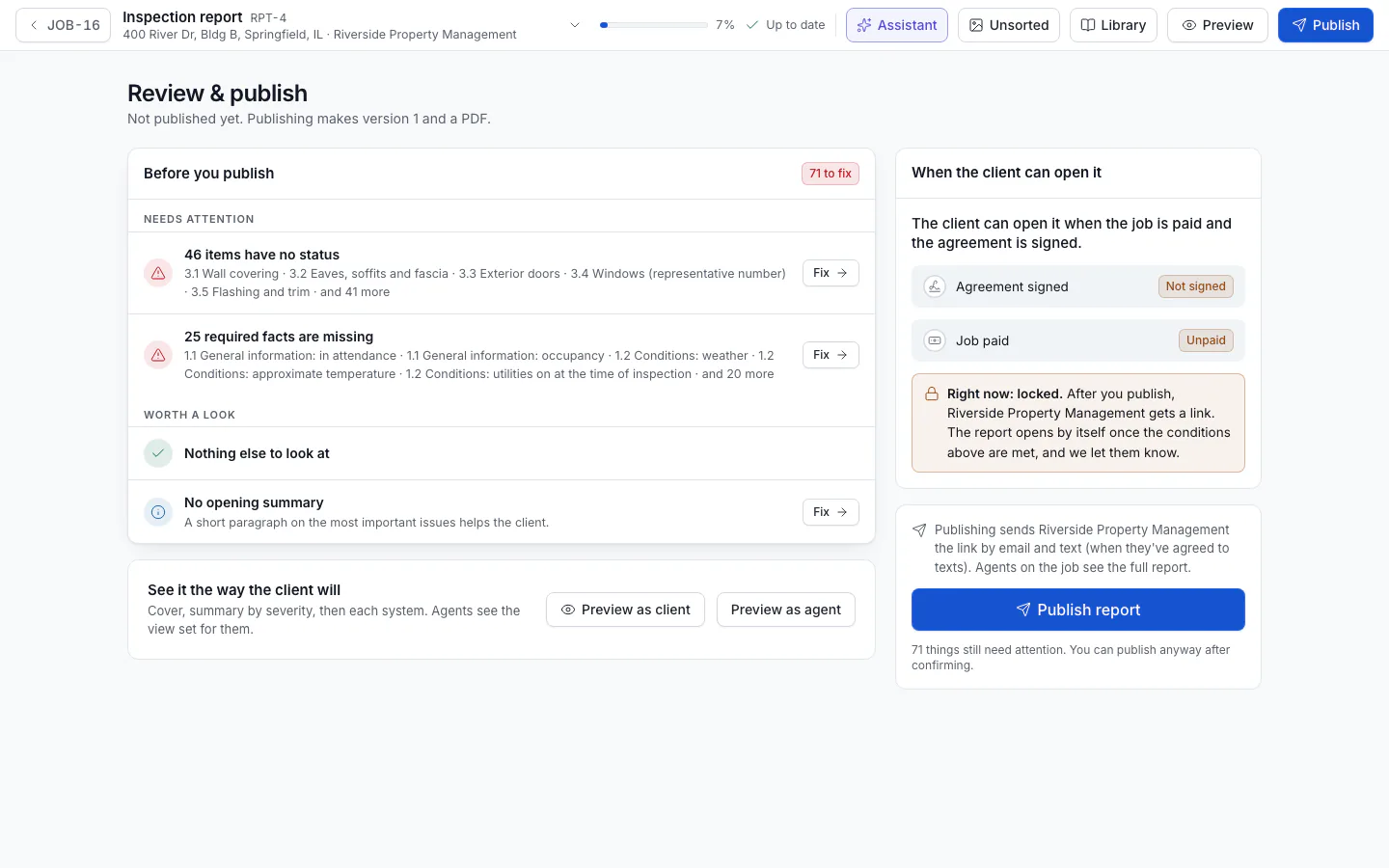
Publishing sends the client the report link by email, and by text when they've agreed to texts. If the report is waiting for payment or a signature, the link opens a page that says what's still needed.
After publishing, Open the client's page shows exactly what they see.
Submit for review (technicians)
Technicians see Submit for review instead of Publish. The report shows Submitted for review to the office, who checks it, makes any changes and publishes.
Publish changes
You can keep editing after publishing. The writer and the job show Changes not published until you publish again with Publish changes. Each publish makes a new version and PDF; if nothing changed, no new version is made. Earlier versions stay on the job under Versions, each with its PDF.
If the PDF is still being made
The PDF is made a moment after publishing (the job shows PDF in progress). If it fails, use Make the PDF again from the report's More actions on the job.