
Report design
Set your brand color, cover, summary, contents, cost estimates, introduction, disclaimer and footer, and preview the report.
The design decides how reports from a template look to your client, on screen and in the PDF. Changes save as you go and show in the live miniature.
Change the design
In the template editor, click Report design in the outline.
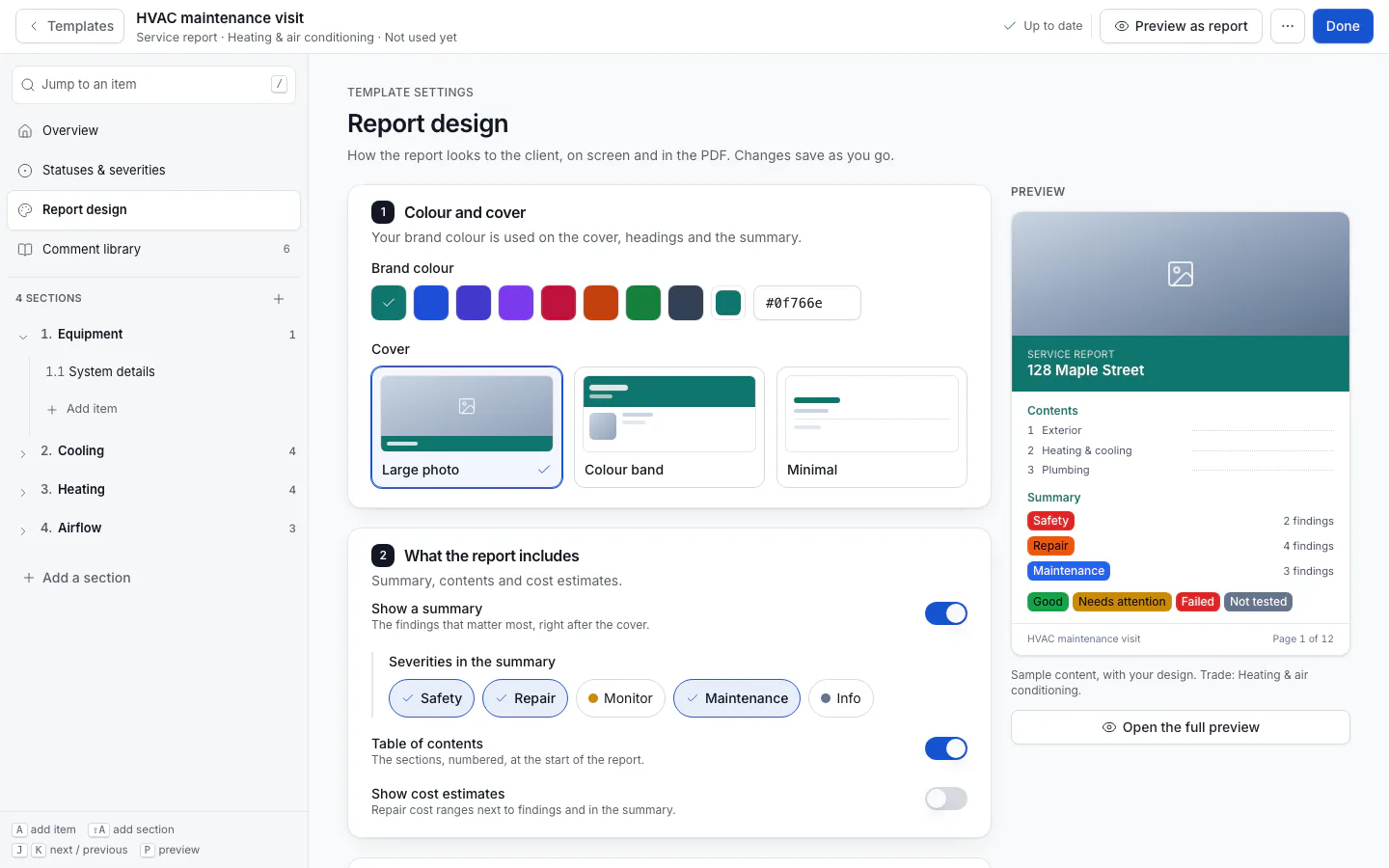
Colour and cover
- Brand colour: used on the cover, headings and the summary. Pick one of the suggestions or Pick any colour.
- Cover: Large photo, Colour band or Minimal. The cover photo is chosen on each report.
What the report includes
- Show a summary: the findings that matter most, right after the cover. Choose the Severities in the summary.
- Table of contents: the sections, numbered, at the start of the report.
- Show cost estimates: repair cost ranges next to findings and in the summary.
Wording
- Introduction: a short welcome or how to read the report.
- Disclaimer and standards: limitations, standards of practice, or wording your state requires. The InterNACHI starter comes with a summary of the standards' scope and exclusions here.
- Footer: printed at the bottom of every page, for example your license number.
Preview it
Click Open the full preview (or Preview as report in the top bar) to see a sample report made from the template: sample answers and the first comments from your library, as a client would read them. Nothing is saved.
The client sees "AI-assisted" next to any wording your team accepted from AI. See AI writing help.
Related
Comment library
Keep ready-made findings with their severity, three-part wording and repair cost, so your team adds them to a report in one tap.
Create a template from a standards document
Upload your state standards, InterNACHI, a TREC form or your own checklist, and AI drafts a template you review line by line.