
Work a job
Open a job on your phone, see why you're there, and move it from On my way to Complete job.
Each job opens with everything you need at the door: the customer, the address, the time, access notes and what the customer asked for. The next step is always at the bottom of the screen.
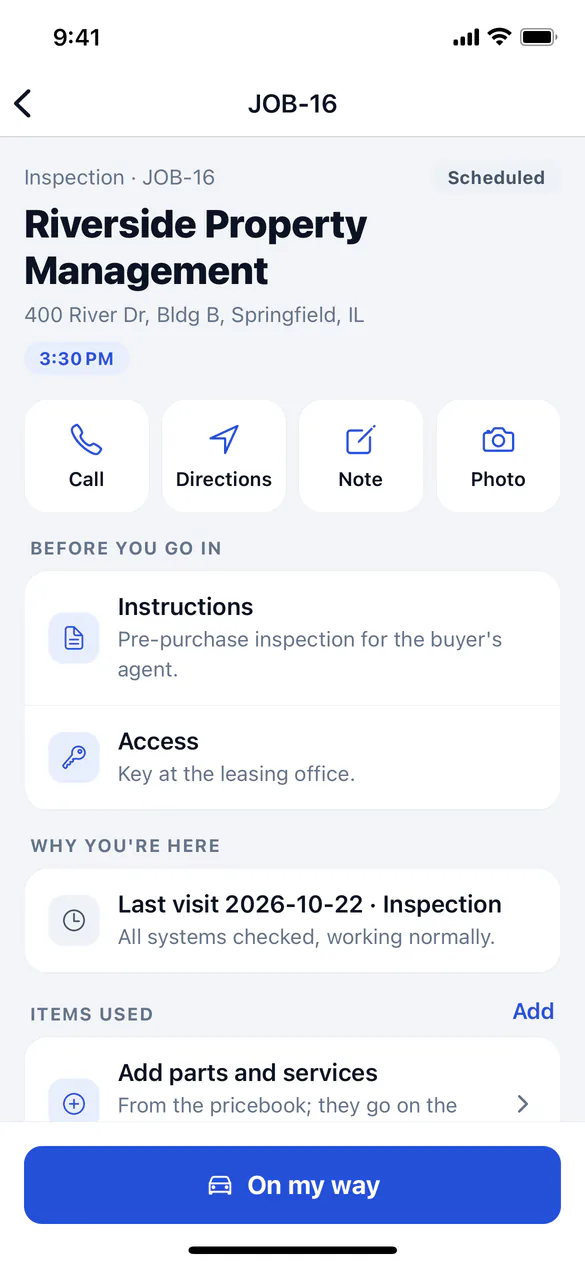
What's on a job
- Call, Directions, Note and Photo shortcuts at the top. Call lets you pick any of the customer's contacts. Directions lets you pick Google Maps, Apple Maps or Waze.
- Safety, when your business uses visit safety and the property has an advisory. It's for your team only; never share it with the customer.
- Weather, on outdoor jobs when your business uses weather-aware scheduling: the forecast for the visit and the next few days. You can't move the visit from the phone; call the office.
- Before you go in: Instructions, Gate code, Access and Pets on site.
- Why you're here: what The customer asked in their own words, what was sold on the quote the job came from, the last visits at the address and the equipment there.
- Checklist, Items used with the Bill so far, Photos, Equipment, Contacts, Forms and Notes.
- Job details and This visit: your business's own fields for the job. Tap Edit to fill them in. Required fields are marked, but you can save without them.
- Reports, when the job has a service report. See Service reports on the phone.
- Wrap-up: customer sign-off, quotes, messages to the office, parts, leads, memberships and expenses.
Move the job along
Tap On my way
When you leave for the job, tap On my way. Travel time starts on your timesheet, and the office sees you're on the way. If your business sends on-my-way texts, the customer gets one.
Tap I've arrived
At the address, tap I've arrived. Travel time stops.
Tap Start job
When you start work, tap Start job. The job shows In progress and job time starts.
Tap Complete job
When you're done, tap Complete job. Write What was done (work done, findings, recommendations), check the Before you finish list, then tap Complete job.
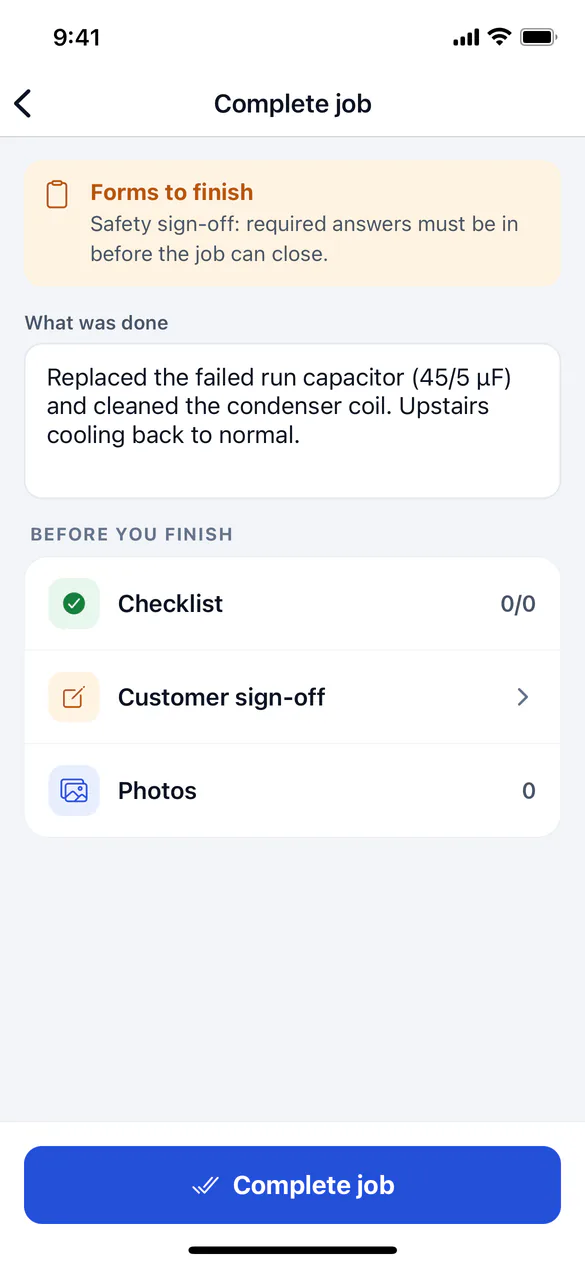
If a checklist item isn't ticked or the customer hasn't signed, the app asks Complete anyway?. Tap Go back to finish them, or Complete to close the job as it is. Required forms are different: their required answers must be in before the job can close.
All of these steps work without signal. The app records the time you tapped, so your travel and job time are right even if the phone syncs an hour later.
Leave a note for the office
Tap Note at the top of the job. Type a note or tap one of the Quick notes (such as Customer not home or Parts on order), then tap Save note. Notes go to the office with the job.
Message the office
Under Wrap-up, tap Message the office to open this job's conversation with the crew and the office. Chat needs signal; without it, leave a note instead.
Recommend work
Saw something the customer should fix or upgrade? Under Wrap-up, tap Recommend work, describe it, pick How soon (Now, Soon or Later) and tap Send to the office. The office follows up, and you can track it under More → My leads.