
Add items and record equipment
Add parts and services from the pricebook to a job, and record the equipment you work on with its serial number and details.
Add what you used to the job so it's billed correctly, and record the equipment you serviced so the next technician knows what's there.
Add parts and services
Open Items used
On the job, scroll to Items used and tap Add parts and services.
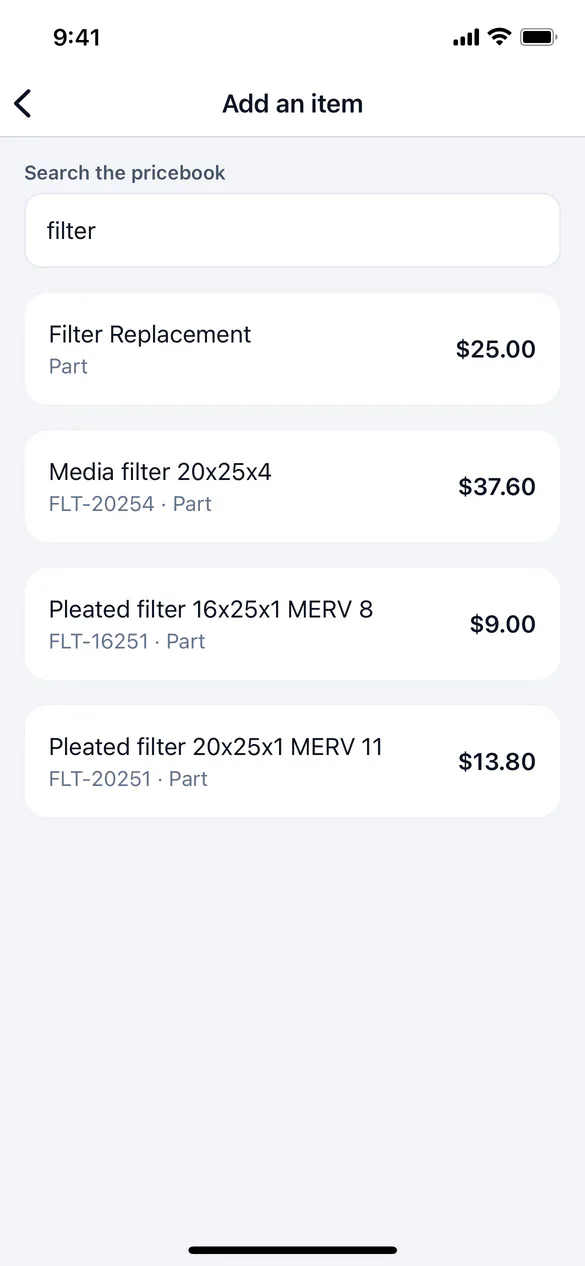
Add it
Set the quantity and tap Add to the job.
Items are charged at the pricebook's price. The job shows the Bill so far before tax. To take an item off, tap it and confirm Remove item.
The pricebook is saved on your phone at your first sync with signal. If the app says there's no pricebook on the phone yet, sync with signal first.
Record equipment
On the Pro plan, you can record the equipment on a job: a furnace, a water heater, a pool pump, or whatever your business calls it.
Open Equipment
On the job, scroll to Equipment. Tap a unit already on file to update it, or add a new one.
Fill in the details
Choose a Type, then fill in what it asks for, such as Serial number, Make, Model and Install date, plus any fields your business added for that type. For a new unit, choose who it Belongs to: This property or The customer (for equipment that moves with the customer).
Save
Tap Save. It's saved on the phone and sent when there's signal.
Status, warranty, and changing a unit's type or owner stay with the office. On plans without equipment tracking, add serial numbers as a note instead.