
Track your time
Clock in and out, take breaks, log non-job time and see your week's hours in ServFlo Tech.
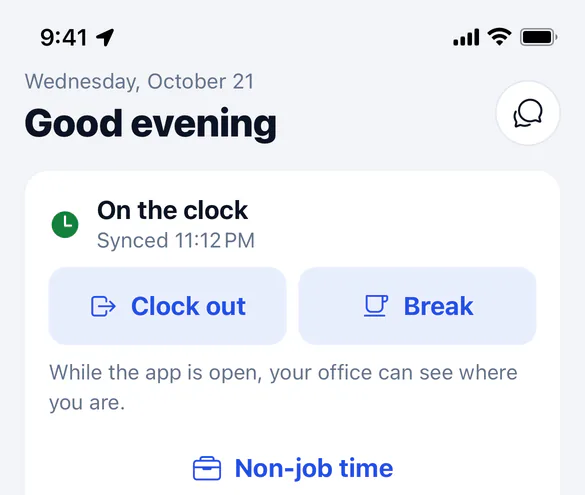
Your shift clock is at the top of My day. Travel and job time are recorded for you as you tap On my way, Start job and Complete job, so all you clock is the shift itself.
Clock in and out
Take a break
Tap Break when you stop, and End break when you're back.
Clock out
At the end of the day, tap Clock out. Clocking out also stops any break, travel, job or non-job time still running.
Clocking in and out works offline. The app records the time you tapped, not the time it synced.
While the app is open and you're on the clock, your office can see where you are on the team map.
Log non-job time
For paid time that isn't on a job, tap Non-job time under the clock and choose what you're doing: At the shop, Supply house, Meeting, Training, Vehicle (fuel, service), Paperwork or Other. Tap End (with the activity's name) when you're done. Taking a break, heading to a job or clocking out also ends it.
See your hours
The Timesheet tab shows This week: your total and each day's hours, with the week's status (open, submitted, approved or rejected). It needs signal.
To submit your week for approval, open ServFlo in a browser, go to Timesheets and click Submit week.