
Service reports on the phone
Fill in inspection, service and test reports on your phone, one item at a time, with photos, defects, Snap a finding and AI help.
When a job has a service report (an inspection, a service report or a test report), you fill it in on the phone as you walk the site. Reports work offline: every change is saved on the phone and sent when there's signal.
Without service reports on your plan, you can still read a report on the phone, but not fill it in.
Open a report
On the job, scroll to Reports and tap the report. Each report shows how many items are done and how many findings it has.
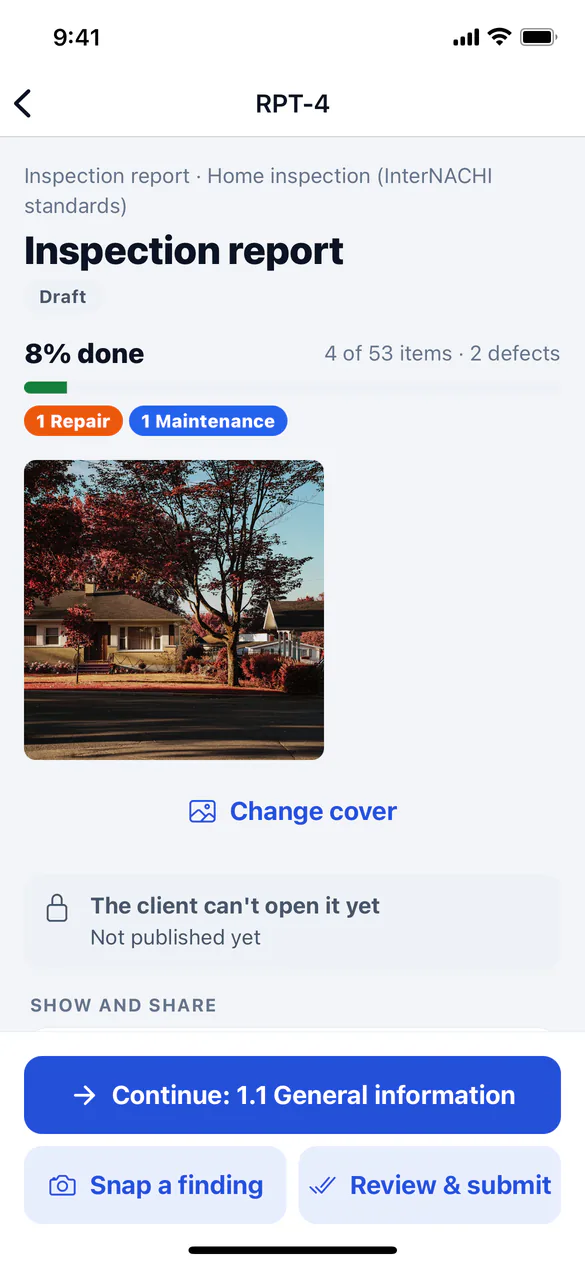
The report's overview shows:
- a pill when you're offline or changes are waiting to sync;
- the Cover photo (tap Take a cover photo);
- how much is done, and defects by severity;
- Continue with the next item to fill in (or Start the report);
- the Systems (sections) in order, with how many items are done;
- Add a section and Review & publish (or Review & submit).
Add a report to a job
Reports usually attach themselves to the job from its service type. To add one, tap Add a report under Reports, pick a template, say What this report covers (for example Main house or Guest cabin) and tap Add report. Adding a report needs signal.
Fill in an item
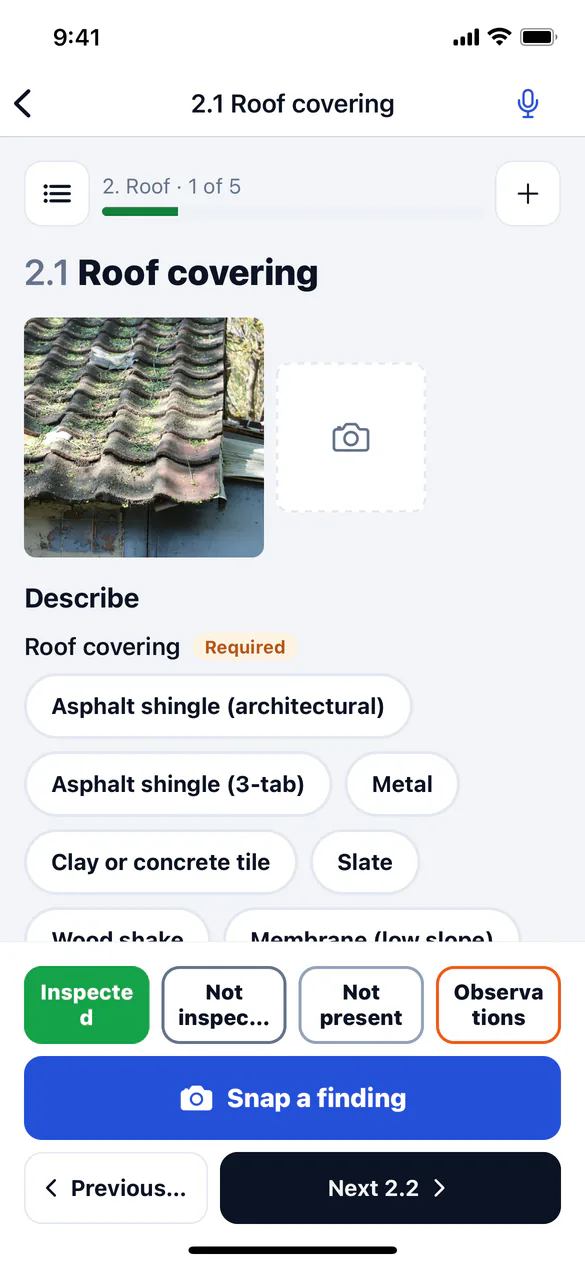
Each item gets its own screen. The section and your position (for example "Electrical · 2 of 5") are at the top; tap Outline to jump to any item.
Pick a status
Tap one of the status buttons at the bottom. If the status needs a reason (for example "not inspected"), pick one under Why couldn't you inspect it?. It prints as a limitation.
Describe it
Under Describe, answer the item's fields (brand, size, age and so on). Fields marked Required are Needed before you publish.
Add photos and defects
Tap Take a photo of this item. To record a problem, tap Add a defect to pick one from your comment library, or Write it for me for AI help. Add any Notes.
Go to the next item
Tap Next at the bottom. At the end of a section it takes you to the next one; at the end of the report, to Review & publish.
Write up a defect
A finding has a severity, a name, a location and three parts: What we saw, Why it matters and What to do, plus the Recommended trade. You can also add an answer, Flag for follow-up, mark it a Limitation (couldn't fully inspect), and give an Estimated cost.
- Photos and video: tap Photo, Library or Video (a clip up to a minute). Tap Draw to add arrows, circles, boxes, freehand lines or text. The photo itself isn't changed.
- From the library: search your comment library. Every word must match; the item's own comments come first. A tap adds the finding with its wording, severity and cost range.
- Rewrite: have AI rewrite your wording Clearer, For the homeowner or Shorter. Tap Use this or Keep original.
Snap a finding
Photo first, words later. Tap Snap a finding: the camera opens, and the photo is saved at once under Unsorted photos. With signal, ServFlo looks at the photo and suggests the item, the wording and a severity, with how sure it is (Likely, Possible or Unsure).
Check the suggestion, change anything, and tap File it to move it to the item. Or tap Leave it unsorted and come back later. Without signal, the photo waits under Unsorted photos; open it there for suggestions when you're back online.
AI only suggests. Nothing is filed until you tap File it, and unsorted photos aren't published.
Write it for me
Tap Write it for me on an item, type or dictate a few words (tap the microphone on your keyboard), and pick up to three photos of the item. ServFlo drafts the finding: name, severity, the three parts and a trade. Edit it and tap Accept. Findings written with AI are marked AI-assisted. This needs signal and uses AI credits.
Inspection assistant
Tap the microphone at the top of an item to open the Inspection assistant. Talk (with keyboard dictation) or type notes as you walk, and add photos. The assistant turns your notes into proposals (a status, a defect, a limitation, a new section) that you Accept or Reject. Nothing changes until you accept. Offline, your notes are saved and turned into proposals when you're back online.
Add what the template doesn't have
Tap + on an item to add a Photo, a Defect not in the library, an Item in this section, a Section (such as a detached garage, well or pool) or a Describe field. If you manage report templates, switch on Also add to my template or Save to my comment library to keep it for next time.
Review and publish
Open Review & publish
From the overview, tap Review & publish (technicians see Review & submit). The checklist lists what Needs attention, what's Worth a look and what's Nice to have. Tap Fix to go straight to the item.
Submit or publish
Technicians tap Submit for review: the office reviews it and publishes it. If you can publish, tap Publish. With open items, the app asks Publish with open items?: tap Go back and fix or Publish anyway.
Without signal, the submission or publication waits on the phone and goes when you're back online. The client gets the report by your business's release rule (at once, when paid, or when the agreement is signed).