
Truck stock, parts and expenses
See what's on your truck, ask the office for parts, and log expenses with a photo of the receipt.
These live under More → Work in ServFlo Tech, and on each job under Wrap-up.
See your truck's stock
Open More and tap Truck. You see the items on your truck, with Low next to anything running short. The truck's stock is saved on the phone, so it opens offline. The office sets up truck stock in ServFlo; until then the app says No truck yet.
Ask for parts
Asking for parts works on every plan.
Start a request
For a job, open the job and tap Request parts under Wrap-up. To restock, open More → Truck and tap Restock my truck (what's low is filled in) or Ask for parts.
Add the parts
Search the pricebook, or type what you need and add it as typed. Use the minus and plus buttons to change quantities. Add a Note for the office, such as when you need them and where you'll be.
Send it
Tap Send to the office. The office orders the parts or sets them aside.
Your requests show under Parts I asked for on the Truck screen, as Asked, On order, Ready or Done. You get a notification when they're ready.
Log an expense
For parts or fuel you paid for yourself:
Open Log an expense
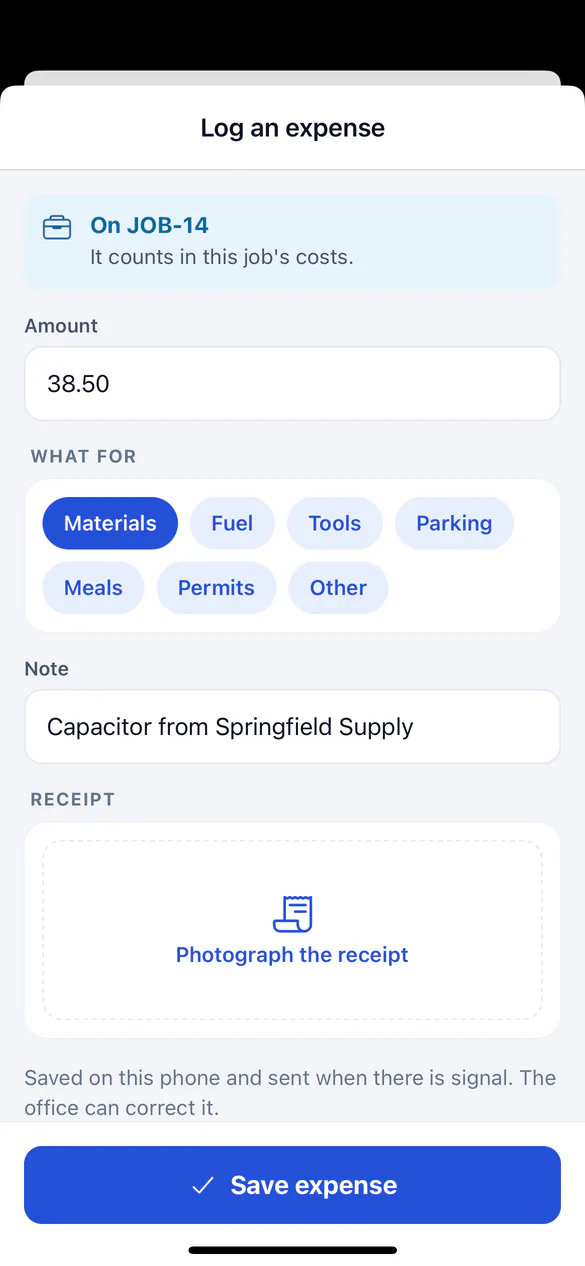
On a job, tap Log an expense under Wrap-up (it then counts in that job's costs). Or open More → My expenses and tap Log an expense.
Fill it in
Enter the Amount, choose What for (such as Materials, Fuel or Tools) and add a Note.
Save
Tap Save expense. It's saved on the phone and sent when there's signal. The office can correct it.
Your leads
Leads you send with Recommend work on a job show under More → My leads, with where each one stands: New, Visit booked, Quoted, Sold or Closed. See Work a job.