
Checklists and forms
Tick off a job's checklist and fill in its forms on your phone, with photos and signatures, even offline.
The office attaches checklists and forms to jobs (for example a safety checklist or a start-up form). You fill them in on the job, with or without signal.
Tick the checklist
Open the job and scroll to Checklist. Tap an item to tick it. If you complete the job with unticked items, the app warns you first.
Fill in a form
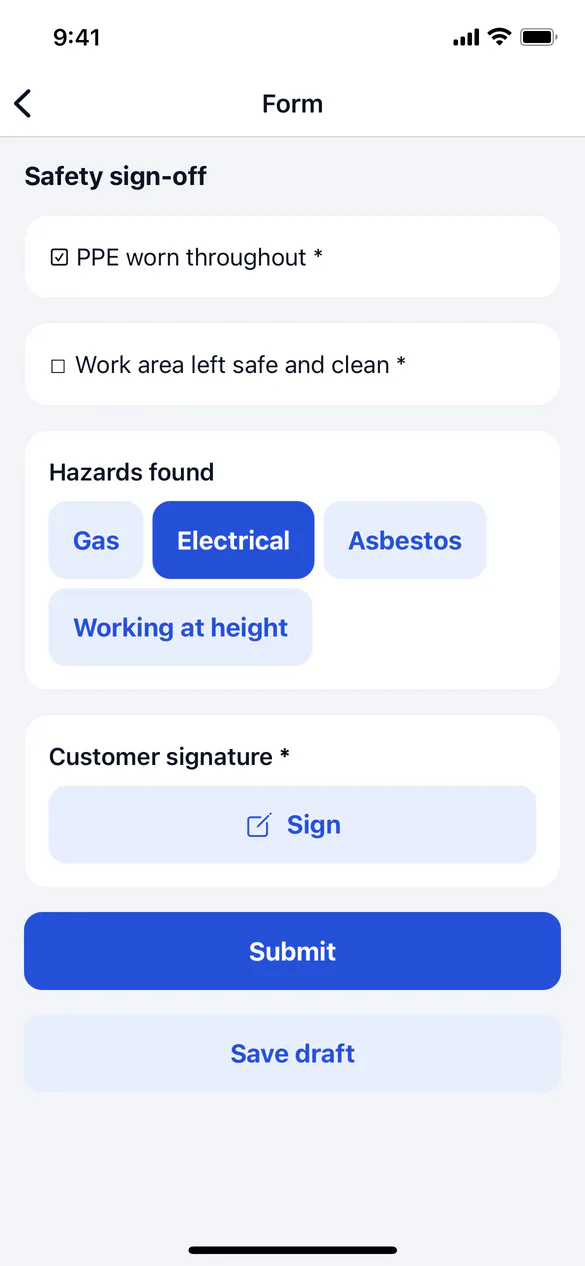
Answer the questions
Fields marked Required must be answered before you submit. For a photo question, tap Take photo (long-press a photo to remove it). For a signature question, tap Sign and hand the phone over.
Save or submit
Tap Save draft to finish later, or Submit when it's complete. If anything required is missing, the app lists what's Still to answer.
A required form must be submitted before you can complete the job. Photos in a form upload with the job's photos when you have signal; the form is sent once they're up.