
Get the app and sign in
Invite a technician, install ServFlo Tech on their phone, sign in and choose the business they work for.
ServFlo Tech runs on iPhone, iPad and Android phones. Technicians are free on every plan: they don't use one of your office user seats.
Before you start: invite the technician
A technician signs in with their own ServFlo account, linked to their technician record. The office sets this up once.
Open Technicians
In the left menu, click Team, then Technicians. Add the technician if they aren't there yet, with their email address.
Send the invitation
Click Invite to ServFlo on their row. ServFlo emails them a link to create their account.
They accept
The technician opens the email and creates their account. The first time they sign in, ServFlo links them to their technician record, and their jobs appear in the app.
A technician only sees the jobs they're on the crew of, and the customers and properties of those jobs.
Install the app
The app is called ServFlo Tech.
- iPhone and iPad: install it from the App Store, or search for "ServFlo Tech".
- Android: install it from Google Play, or search for "ServFlo Tech" in the Play Store.
Sign in
Enter your account details
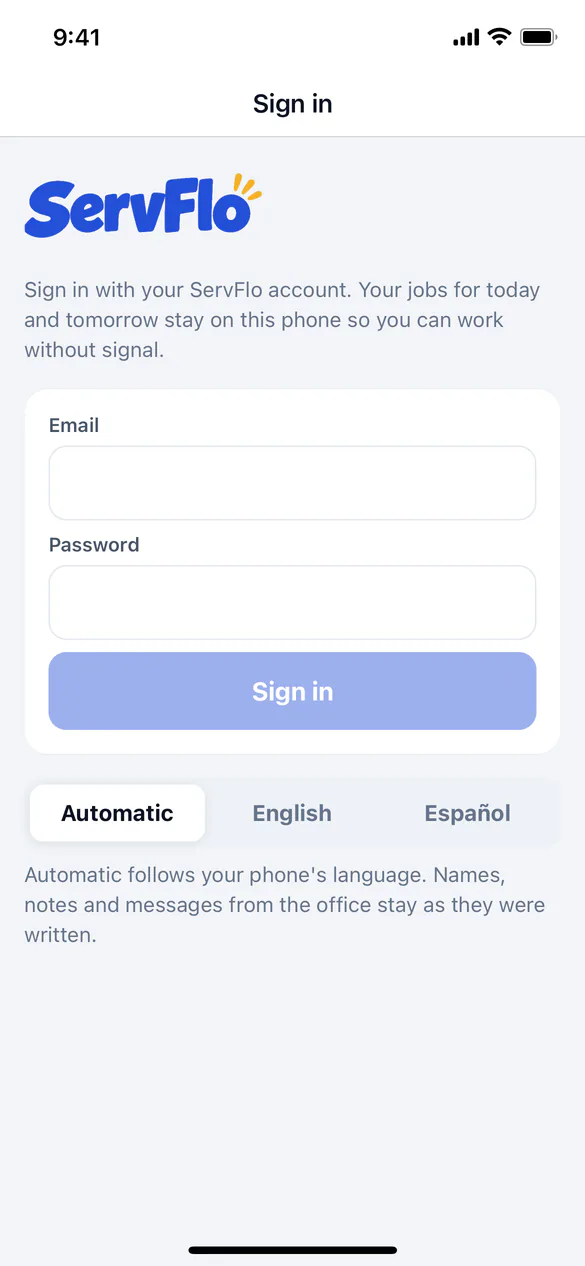
Open ServFlo Tech, enter the Email and Password of your ServFlo account and tap Sign in. If your account uses two-step verification, enter the Verification code and tap Verify.
You may also see other ways to sign in, such as Continue with Google, Continue with Apple or Sign in with a passkey. Use the same one you use on the web app. A Continue with … button opens a secure sign-in sheet from your phone; finish there and you come straight back to the app. These buttons appear only for the ways your business's ServFlo account offers. See Ways to sign in.
Choose the business
If you work for more than one business, tap Work for this business under the one you're working for now. You can switch later from More.
Wait for the first sync
The app fetches your jobs for today and tomorrow. You need signal for this first sync; after that, you can work offline.
Allow notifications
After the first sync, the app asks to send notifications. Allow them to hear about new, moved, reassigned and cancelled jobs within seconds.
You can pick the app's language on the sign-in screen. See Use the app in Spanish.
Signed in on two devices
Each ServFlo account can be signed in on two devices at once, such as your phone and a laptop. Signing in on a third device signs out the oldest one. If that happens, the app says you were signed out and asks you to sign in again.
Switch business
Open More, then tap Switch business under Account. Send anything waiting first: the app asks you to before switching.
Lock the app with Face ID or a fingerprint
Open More and, under Security, turn on Unlock with Face ID or your fingerprint. The app then asks to unlock when it opens and after 5 minutes away. Your phone's passcode works too.
Sign out
Open More and tap Sign out. Signing out deletes the business's data from the phone.
If anything is still waiting to send, the app warns you. Signing out anyway deletes that work from the phone and it never reaches ServFlo. Get signal and let it sync first.