
Photos and signatures
Take tagged before and after photos and short videos, draw on them, and get the customer's sign-off on your phone.
Photos and the customer's signature are part of the job record the office and the customer see. Take them with or without signal; they upload when the phone is back online.
Take a photo or video
Tap Photo
On the job, tap Photo at the top. Choose what it is: Before photo, After photo, Problem found or Other photo. For a noise, a leak or a unit running, choose Video clip (up to a minute).
Take the picture
The camera opens. Take the photo.
Mark it up (optional)
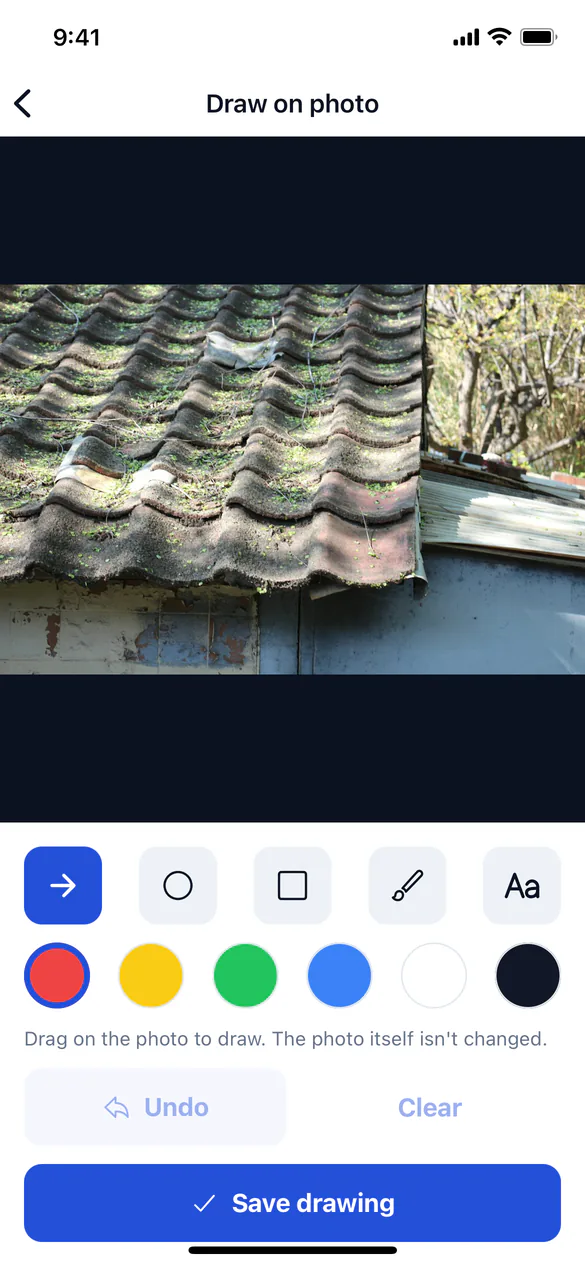
On Mark up photo, draw on the photo to point something out. Pick a pen colour and tap Undo to take back a line. Tap Save photo to keep your drawing in the photo, or Use photo to keep it as it is.
Photos show under Photos on the job. Photos waiting to upload are marked Waiting.
If the camera doesn't open, allow ServFlo Tech to use the camera (and the microphone, for videos) in your phone's Settings.
Get the customer's sign-off
Open Customer sign-off
On the job, under Wrap-up, tap Customer sign-off.
Hand over the phone
The customer sees what they're signing for and the total before tax. They type their name in Name of the person signing and sign in the box. Clear starts the signature again.
Save
Tap Save signature. The job shows Signed by and the customer's name. Tap it again to sign again.