
Inbox, texts and calls
Read and answer customer texts and emails, take and make calls on your line, and chat with your team from ServFlo Tech.
ServFlo Tech keeps your conversations with customers and your team in one place. These screens are live, so they need signal.
Your Inbox
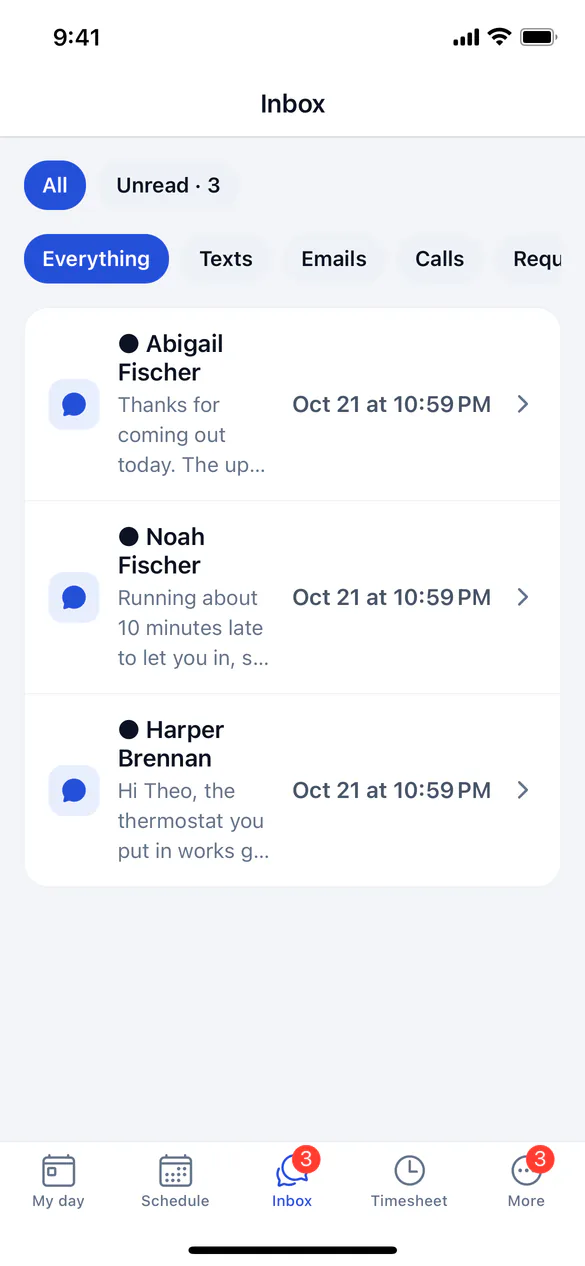
The Inbox tab shows the conversations on your own line: texts and emails to your number and address, missed calls and voicemails, and customers you've texted. The tab shows a red count for unread ones.
- Switch between All and Unread.
- Filter by kind: Texts, Emails, Calls, Requests, Reviews or Chats (or Everything).
Answer a customer
Open the conversation
Tap a conversation. Texts show in order, with emails, calls, requests and reviews as cards between them.
Choose how to reply
Choose Text or Email under the reply box.
Send
Type your answer and tap Send.
Texts follow your business's quiet hours: a first text sent late waits until morning, and the app says when it will go.
Your line
Open More and tap My line to see Your number, Your ServFlo email address and Your mobile. Turn on Ring my mobile for calls to my line to have your own mobile ring when you don't answer in the app or browser. Add your mobile first.
Calls in the app
With the phone system, calls to your line (and to ring groups you're in) can ring ServFlo Tech, with your phone's own call screen. Tap Call on a customer to call them from your ServFlo line. During a call you can Mute, use the Keypad, turn on Speaker, put the call on Hold and End it. An incoming call shows Answer and Decline.
In-app calling needs a recent version of ServFlo Tech. On an older version, Call opens your phone's dialer instead.
Team chat and notifications
- More → Team chat: message someone on the team. On a job, Message the office opens that job's conversation.
- More → Notifications: everything ServFlo told you about, with Mark all as read.