
Collect payment on site
Take payment at the end of a job with a QR code, on your phone, or by cash or check, with or without signal.
When your business lets technicians collect payment, you can invoice your own job when the work is done and get paid before you leave.
An owner or admin turns this on in Settings → Team members, under Technicians on site: Technicians can collect payment. Technicians can't give refunds or change invoices. Card and bank payments need online payments set up.
Collect payment shows at the bottom of the job once it's In progress or completed.
With signal: card or bank
Tap Collect payment
On the job, tap Collect payment. If the job has no invoice yet, tap Create the invoice.
Let the customer pay
Under Card or bank, the screen shows the amount due and a QR code. The customer scans it with their phone camera and pays by card, bank, or over time when you offer financing. Or tap Customer pays on this device to let them pay on your phone.
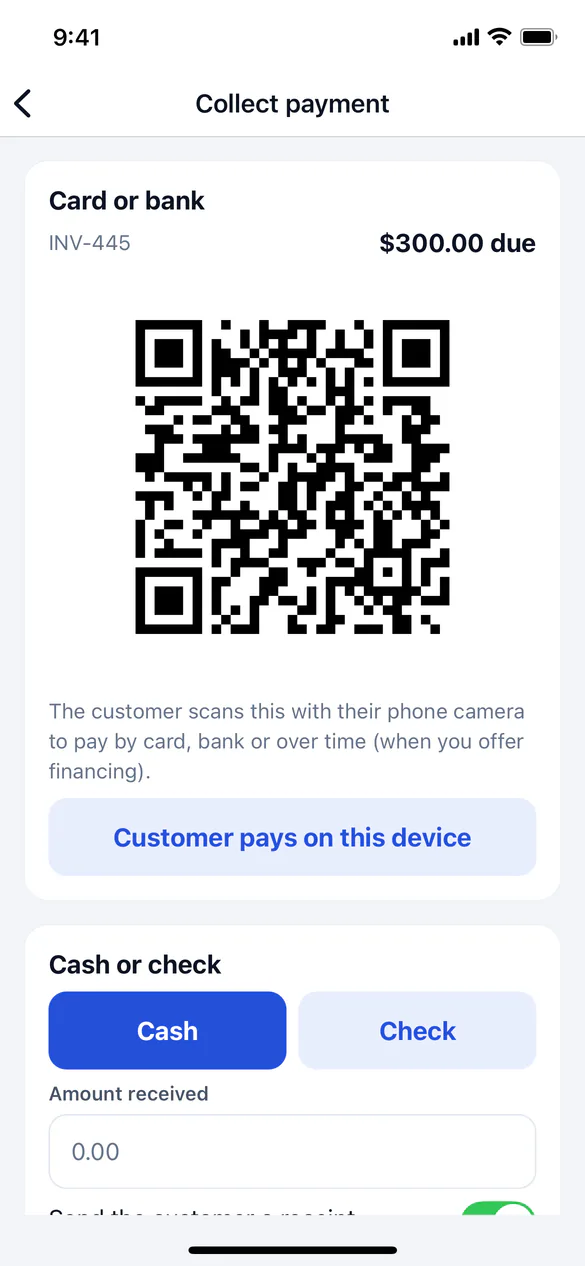
When the invoice is paid, the screen says Paid in full. Thank you!
Without signal: pay later
Cards need signal. When you have none, the screen shows No signal: pay later with the job's pay-later QR code. The customer scans it now and pays once they're online; it opens this job's invoice when it's ready.
Tap Also text or email them the link to send them the payment link as soon as your phone is back online.
If the job has no pay-later code yet, sync once with signal. Codes are saved on the phone with the job.
Cash or check
Choose Cash or Check
On Collect payment, under Cash or check, choose Cash or Check.
Enter the amount
Enter the Amount received. For a check, add the Check number.
Record it
Leave Send the customer a receipt on to email or text them your receipt, or turn it off to record the payment without messaging them. Tap Record payment.
Cash and checks work offline too. The payment is recorded on the phone and sent when you're back online, and it's never recorded twice even if the connection drops mid-send.