
Your reports on the phone
Find every report you're working on in one place, start an inspection from the job you're at, and put the job's photos in a report.
Reports lists every inspection, service or test report you're working on, outside the job. Open one to keep going, see what's waiting for the office, and find what was published lately.
Where to find Reports
- If your business works with reports, Reports is a tab at the bottom. That's the case for home and commercial inspection businesses, when a report template starts by itself for a service type, or when your team started five or more reports in the last 30 days. Reports then takes the place of Truck (for technicians) or Customers (for the office); those move to More.
- Everyone else finds Reports under More → Work.
Without service reports on your plan there's no Reports tab. Owners and admins of a business that works with reports still find Reports under More to read past reports.
What's on the screen
Each report shows the customer, the report (its name, such as Inspection report or Guest cabin, and its number), the address and the day.
| Group | What's in it |
|---|---|
| In progress | Reports still being written, newest change first, with how many items are done (for example 23 of 40 items) and photos still to sort. |
| Ready to publish | For people who publish: reports sent for review, and finished ones (every item done, nothing to sort). Open one and tap Review & publish. |
| Sent to the office | For technicians: reports you sent for review. The office checks and publishes them; you can still make changes. |
| Recently published | Published in the last 30 days, with whether the client can open it yet. Tap one to see the report as the client does, with its PDF. |
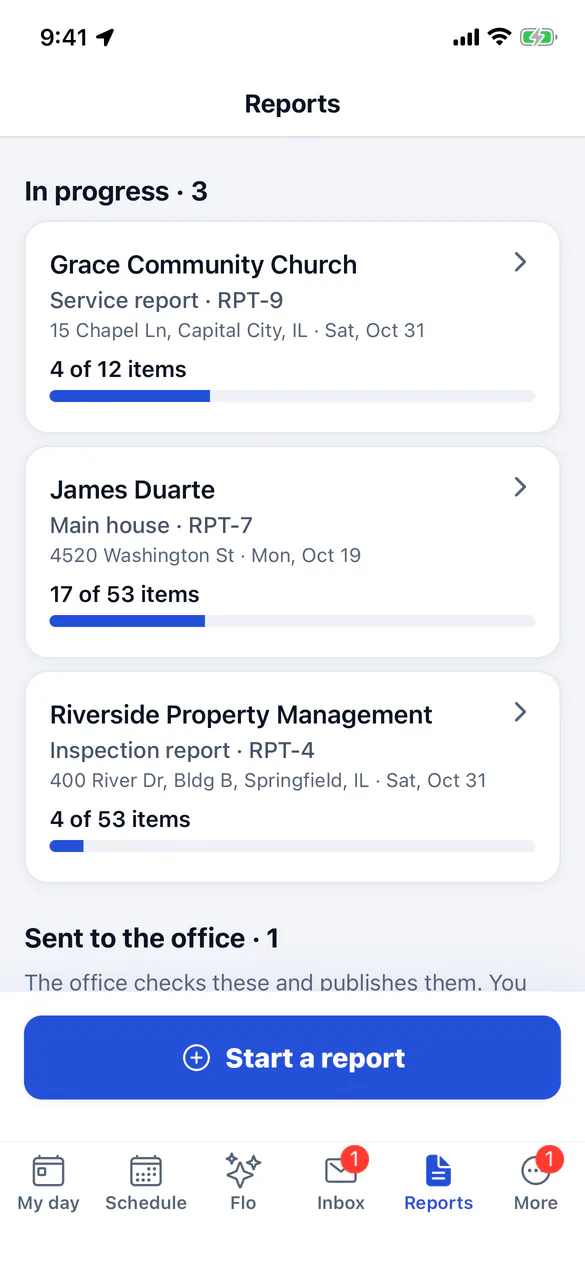
Tap a report to open it. Pull down to refresh.
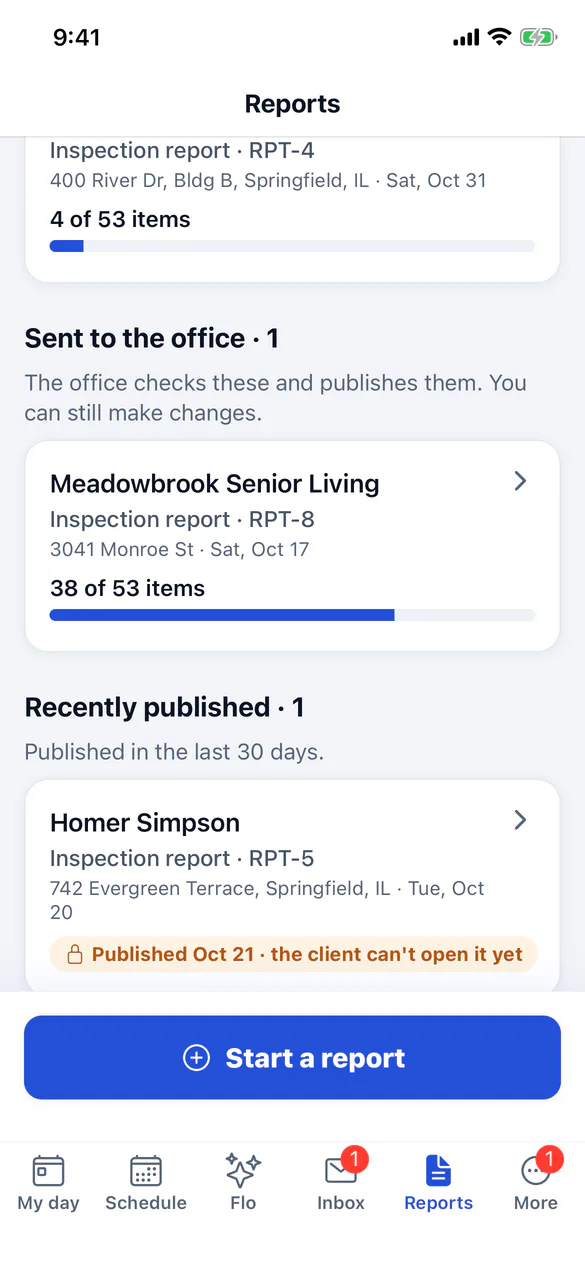
Start an inspection
Tap Start a report
Tap Start a report at the bottom (inspection businesses see Start an inspection).
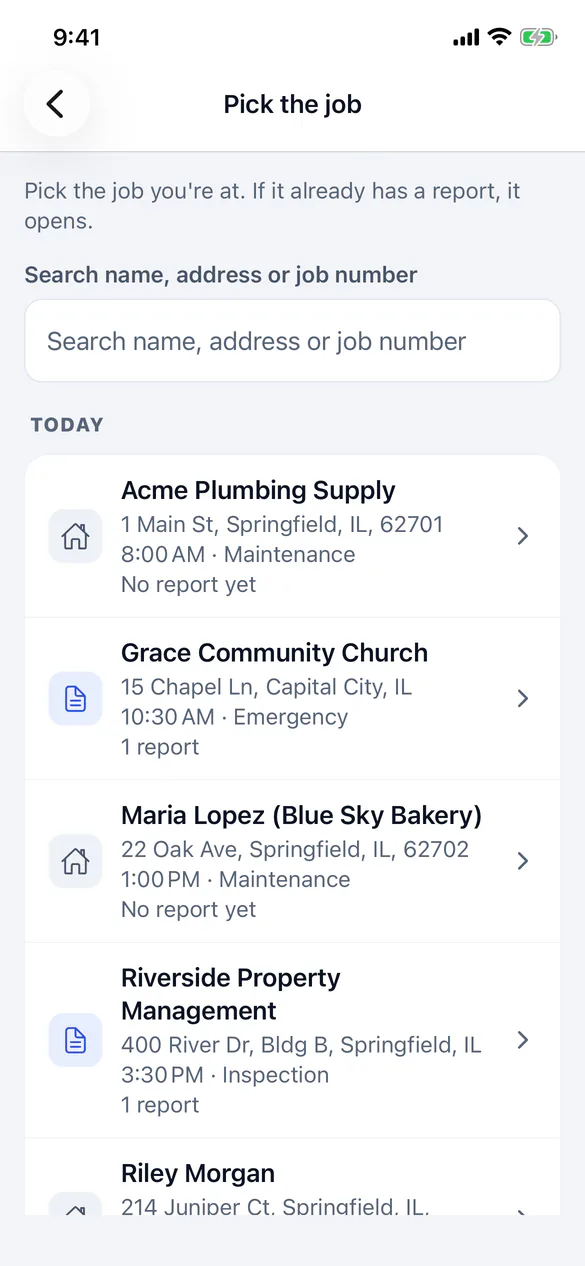
Pick the job
Today's and tomorrow's jobs are listed first. With signal, the next two weeks are too, and you can search by name, address or job number.
Fill it in
If the job already has a report being written (reports usually start by themselves from the job's service type), it opens. With no report yet, pick a template, as in Add a report to a job. If the job has several reports, pick one or tap Add another report.
Without signal
Your reports for today's and tomorrow's jobs, and reports you're still writing on your own jobs from the last 30 days, are on the phone: they open and save with no signal, and changes are sent when you're back online. Other reports show what the app last saw, marked Needs signal to open. Starting a new report needs signal.
Put the job's photos in a report
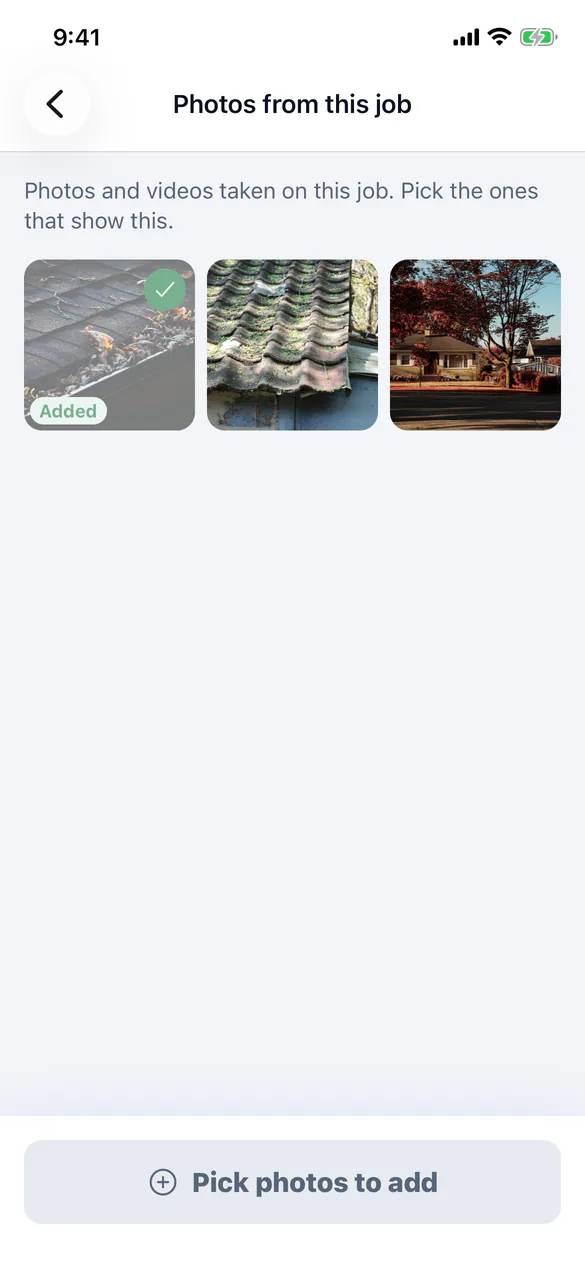
Took photos with the job's Photo button before you started the report? On a finding, tap From this job to see the job's photos and videos. Tap the ones that show the problem, then the Add button at the bottom (for example Add 2 photos). The photos aren't uploaded again, and you can draw on them like any other photo. Photos already in the finding are marked Added; photos not sent yet are marked Not sent yet and still work offline. Photos already sent to ServFlo need signal to show here.
My day
When a stop has a report being written, Next stop shows it, for example Inspection report · 12 of 40.