
Personal lines
Give team members their own number and email address, so customers' texts, calls and emails to them reach them directly.
By default everyone texts and calls from the business's numbers. With personal lines, you can give a technician or office member a number of their own, and everyone gets a personal ServFlo email address. Owners and admins set up lines; each person manages their own mobile and mailbox under Settings → My line.
How lines work
- Texts and calls out go from the person's own number when they have one, otherwise from the business's number.
- Texts and calls to their number belong to them: only they are alerted, calls ring only them (browser, app, then their mobile), and voicemail is theirs. Calls to a personal number skip your phone menu and the AI receptionist.
- On the business number, a customer's reply goes to the person who last texted them from their line in the past 14 days, otherwise to the whole office.
- The office sees everything. Owners, admins and dispatchers see every line's items in the Inbox, each marked "on Jane's line", and can switch the Inbox between Everyone and Mine.
- Technicians see only their own line in the Inbox.
Give someone a line (owners and admins)
A number of their own needs the Phone system add-on. Moving someone back to the business numbers works on any plan.
Go to Settings → Phone and find Team lines.
Click the person.
Under Their line, choose Business numbers or A number of their own.
For their own number, choose under Their number: Buy a new number (search by area code and click one), Use a business number (from Business numbers nobody has), or keep the one they have.
Optionally enter Their mobile and turn on Ring their mobile too.
Optionally set Their ServFlo email name (for example, jane).
Click Save. If you're buying a number, confirm the monthly price.
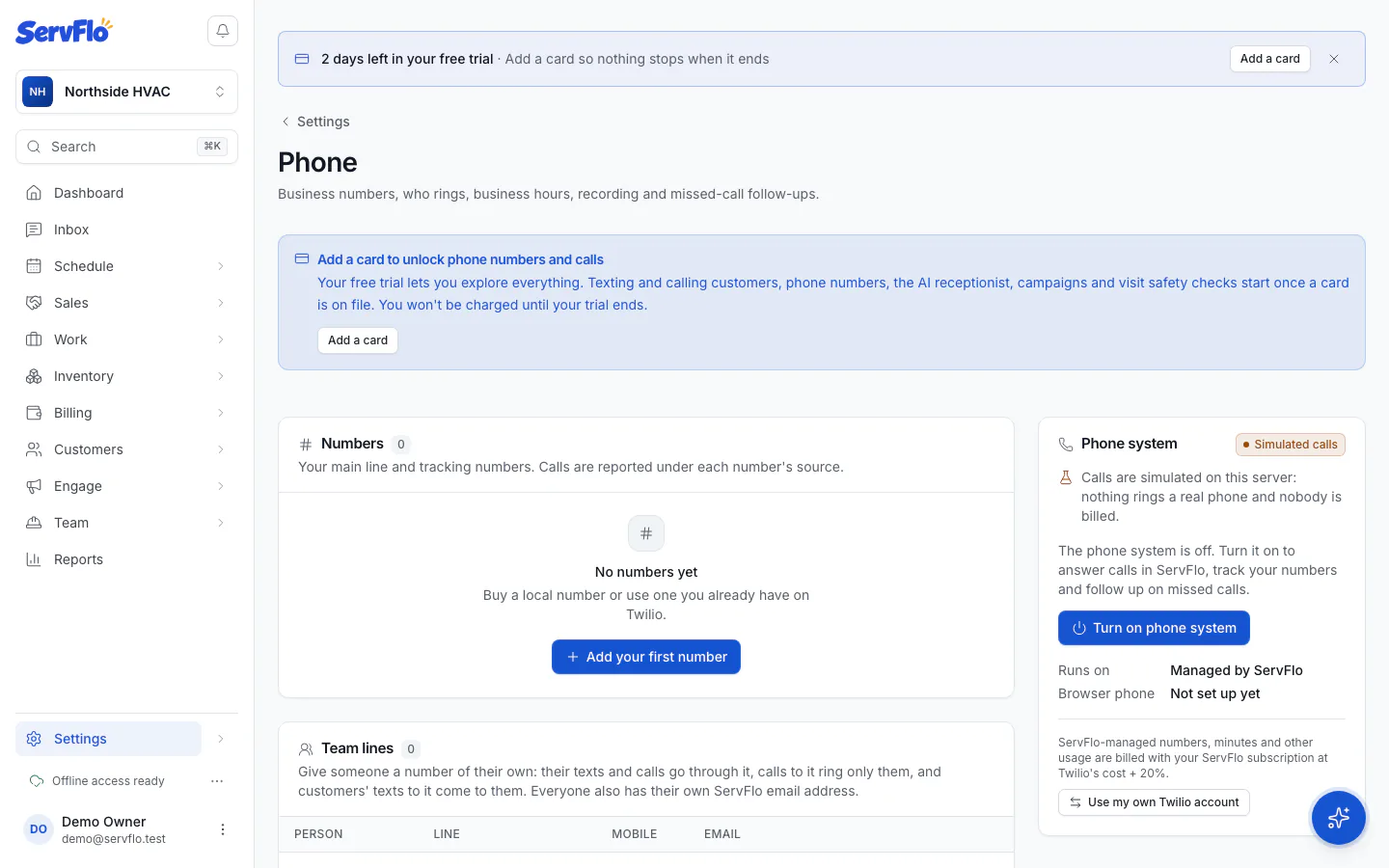
A new personal number joins your texting registration, so it can text right away.
A sole-proprietor texting registration allows only one number, so it can't have personal numbers. See Register for texting.
Set up your own line (everyone)
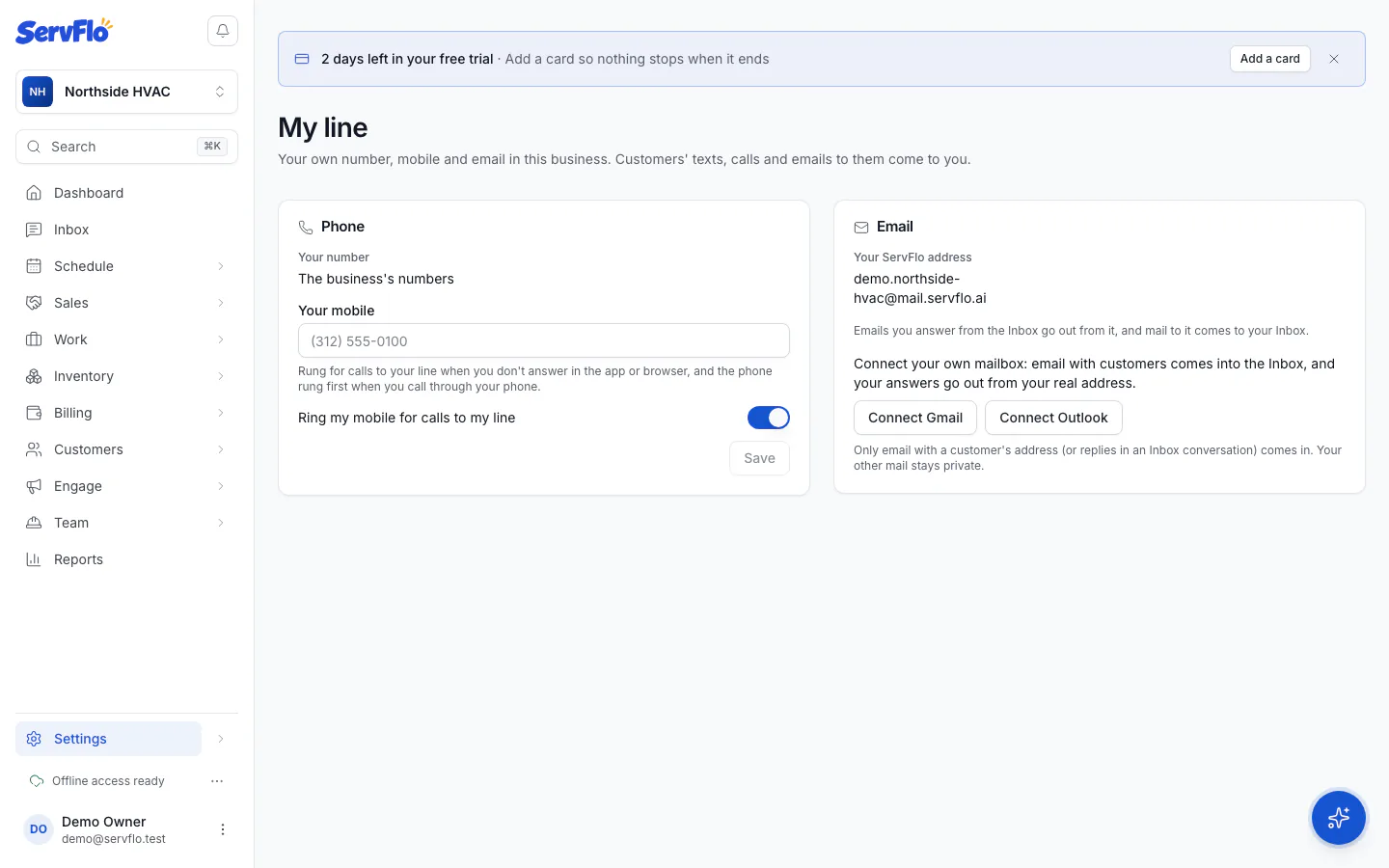
Go to Settings → My line. You'll see:
- Your number: your own number, or The business's numbers.
- Your mobile: rung for calls to your line when you don't answer in the app or browser. Turn on Ring my mobile for calls to my line if you want that. Click Save.
- Your ServFlo address: emails you answer from the Inbox go out from it (for example, "Jane at Bright Air"), and mail sent to it comes to your Inbox. It's made the first time you need it.
Connect your Gmail or Outlook
Connect your own mailbox so email with customers comes into the Inbox and your answers go from your real address.
In Settings → My line, click Connect Gmail or Connect Outlook and sign in.
Turn on Send my Inbox emails from this mailbox if you want your Inbox answers to go from it.
ServFlo checks for new email every few minutes. Check now checks right away.
Only email with a customer's address, or a reply in an Inbox conversation, comes in. Your other mail stays private. Disconnect stops it; what already came in stays.
If the connect buttons are unavailable, the screen says why. Connecting Gmail or Outlook may not be available to every business yet.
Related
- Use the Inbox
- The phone panel for calling from the browser and the app