
Message log
See every email and text ServFlo sent, held, skipped or failed, and why.
Engage → Messages lists every email and text: sent, held for quiet hours, skipped (and why), failed, and customers' replies. Use it to check that a reminder went out or to find out why one didn't.
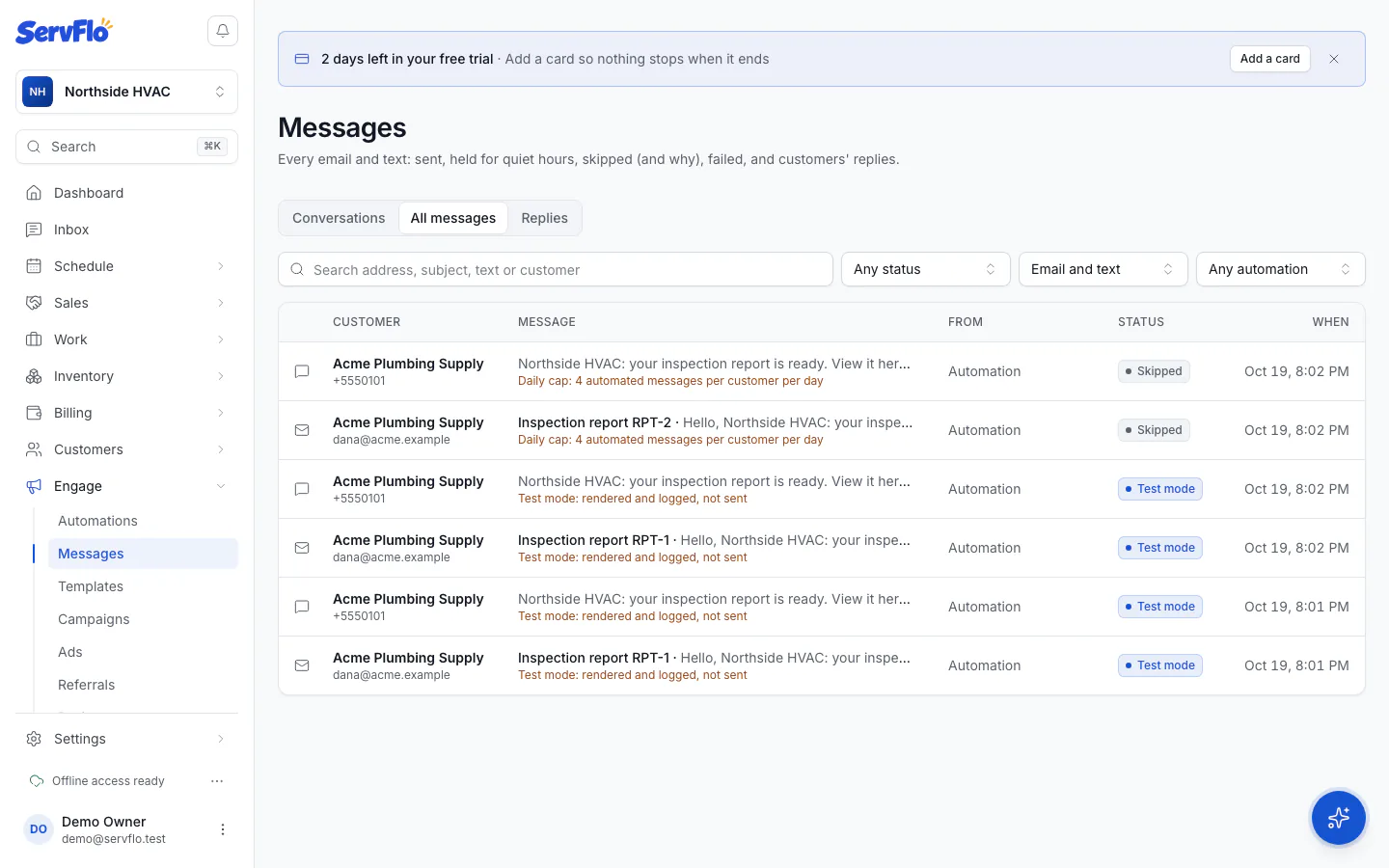
Find a message
Go to Engage → Messages.
Choose a View: All messages, Replies or Conversations.
Filter by Status, Channel or Automation, or Search address, subject, text or customer.
Click View to open a message.
The message page shows it As the customer sees it, who it went To, what it's About, which automation sent it, and a Timeline of what happened.
A customer's messages are also on the Messages tab of their customer page.
Statuses
| Status | What it means |
|---|---|
| Queued | Waiting to go. |
| Deferred | Held for quiet hours or the daily email limit; it says when it goes. |
| Sent | Handed to the carrier or email service. |
| Delivered | The carrier or email service confirmed delivery. |
| Test mode | Logged, never sent, because the channel isn't set up yet. |
| Skipped | Not sent, with the reason: consent doesn't allow it, a link was missing, a limit was reached. |
| Failed | The send failed, with the reason. |
| Bounced | The email bounced or was marked as spam; the address is now blocked. |
| Cancelled | Withdrawn, for example because the visit was rescheduled or canceled. |
| Received | A reply from the customer. |
Where it came from
The From column says Automation, Sent by your team, Test message, Reply, or Sign-in code (a customer portal sign-in code the customer asked for).