
Send messages from a record
Send a quote, invoice, payment reminder, portal link or visit reminder by hand, with a preview first.
Quotes, invoices, customers and visits have send buttons. Each one opens a preview, so you can check who gets it and edit the words before it goes. These work on every plan.
| Button | Where | What it sends |
|---|---|---|
| Send quote | A quote | The quote with a link to view and approve it. A draft quote is marked as sent. |
| Send invoice | An invoice | The invoice with a link to pay by card or bank. A draft invoice is issued. |
| Send reminder | An unpaid invoice | A payment reminder with the pay link. |
| Send portal link | A customer | A link to the customer portal. |
| Send reminder now | A visit on a job | A reminder about the upcoming visit. |
Send one
Open the quote, invoice, customer or job and click the send button.
Under Send by, choose Email or Text.
Check Send to. ServFlo picks the right contact (the billing contact for invoices) and says whether consent allows it. A phone without "OK to text" shows as (not OK to text).
Edit the Subject and Message if you like. Merge fields such as the customer's name and the link are already filled in.
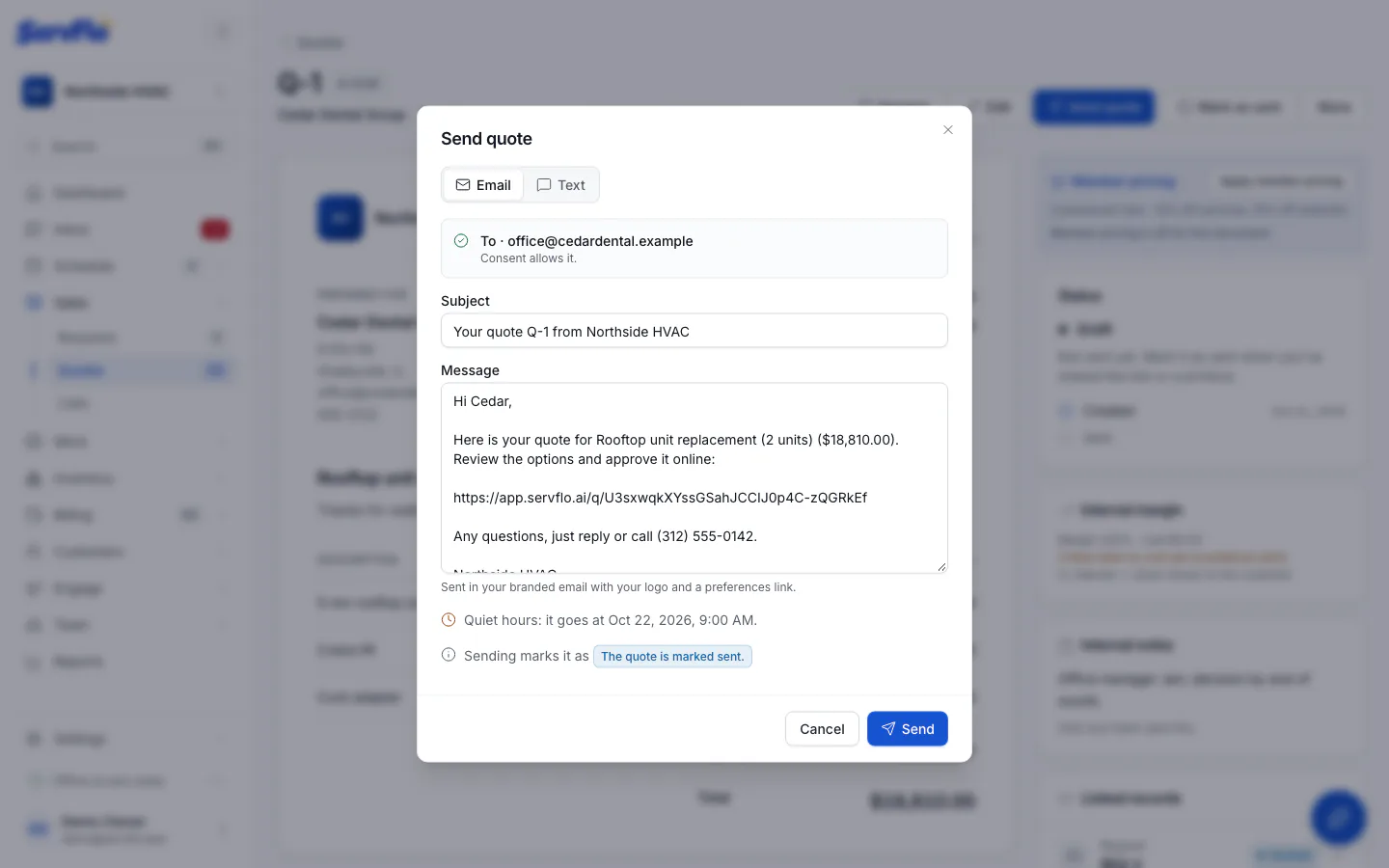
Click Send.
The message is recorded exactly as sent on the customer's Messages tab and in Engage → Messages.
During quiet hours, the preview says "Quiet hours: it goes at" a time, and the message waits until then. Emails go in your branded email with your logo and a preferences link.
Send messages the customer right away (or when quiet hours end). Check the recipient and the text first.
No double messages
If you send an invoice by hand, the matching automation (for example Invoice sent: payment link) won't send the same thing again within the hour.
Related
- Turn on automations to send these automatically
- Templates to change the default wording
- Consent and opt-outs