
Design an email
Give any email template its own layout with drag-and-drop blocks such as images, buttons and columns.
Every email uses your email theme with its text. To give one email its own layout (a photo, a button, two columns), open it in the email designer. Template designs are on every plan. Campaign designs need Grow or Pro.
Open the designer
- Go to Settings → Messaging → Email and find Email designs. Emails are grouped under Invoices, quotes, receipts and bookings, Automations and Marketing.
- Click Customize on an email that uses the Default design, or Edit design on one with a Custom design.
You can also click Design email on an email template in Engage → Templates. Campaign emails are designed from the campaign: open it in Engage → Campaigns and click Design the email.
Build the layout
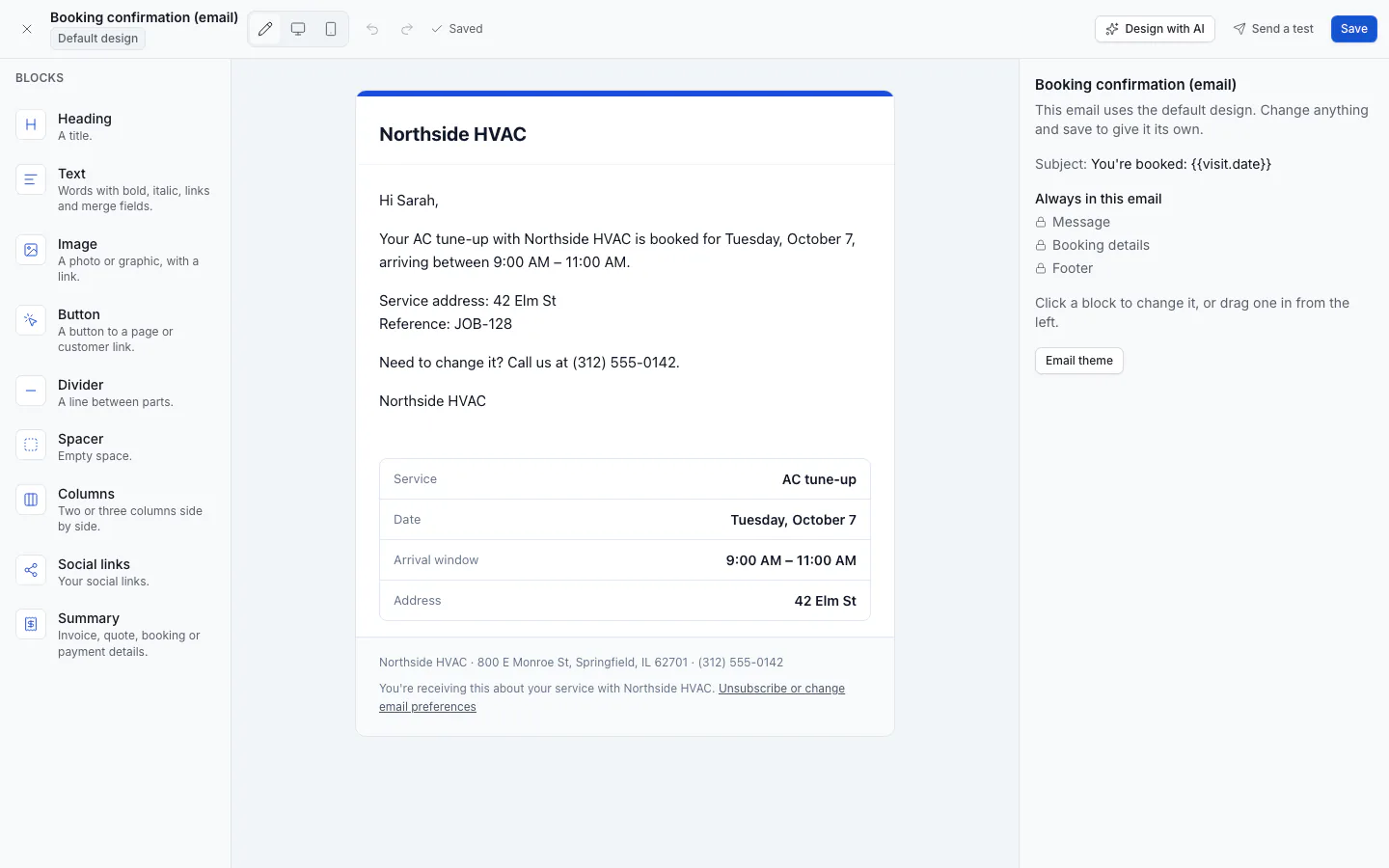
Drag a block from Add a block onto the email, or click it to add it:
- Heading, Text (with bold, italic, links and merge fields), Image, Button, Divider, Spacer, Columns (two or three, stacked on phones) and Social links.
Click a block to change it in Block settings: its words, link, image, alignment, and Background and spacing.
Drag blocks to reorder them, or use Move up, Move down, Duplicate and Delete.
Switch the view between Edit, Desktop preview and Phone preview.
Click Save. The next emails use the design.
Undo and Redo step through your changes. Images come from your library (shared with your website) or a new upload: JPEG, PNG, WebP or iPhone HEIC.
Blocks you can't remove
Some blocks are always in the email (Always in this email). You can move and restyle them, but not delete them:
- Message: the template's text, or what you write in a Send dialog. Edit the words on the template.
- Footer: your address, phone and unsubscribe link.
- Summary on invoices, quotes, bookings, receipts and membership emails: for example the invoice total and Pay link, or the quote and its Approve link.
A campaign keeps only the footer, so you can replace the campaign's text with your own blocks.
Design with AI
Click Design with AI in the top bar.
Describe the look under What should it look like? (for example, "Summer promo, bold, with a coupon button") and click Draft.
Check the Draft preview. Anything ServFlo left out (such as a price you didn't give) is listed under Left out of the draft.
Click Apply or Discard. Undo goes back; Save keeps it.
The draft uses only your own images, links and details, and keeps the blocks the email needs. It uses AI credits.
Send a test or start over
- Send a test sends the email with sample details, marked [Test], to the address you choose. No customer gets it.
- Reset to default deletes your blocks and goes back to the theme with the email's text.