
Templates
Edit the wording of the emails and texts your automations and Send buttons use, with merge fields and A/B variants.
Engage → Templates holds the emails and texts your automations and your team send. Turning on a ready-made automation adds its templates; templates marked System can be edited but not deleted.
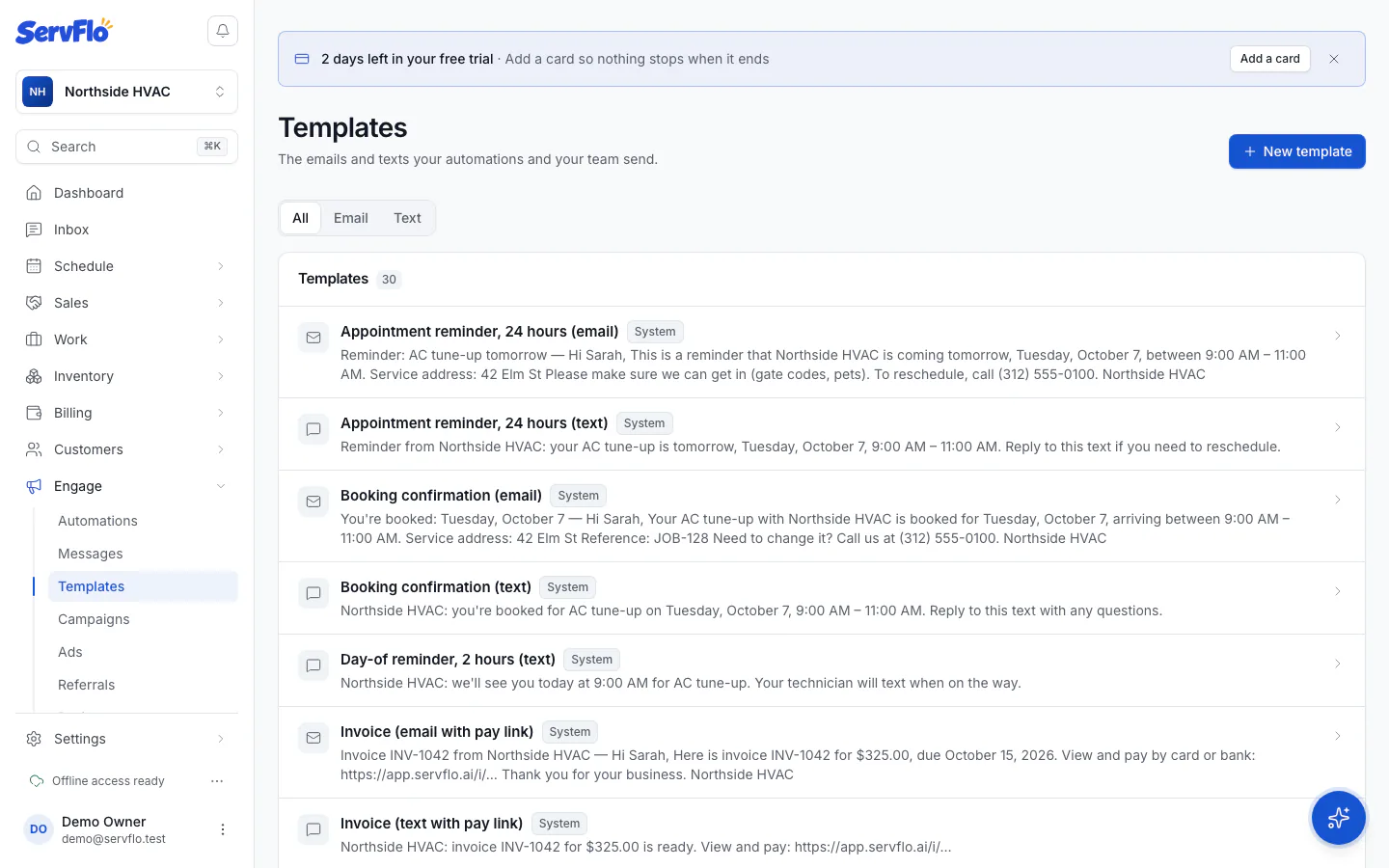
Edit a template
Go to Engage → Templates and click a template (filter by Channel if you like).
Change the Subject and Message. Emails can be plain text or HTML.
Click Insert a merge field to add details that fill in for each customer.
Check the Preview: it's rendered as it would be sent, for a Sample customer or with Example values. Fields with no value for that customer are listed.
Click Save template.
Automations that use the template send the new version from then on.
To create one, click New template, choose the Channel, Purpose (Service or Marketing) and Category, write it and click Create template.
Merge fields
Merge fields are written in double curly braces, for example {{customer.firstName}}. Add a fallback after a bar for when the value is missing: {{customer.firstName|there}} writes "there" when there's no first name.
You can use details of your business, the customer and contact, the property, the job and visit (date, time and arrival window in your timezone), the technician (first name and photo only), the quote, invoice, payment and membership, and links: the quote, invoice payment page, customer portal, booking page, review link and email preferences.
Links are made for each customer when the message goes out. If a message needs a link it can't have (for example, no review link is set), it's skipped and the message log says why, instead of sending a message with a gap.
Texts and length
A text's counter shows the characters and how many texts (segments) it uses. Emoji and some symbols make each segment shorter. Texts are billed per segment.
A/B variants
On the A/B variants tab, click Add a variant to try different wording. Each customer always gets the same variant, the Weight sets the split, and weight 0 pauses a variant.
Design the email
For an email template, click Design email to give it its own layout. See Design an email.