
Sending rules
Set quiet hours, a daily limit per customer, your sender details and your review link.
Settings → Messaging → Sending rules controls when messages go out and what your business details look like in them. Owners and admins can change them.
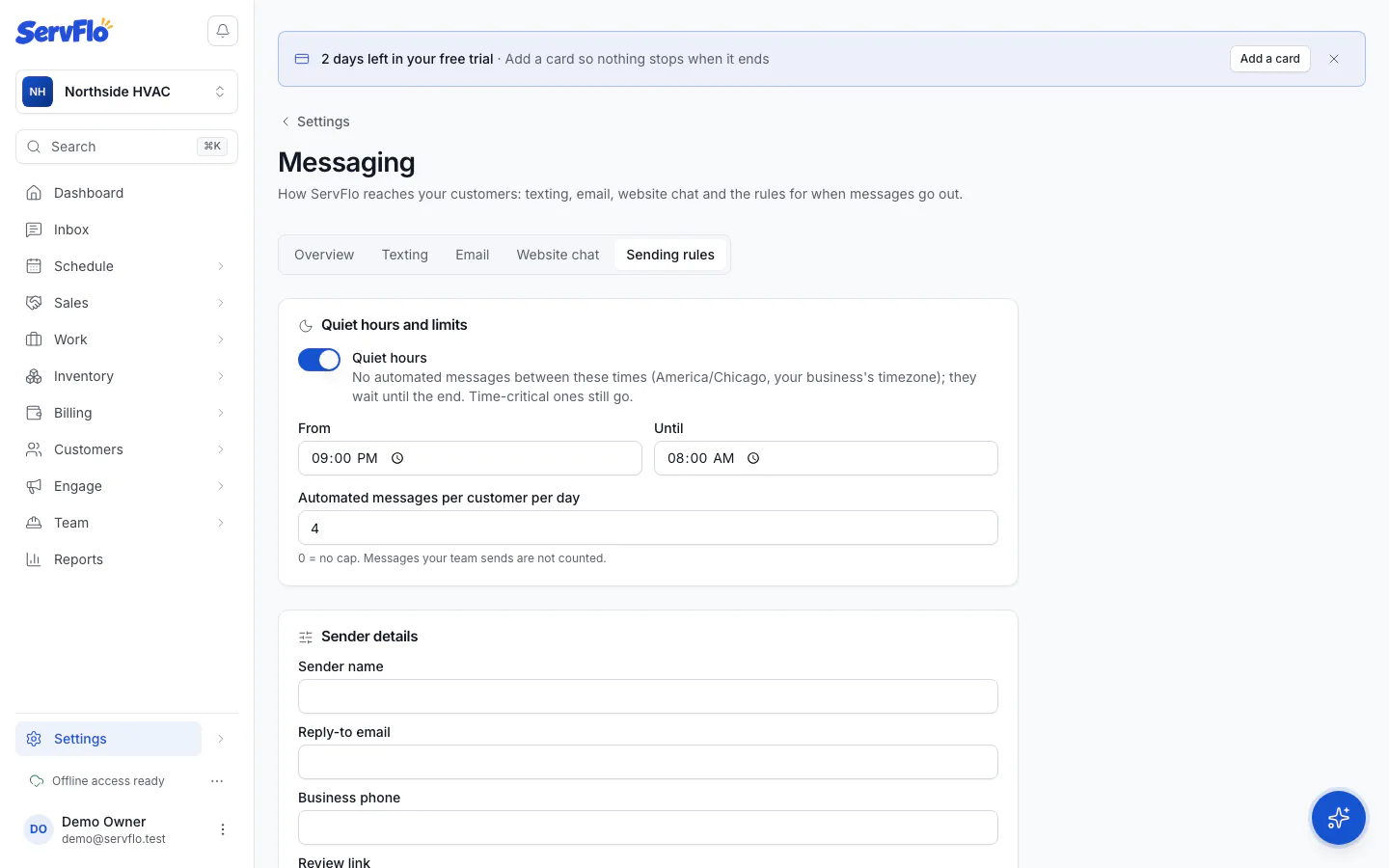
Quiet hours
Messages don't go out between these times, in your business's timezone. They wait until quiet hours end; nothing is dropped.
- Under Quiet hours and limits, set From and Until. The default is 9 PM to 8 AM.
- Click Save.
Exceptions:
- Time-critical automations, such as Technician on my way, go at once.
- Your answer to a customer who texted you goes at once.
Messages your team sends by hand also wait for quiet hours; the Send dialog tells you when they'll go.
Daily limit per customer
Automated messages per customer per day caps how many automated messages one customer gets in a day (0 = no cap). Messages your team sends are not counted, and time-critical ones are exempt. Each automation can also have its own limit; see Build your own automation.
Sender details
| Field | Used for |
|---|---|
| Sender name | The name customers see on your emails. |
| Reply-to email | Where replies to your emails also go. Without one, the owner's email. |
| Business phone | The phone number your messages show (the business phone merge field). |
| Review link | Where review requests send customers, for example your Google review page. |
Click Save after changing them.
The Thank you + review request automation needs a Review link. Without it, the review request is skipped.