
Set up email
Email customers through ServFlo email, with no email account or DNS needed, or connect your own provider.
New businesses email customers through ServFlo email from the start. It sends right away from ServFlo's sending address with your business's name, and replies come to you. You can add your own domain any time.
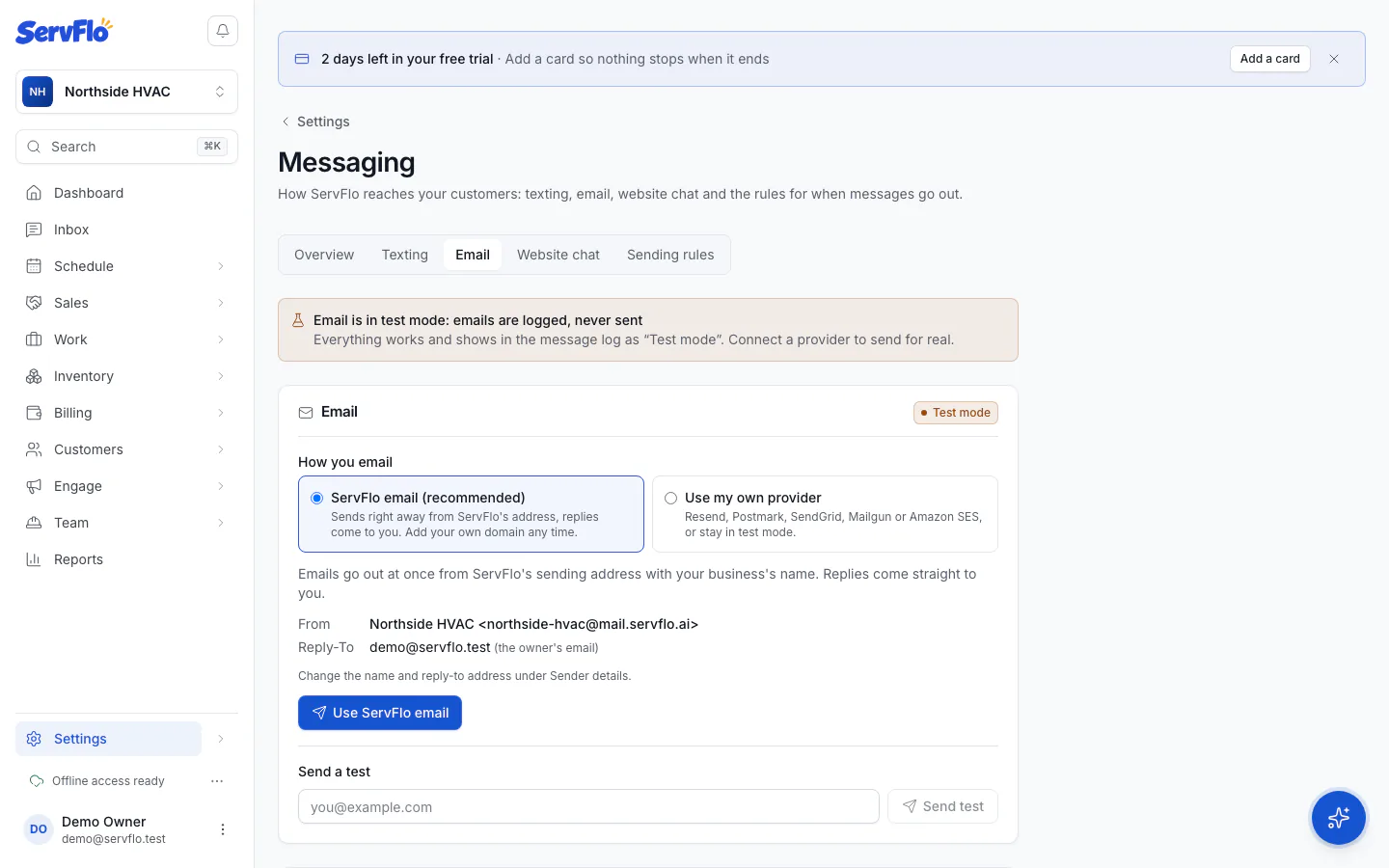
How ServFlo email sends
- From: your business name at ServFlo's sending address, for example "Bright Air" with
bright-air@mail.servflo.ai. Once your own domain is verified, emails come from your domain instead. - Replies: customers' replies come back into your Inbox, matched to the customer, and a copy goes to your business email (or the owner's), so you can answer from either.
- Every email carries your business's postal address and an unsubscribe or email-preferences link.
Turn it on
If your business is still in test mode:
Go to Settings → Messaging → Email.
Under How you email, choose ServFlo email (recommended).
Click Use ServFlo email. You'll see "ServFlo email is on: emails now really go out".
Set the sender name and reply-to address
The From name and Reply-To shown on the Email tab come from Settings → Messaging → Sending rules → Sender details:
Enter a Sender name (otherwise your business name is used).
Enter a Reply-to email. Without one, the owner's email is used.
Click Save.
Limits that protect your emails
- Your plan's monthly emails. Each plan includes a number of ServFlo emails a month; past it, emails are billed per email. Emails through your own provider don't count.
- A daily limit (the Email tab shows "Today: … of … emails"). Past it, emails wait until tomorrow; nothing is lost.
- Bounces and spam complaints. Addresses that bounce or complain are blocked automatically. If too many recent emails bounce or are marked as spam, ServFlo pauses sending ("Emails are paused") and tells owners and admins. Clean up bad addresses, then click Resume sending. If it pauses twice in 30 days, contact ServFlo support to resume.
During a trial without a card, ServFlo email only sends to your own team's addresses: "Add a card to start emailing customers through ServFlo." Add a card in Settings → Billing.
Use your own email provider
Under How you email, choose Use my own provider to send through Resend, Postmark, SendGrid, Mailgun or Amazon SES. Enter its details, click Save provider, and paste the Bounces and complaints webhook URL into your provider. You'll need your own domain verified with that provider (SPF, DKIM and DMARC). Back to test mode stops sending.
Send a test
Under Send a test on the Email tab, enter your address and click Send test. In test mode it says "Logged in test mode (not sent)".