
Build your own automation
Create an automation with your own trigger, audience, messages, follow-ups and guardrails.
When the ready-made automations don't cover what you need, for example a furnace check-up reminder each autumn, build your own. Owners and admins can create and edit automations.
Create an automation
Go to Engage → Automations and click New automation.
Give it a Name (for example, "Furnace check-up reminder") and an optional Description.
Work through the four steps. The Live preview beside the form shows the automation for a real customer you pick; nothing is sent.
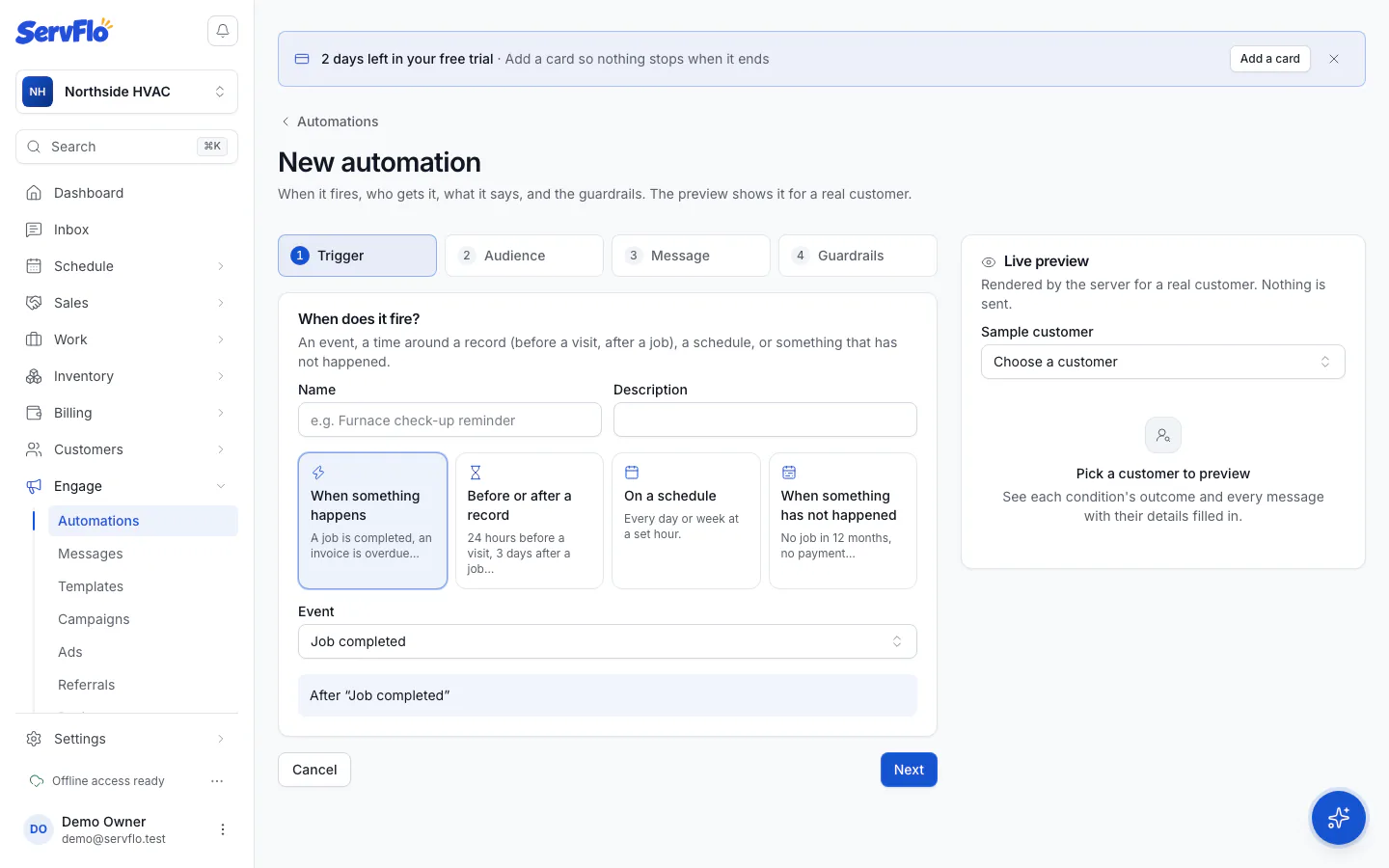
1. Trigger: when does it fire?
Choose a Trigger type:
- When something happens: an Event, such as a job completed or an invoice overdue.
- Before or after a record: an Amount and Unit before or after The moment: the visit starts, the job is completed, the quote is sent, the invoice is due, or the membership ends. For day offsets, choose Send at a time of day or The record's own time.
- On a schedule: Every hour, Every day or Every week, at a set Time.
- When something has not happened: for example no completed job For (days) 365, Checked daily at a time.
Reminders before a visit move with a reschedule and are withdrawn if the visit is canceled.
2. Audience: who gets it?
Leave it as all customers, or add conditions about the customer (type, tags, lead source, membership, balance, city or ZIP, custom fields), the record it fired for (service type, technician, status, total), their history (did something at least or at most N times), or predictions such as next service due or likely to lapse.
3. Message: what does it say?
Choose the Channel (Email or Text) and Send to: The primary contact or The billing contact (else primary).
Pick a Template, or Write it here with a Subject and Message. Use Insert a merge field to add the customer's name, the visit date, a pay link and more.
Optionally add Follow-ups: Add a follow-up, then set the hours after the previous message (0 sends together with it, for example an email beside a text).
Under Stop the follow-ups when, add events such as "Invoice paid". A reply from the customer always stops them.
4. Guardrails
- Purpose: Service (reminders, invoices, updates) or Marketing (offers, win-back). Marketing also needs the customer's marketing consent, adds "Reply STOP to opt out" to texts, and needs Grow or Pro.
- Time-critical: sends even during quiet hours. Service messages only.
- At most once every N hours per customer (0 = no cap).
- Turn it on: it starts messaging customers the next time it fires.
When you are done, click Create automation.
With Turn it on ticked, the automation starts texting and emailing customers the next time it fires. Use the live preview to check it first.
Edit or turn off
Open the automation and click Edit, then Save changes. Use the switch in the list to turn it off. Quiet hours and the daily limit per customer in Sending rules apply to every automation.