
Team chat
Message your whole team, one person, or the people on a job, on the web and in the technician app.
Team chat keeps conversations between the office and technicians inside ServFlo instead of personal phones. It's in the sidebar under Schedule → Team chat, and in the mobile app under More → Team chat.
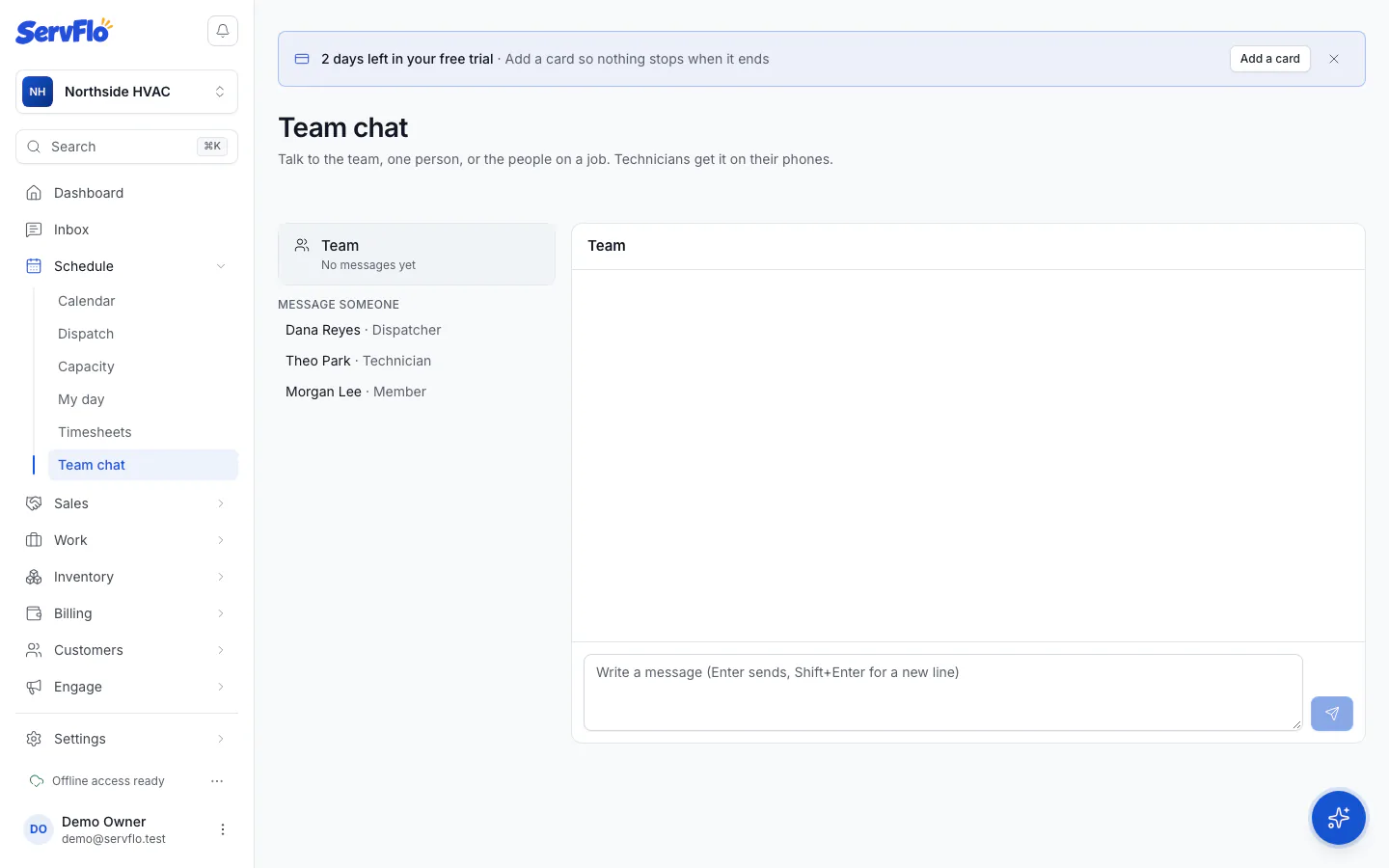
Kinds of conversation
- Team: one conversation with everyone in the business.
- Direct: you and one other person.
- Job: the crew on a job and the office. Technicians start one from a job in the app with Message the office.
Technicians see the team chat, their direct messages and the jobs they're on. The office sees every job chat with messages in the last 30 days.
Send a message
Go to Schedule → Team chat.
Pick a conversation, or click Message someone and choose a person.
Type your message. Enter sends; Shift+Enter starts a new line.
In a job chat, Open the job takes you to the job.
The sidebar shows a count of unread messages. Technicians get a push notification on their phone for each new message; tapping it opens the conversation.
Team chat needs a connection. On a job without signal, a technician can still add a job note, which syncs when they're back online.
Related
- Use the Inbox for messages from customers