
Use the Inbox
See everything customers send you (texts, emails, missed calls, voicemails, requests, reviews and website chats) in one place.
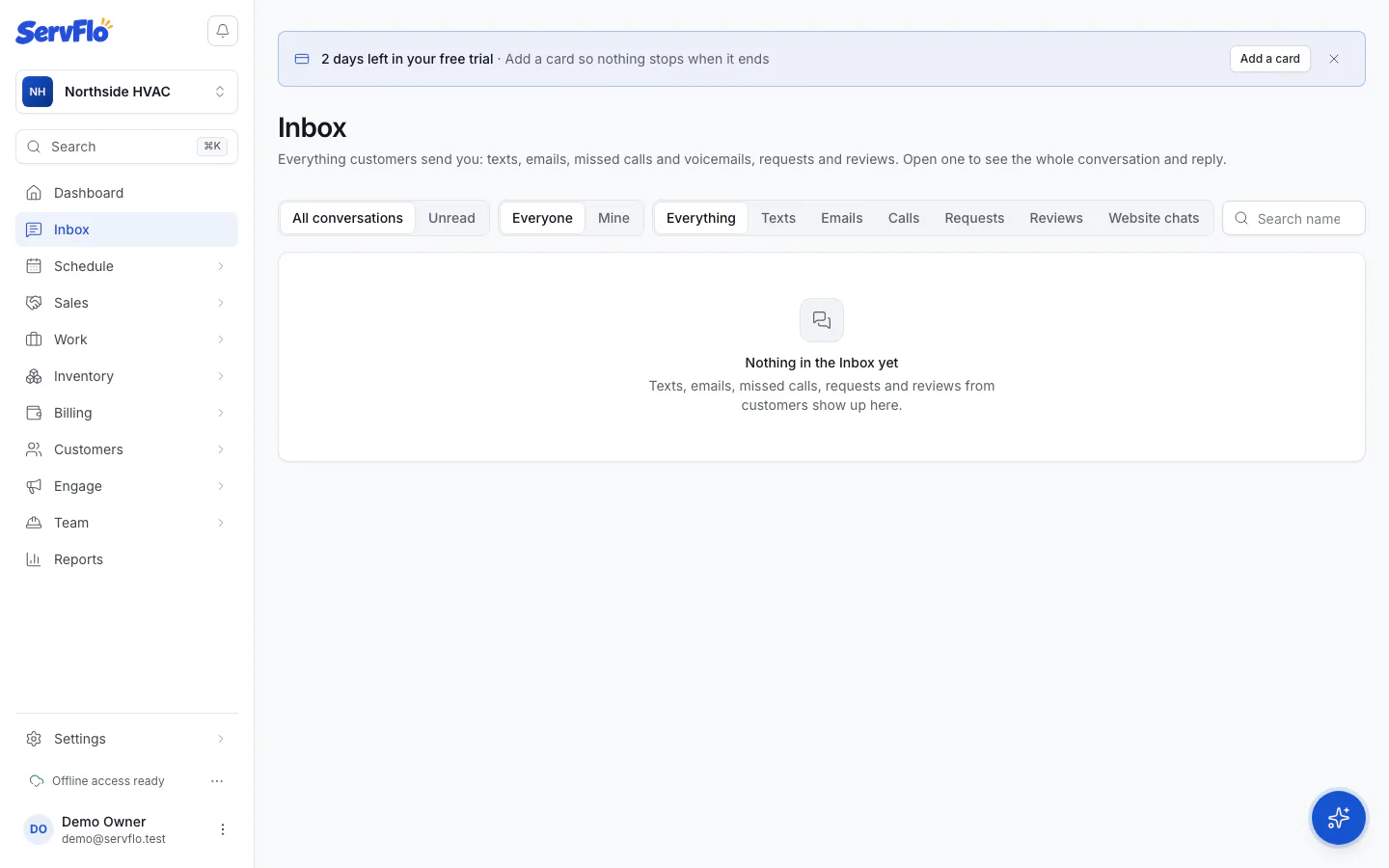
The Inbox is at the top of the sidebar. It collects everything customers send your business, one conversation per customer, so the office can see what's waiting.
What lands in the Inbox
| Type | What you see |
|---|---|
| Texts | Texts customers send to your business number, and your team's answers. |
| Emails | Customers' replies to your emails, and mail sent to your ServFlo email address. |
| Calls | Missed calls, voicemails, and calls marked for a follow-up, with the summary or transcript. |
| Requests | Requests from your website, booking page, customer portal (including asking to move or cancel a visit) and the AI receptionist. |
| Reviews | New Google reviews (once you connect Google Business Profile) and reviews left in ServFlo. |
| Website chats | Chats on your website in which the visitor wrote something. |
Automated messages (reminders, confirmations) and requests your own team created don't appear as Inbox items. You'll find those in Engage → Messages (message log).
Everything from one customer is grouped into a single conversation. A text or call from a number that isn't saved to a customer gets a conversation of its own until you save the number (below).
Find a conversation
Click Inbox in the sidebar. The red count shows conversations nobody on your team has opened since the customer's latest message.
Narrow the list:
- Type: Everything, Texts, Emails, Calls, Requests, Reviews or Website chats.
- All conversations or Unread.
- Search name, number or email.
- Whose: Everyone or Mine (when your business uses personal lines).
Click a conversation to open it.
The conversation shows texts with emails, calls, requests and reviews as cards between them, oldest first. Click a card to open the call, request or review itself. Customer page opens the customer's record.
Unread is shared by the team
The Inbox works like a shared team inbox: as soon as anyone on the team opens a conversation, it's read for everyone. The list refreshes on its own while it's open.
Save an unknown number to a customer
When someone texts or calls from a number that isn't on any customer, the conversation says "(number) isn't saved to a customer."
- Open the conversation.
- Click New customer to create one with that number, or Add to existing customer, choose the Customer and click Save number.
The number is added to the customer's primary contact as a mobile, and its texts, calls, voicemails and requests move into that customer's conversation. Saving a number doesn't give "OK to text"; see Consent and opt-outs.
Who can use the Inbox
- Owners, admins and dispatchers see every conversation and can answer.
- Technicians with their own line see only their own line's conversations. See Personal lines.
On your phone
In the ServFlo mobile app, office users have an Inbox tab (Messages for everything customers send, and To do). Technicians with a line have an Inbox tab with their own conversations.
Related
- Reply to customers
- Team chat for messages inside your team