
Answer and make calls
Use the phone dock to answer calls in your browser, see who's calling, book a job and call customers.
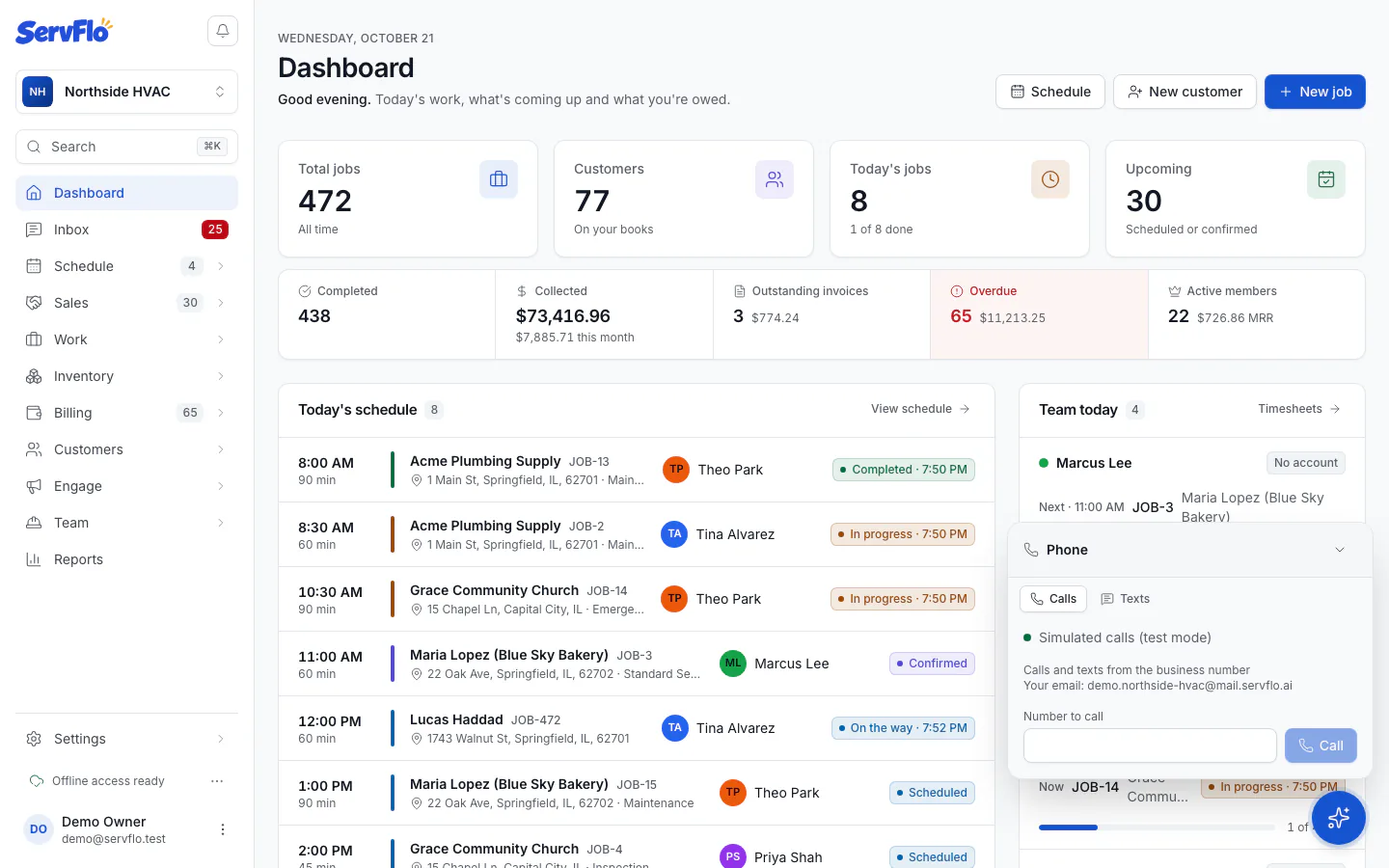
The phone dock is the round phone button in the bottom-right corner of every ServFlo page. It appears for owners, admins and dispatchers once the phone system is on. Click it to open the browser phone.
Answer a call
When a call rings for one of your ring groups, the dock button turns green and the dock shows Incoming call.
Click Answer (or Decline). The first time, allow your browser to use your microphone.
While you talk, use Mute, Keypad for touch-tones, and Hang up.
See who's calling
As the phone rings, the dock looks up the caller and shows:
- the number they called and its source, for example Called Website;
- the matched customer, with Balance, Health, Membership, Last visit, Next visit, Open jobs and their previous calls.
If several customers share the number, the dock says so: click Pick next to the one who's calling. If there's no match, click New customer.
Book a job from the call
Click Book job in the dock. The booking screen opens for that customer (or a new caller), with a banner like Booking for Jane Smith · call from Website. The job you book is linked to the call, counts as booked in the call tracking report and closes the call's follow-up.
Call a customer
- Click Call on a customer, job or request page, or Call back in the call log. Pick up the call in the dock.
- Or open the dock, type a number in Number to call and click Call.
Customers see your main business number, or your own number if you have a personal line. The dock says which: Calls and texts from the business number or Calls and texts from your number.
If your browser can't make calls
If your microphone is blocked or your browser can't make calls, use Ring my phone instead. Enter Your phone number and click Ring my phone. ServFlo rings your phone first, then connects you to the customer. Your number is remembered.
Texts in the dock
If you can use the Inbox, the dock has Calls and Texts tabs. Texts shows recent conversations and unread texts, lets you reply, and New text starts a text to a customer or any number. See Inbox.
On the mobile app
Team members with a personal line can take and make calls in the ServFlo mobile app on iPhone. On Android, Call opens the phone's own dialer for now. See Personal lines.