
Numbers and tracking
Buy local numbers, label where you publish each one, and show the right number on your website.
Each number in ServFlo has a source: where you publish it. Calls to a number are reported under its source, so the call tracking report can show which ones make the phone ring.
| Source | Use it for |
|---|---|
| Main line | Your main business number |
| Website | The number shown on your website |
| Google Business Profile | The number on your Google listing |
| Campaign | A marketing campaign (pick the campaign) |
| QR code | A QR code (pick the QR code) |
| Business unit | A division of your business (pick the unit) |
| Print (flyers, trucks) | Flyers, truck wraps, yard signs |
| Other | Anything else |
Buy a number
A number beyond the ones included is billed monthly with your subscription until you release it.
Go to Settings → Phone.
In Numbers, click Add number.
Under How, choose Buy a new number.
Search by Area code, by Number contains (digits or a word, like 4210 or PLUMB; letters count as keypad digits and * stands for any digit), or both. Click Search.
Pick a number from Available numbers. Its Monthly price shows next to it, or Included if your plan covers it.
Give it a Label, choose its Source and, if you like, a Ring group.
Click Buy number and confirm.
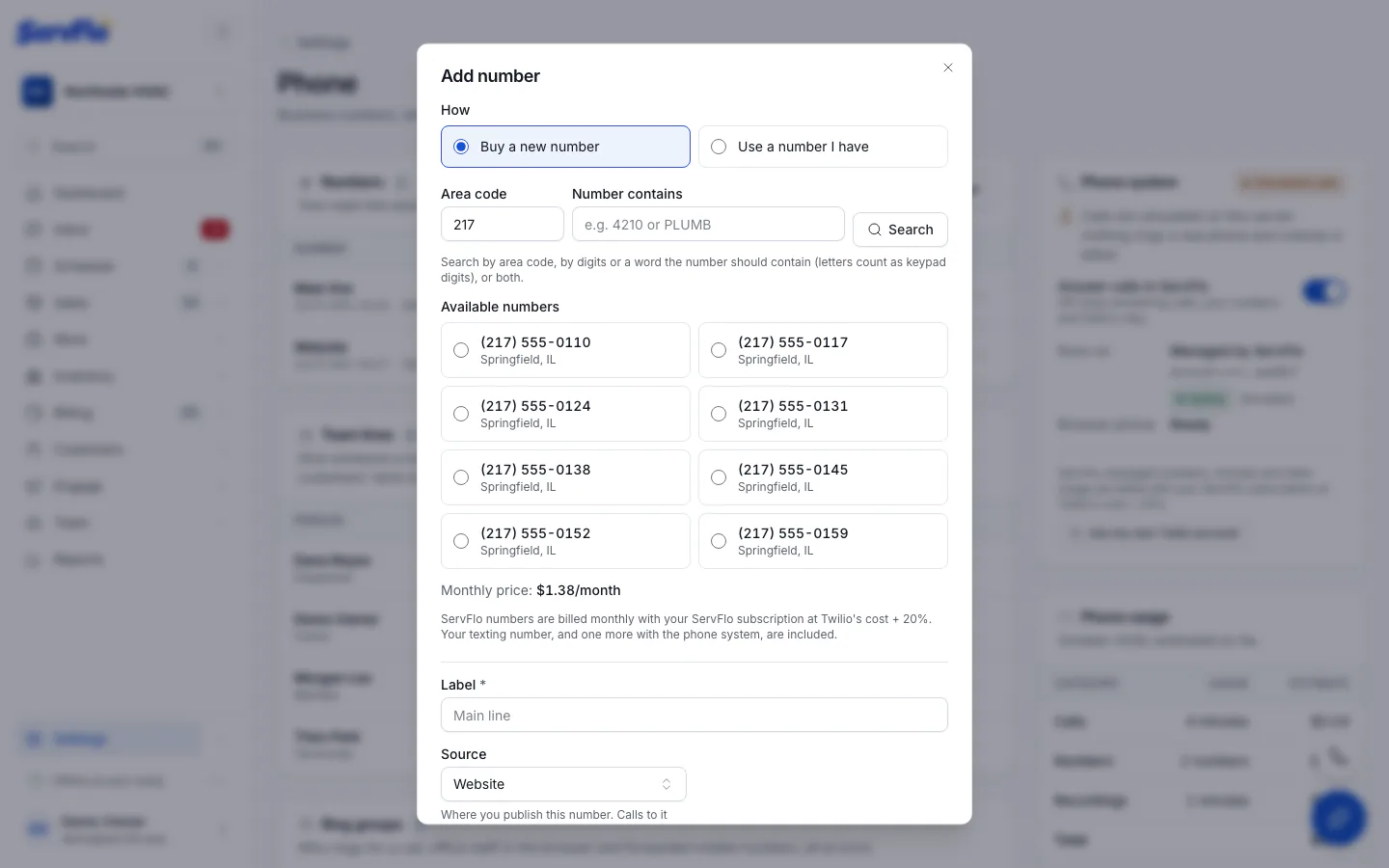
Your texting number is included on every plan, and the phone system includes one more local number. Other numbers are billed monthly with your ServFlo subscription. During a free trial your business can hold one number.
Use a number you already have
If you run the phone system on your own Twilio account, choose Use a number I have in step 3 and pick from Numbers on your Twilio account, then click Use number.
Edit a number
Open the number's Actions menu and choose Edit. You can change:
- Label, Source, and the campaign, QR code or business unit it tracks.
- Ring group: who rings for calls to this number. Default ring group uses the business default.
- Phone menu: turn on Play a menu for "press 1 for service, press 2 for billing". See Business hours, voicemail and menus.
- Website number insertion: see below.
Click Save number.
Show the right number on your website
If you have a ServFlo website, it can show a different number to visitors from different sources, so their calls are tracked to that source.
- Add a number with the source Website. Visitors who match no other rule see it.
- For another source, edit that number and fill in Website number insertion: the utm_source (for example
google) and, optionally, utm_medium (for examplecpc; blank means any). - A Campaign number is shown automatically to visitors who came from that campaign's links.
Search engines and visitors without JavaScript see your website's own number.
Release a number
Open the number's Actions menu, choose Release and confirm with Release number. The number stops ringing and goes back to the carrier, where someone else may take it. Its call history stays. This can't be undone.
Releasing a number can't be undone. Customers who call or text it can no longer reach you.
You can't release the number you text from here: change your main number first.
Related
- Change your main number
- Call tracking report
- Personal lines: give a team member a number of their own