
Phone
The call log
Find any call in or out, with its recording, transcript, AI summary, notes and what it led to.
Add-on: Phone(any plan)
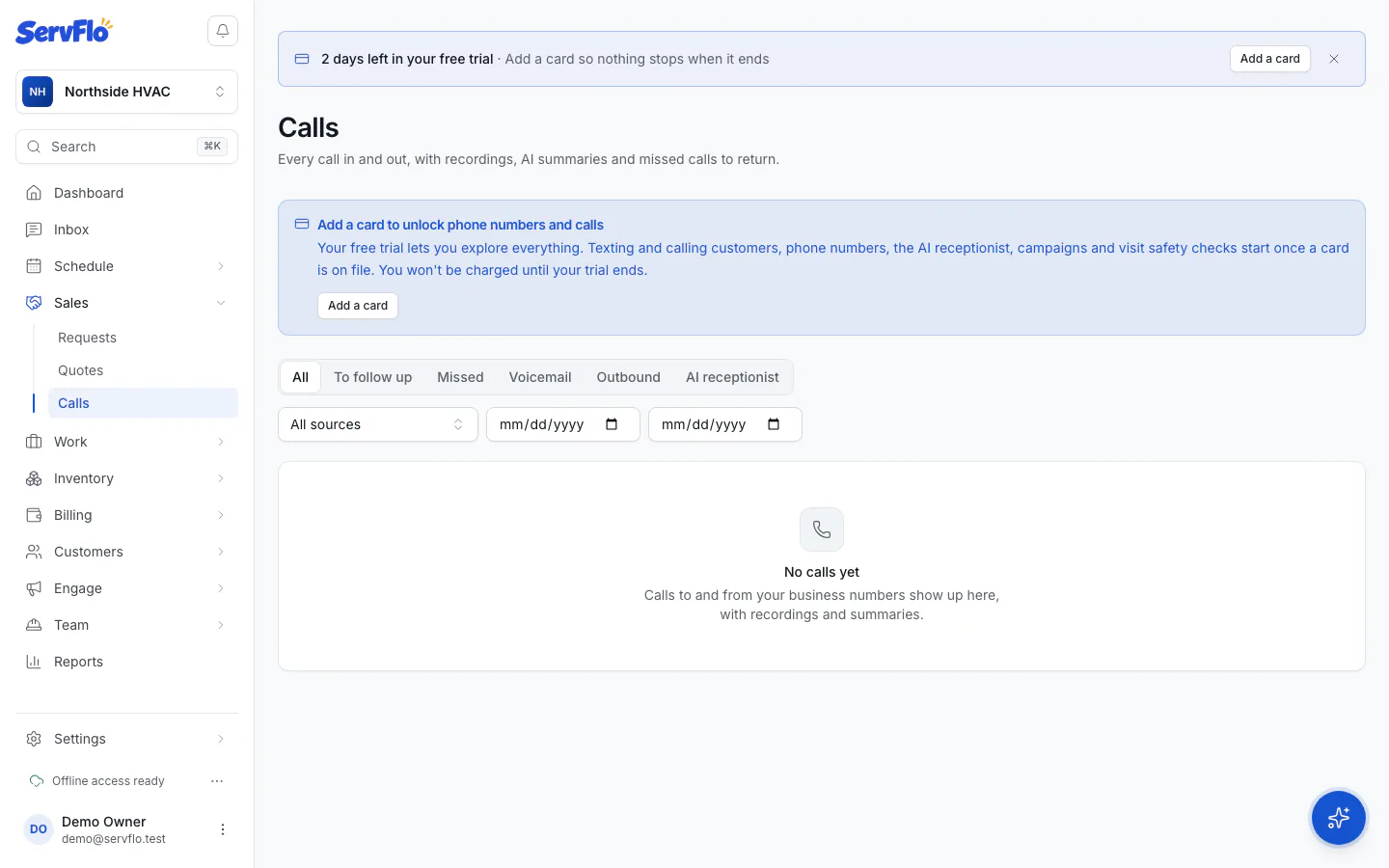
Go to Sales → Calls to see every call to and from your business numbers.
Find a call
- Use the tabs: All, To follow up, Missed, Voicemail, Outbound and AI receptionist.
- Filter by Source (the number's source, like Website or Campaign) and by date with From and To. Clear filters resets them.
Each row shows the Caller, who answered, when it Started, Talk time, Status, the AI Summary and the Follow-up. Calls the AI receptionist answered are marked AI. Use the row's Actions to Open the call, Call back or Mark followed up.
What a call shows
Open a call to see:
- Details: the number called, its source and campaign, who answered or placed it, times, talk time, whether it was after hours, the menu key pressed and whether recording was announced.
- Customer: the customer matched by caller ID. If several customers have this number, pick the one who called and click Link customer. Click Change to link someone else.
- Recording or Voicemail, Transcript and AI summary. Recordings and transcripts are visible to owners and admins only. See Recording, transcripts and summaries.
- Notes: write what the call was about and click Save notes.
- Follow-up: who it's Assigned to, and Mark followed up or Reopen. See Missed calls and text-back.
- Led to: the job or request booked from the call. Click Book job to book one now.
- AI receptionist: for calls the AI answered, its outcome, AI time, any message for the team and (owners and admins) the conversation. See What the AI receptionist does on a call.
Calls also appear on the customer's timeline with their summary.