
Import and export your pricebook
Bring in a price list from a spreadsheet, or download your pricebook as a CSV file to edit in bulk.
Use a CSV file to add many items at once, or to update prices across your whole pricebook. Owners and admins can import and export.
Moving from Jobber, Housecall Pro or ServiceTitan? The Import your data wizard brings over your pricebook along with customers, jobs and balances.
Export your pricebook
On the Pricebook page, click Export CSV. The file has every item with its costs, so keep it private. It also makes a good template for an import: export, edit in your spreadsheet, and import it back.
The file format
The columns are: code, name, kind, category, unit, cost, price, priceMode, memberPrice, taxable, durationMinutes, vendor, vendorPartNumber, description, internalNotes, active.
- Only
nameis required. - Money is in dollars, such as
12.50. - Yes/no columns (
taxable,active) takeyesorno. kindis service, material, equipment or fee (blank means service).priceModeis fixed or markup (blank means fixed).categoryis the full path, such asParts › Filters(>or/work too). Missing categories are created.vendormust be the name of a vendor you've already added.
Import a file
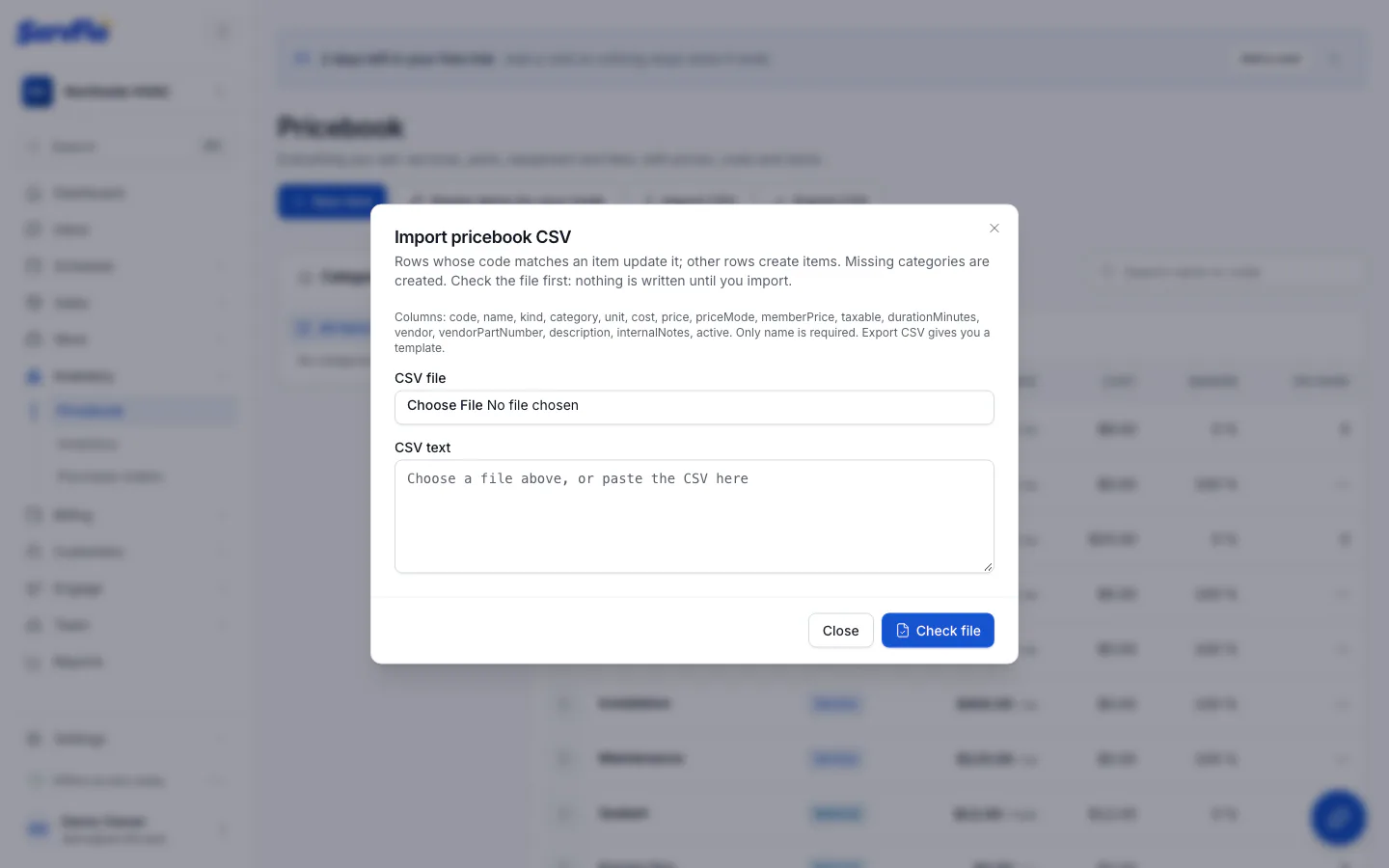
Open the import
On the Pricebook page, click Import CSV.
Add the file
Choose it under CSV file, or paste the contents into CSV text.
Check it first
Click Check file. Nothing is saved yet. You see how many items will be created and updated, which categories will be added, and any problems with their line and column.
Import
Click Import (the button shows how many items). Rows with errors are skipped; fix them and import the file again.
A row whose code matches an existing item (capital letters don't matter) updates that item. Rows
without a matching code create new items, so give items a code if you plan to update them by file.