
Markup tiers and repricing
Set how much you mark up parts by their cost, and update every markup-priced item in one go.
Markup tiers turn what a part costs you into what you charge. Cheap parts usually carry a bigger markup than expensive ones, so each tier covers a range of unit costs. Items with the Markup on cost price mode follow these tiers. Owners and admins can change them.
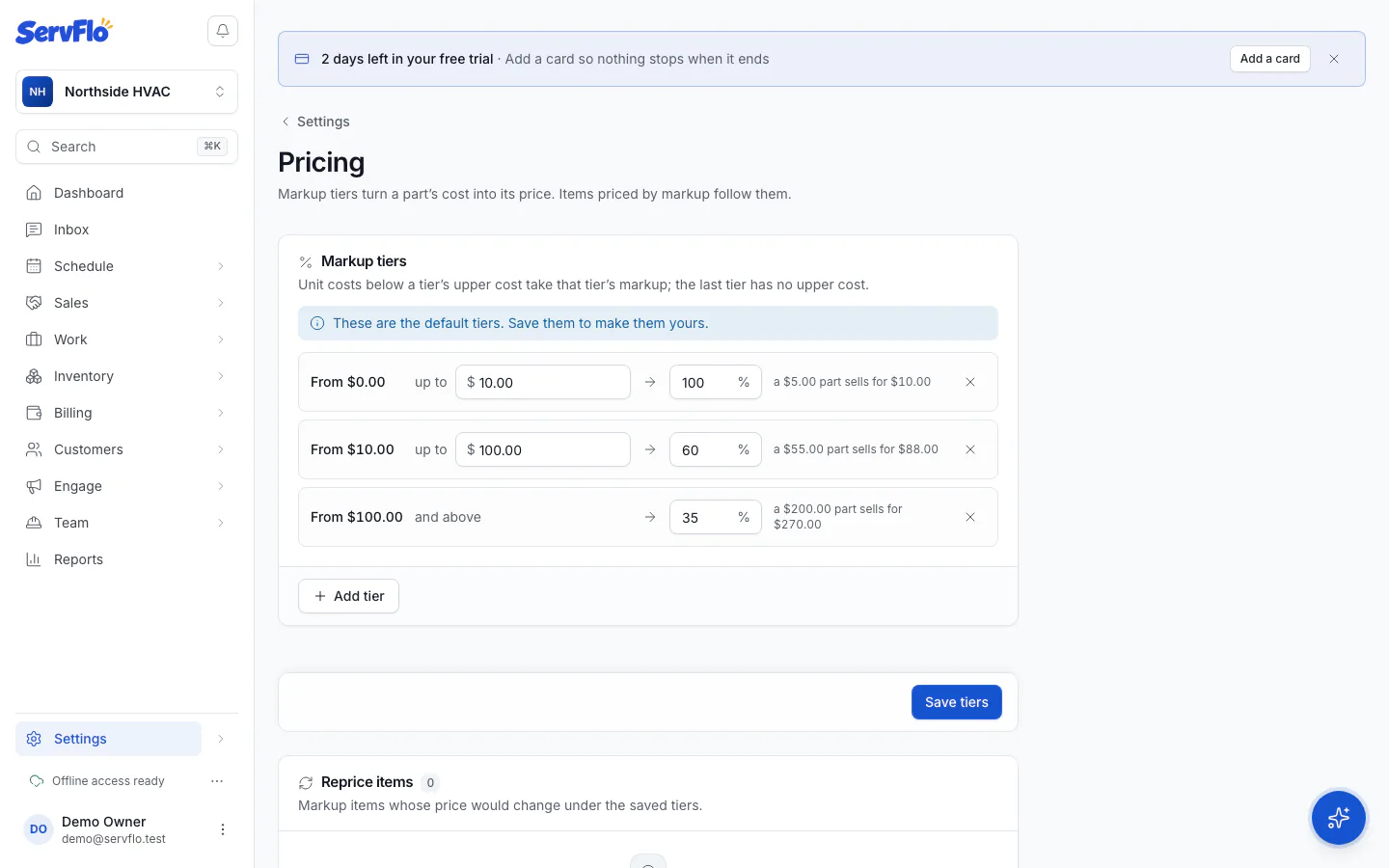
Until you save your own, these default tiers apply:
| Unit cost | Markup |
|---|---|
| Under $10 | 100% |
| $10 to under $100 | 60% |
| $100 and above | 35% |
So a $20 part sells for $32, and a $200 part for $270.
Set your tiers
Edit the tiers
For each tier, enter the upper cost and the markup percent. The last tier has no upper cost: it covers everything above. Click Add tier for another band, or remove one you don't need. The Example under each tier shows what a part would sell for.
Save
Click Save tiers.
Reprice your items
Saving new tiers doesn't change any prices on its own. Under Reprice items, you see every markup item whose price would change, with its cost, old price and new price.
- Check the list.
- Click Apply reprice, then confirm.
Repricing changes the pricebook only. Quotes, invoices and jobs already written keep their prices.
When a cost changes
A markup item's price follows its cost automatically: when you edit the cost, import a new cost, or receive a purchase order at a different price. See Purchase orders and vendors for how received costs are averaged.