
Manage your pricebook
Add the services, parts, equipment and fees you sell, organize them in categories, and set prices and member prices.
The pricebook is your price list. Everything you add here can be picked on quotes, invoices and jobs, so your team charges the same price every time. Owners and admins can change the pricebook; everyone else can look things up.
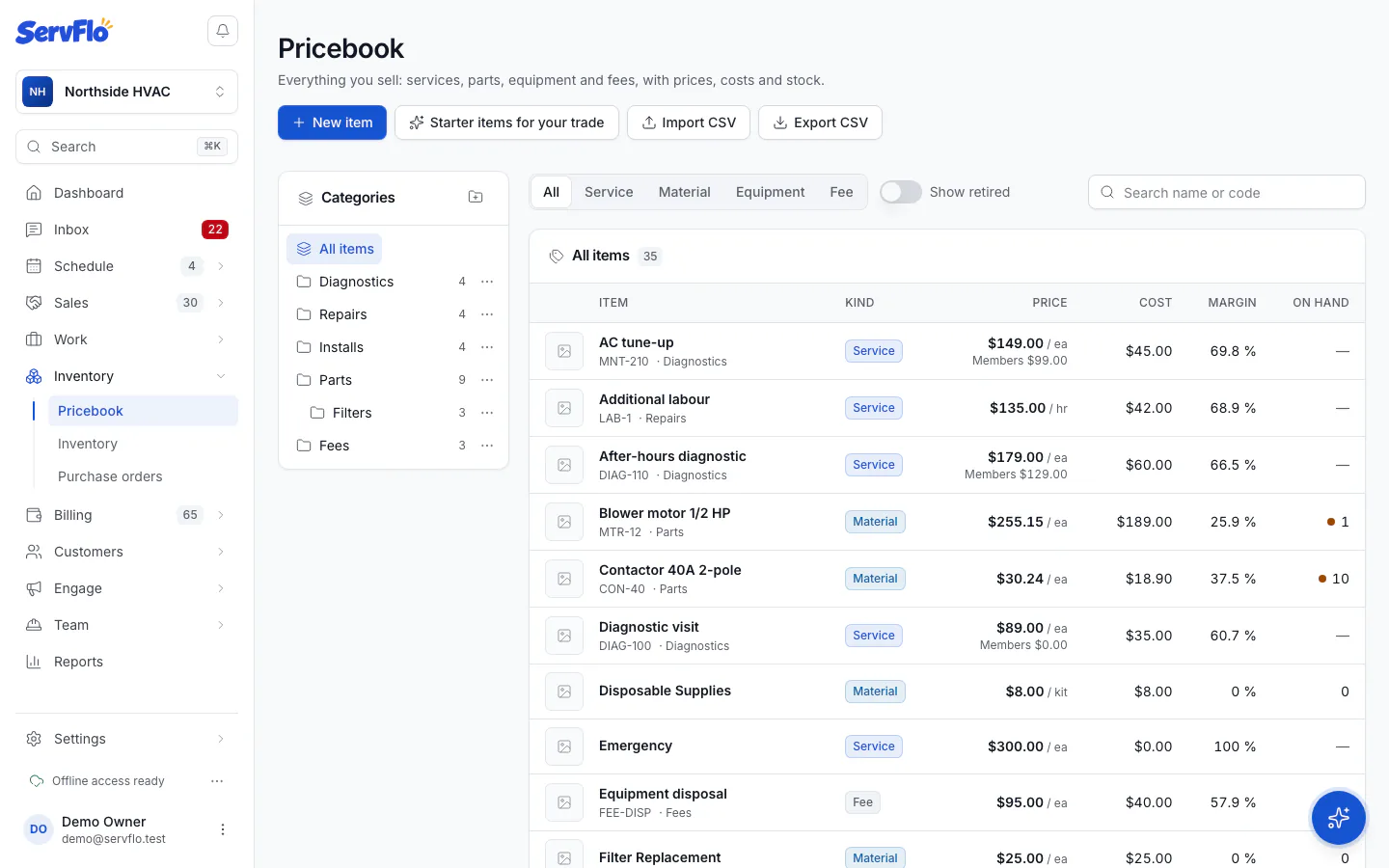
Add an item
Open the pricebook
In the left menu, under Inventory, click Pricebook, then New item.
Choose the kind
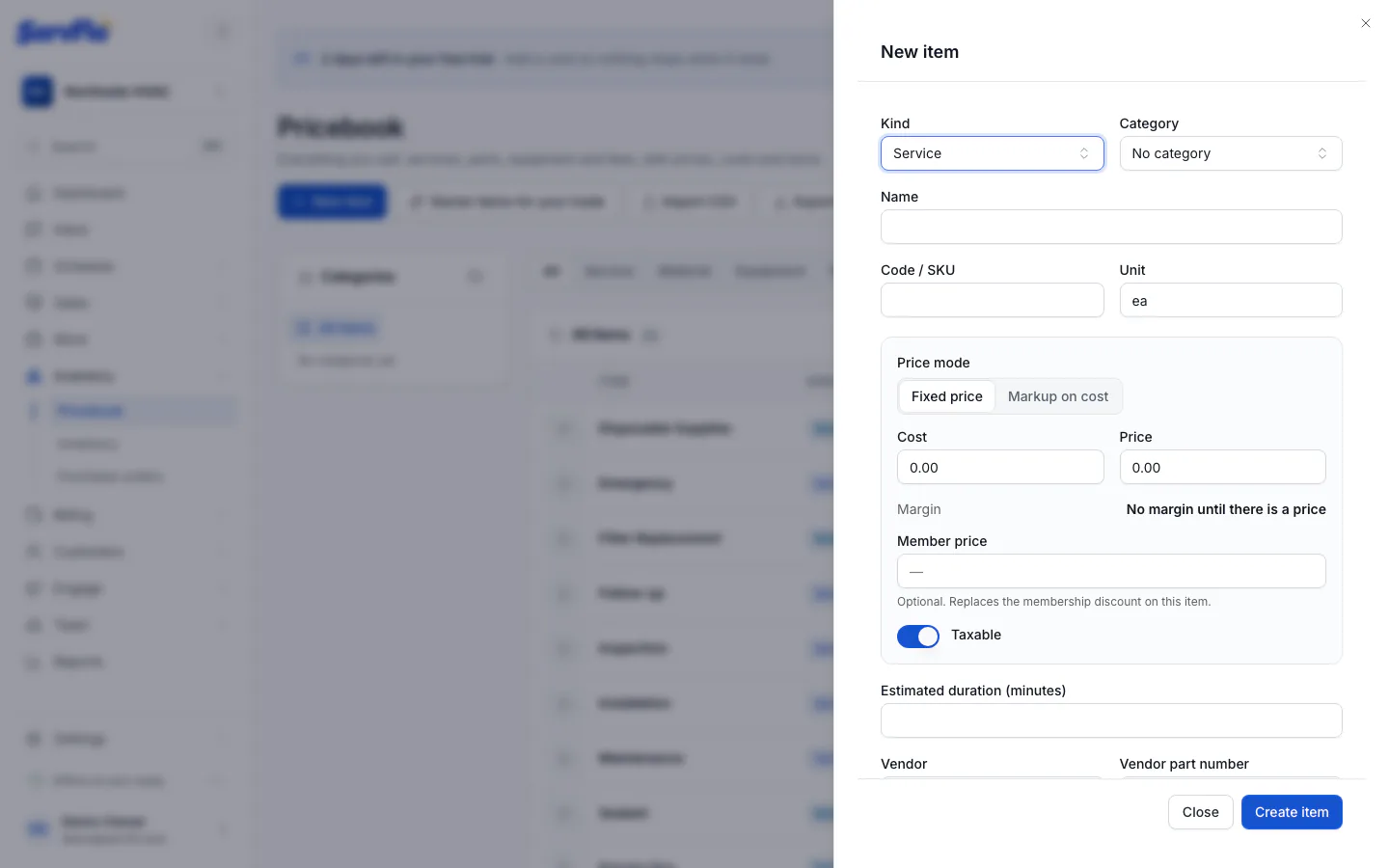
Pick a Kind: Service, Material, Equipment or Fee. Materials and equipment are the kinds you can stock and order from vendors.
Describe it
Enter a Name and, if you use them, a Code / SKU. Choose a Category and a Unit (each, hour, foot…). The Customer-facing description is printed on quotes and invoices; Internal notes stay with your team.
Set the price
Choose a Price mode:
- Fixed price: you type the Price.
- Markup on cost: you type the Cost, and the price comes from your markup tiers. It updates whenever the cost changes.
The Margin line shows what you keep on each sale.
Add the details you need
- Member price: optional. Members get this price instead of their plan's usual discount on this item.
- Taxable: tick it if you charge sales tax on the item.
- Estimated duration (minutes): for services.
- Vendor and Vendor part number: who you buy it from, used on purchase orders.
To add a similar item, open an existing one and click Duplicate. You get a copy with the same category, prices and vendor, ready to rename.
Organize categories
Categories sit on the left of the pricebook and can be nested (for example, Parts › Filters).
- Click Add category, enter a Category name and, for a sub-category, a Parent category.
- To rename or delete one, open its menu and choose Rename or Delete. Deleting a category never deletes items: its items and sub-categories move up to its parent.
Retire an item you no longer sell
Open the item and turn off Active. Retired items leave the pickers on quotes, invoices and jobs but stay on the documents that already use them. Tick Show retired in the list to see them again.
Prices on existing quotes and invoices
When you add an item to a quote, invoice or job, ServFlo copies its description, price and cost onto that line. Changing the pricebook later never changes a quote, invoice or job you already wrote.
Service types and materials
Your service types and materials (in Settings) are also in the pricebook. Editing one updates the other, so you can manage everything from the pricebook if you prefer.
Who sees costs
Only owners and admins see the Cost and Margin columns. Dispatchers, technicians and office staff see prices only.