
Purchase orders and vendors
Keep your suppliers in one place, order parts and equipment, and receive what arrives into stock.
Purchase orders record what you ordered from a vendor and what has arrived. Receiving an order adds the items to stock and updates their cost. Because purchase orders show what you pay, only owners and admins can use purchasing.
Add a vendor
- In the left menu, under Inventory, click Purchase orders, then switch to Vendors.
- Click New vendor.
- Enter the Name, Contact, Email, Phone and Payment terms (for example, Net 30).
- Click Create vendor.
Set an item's Vendor in the pricebook so it goes on the right order when stock runs low.
Create a purchase order
Start a new order
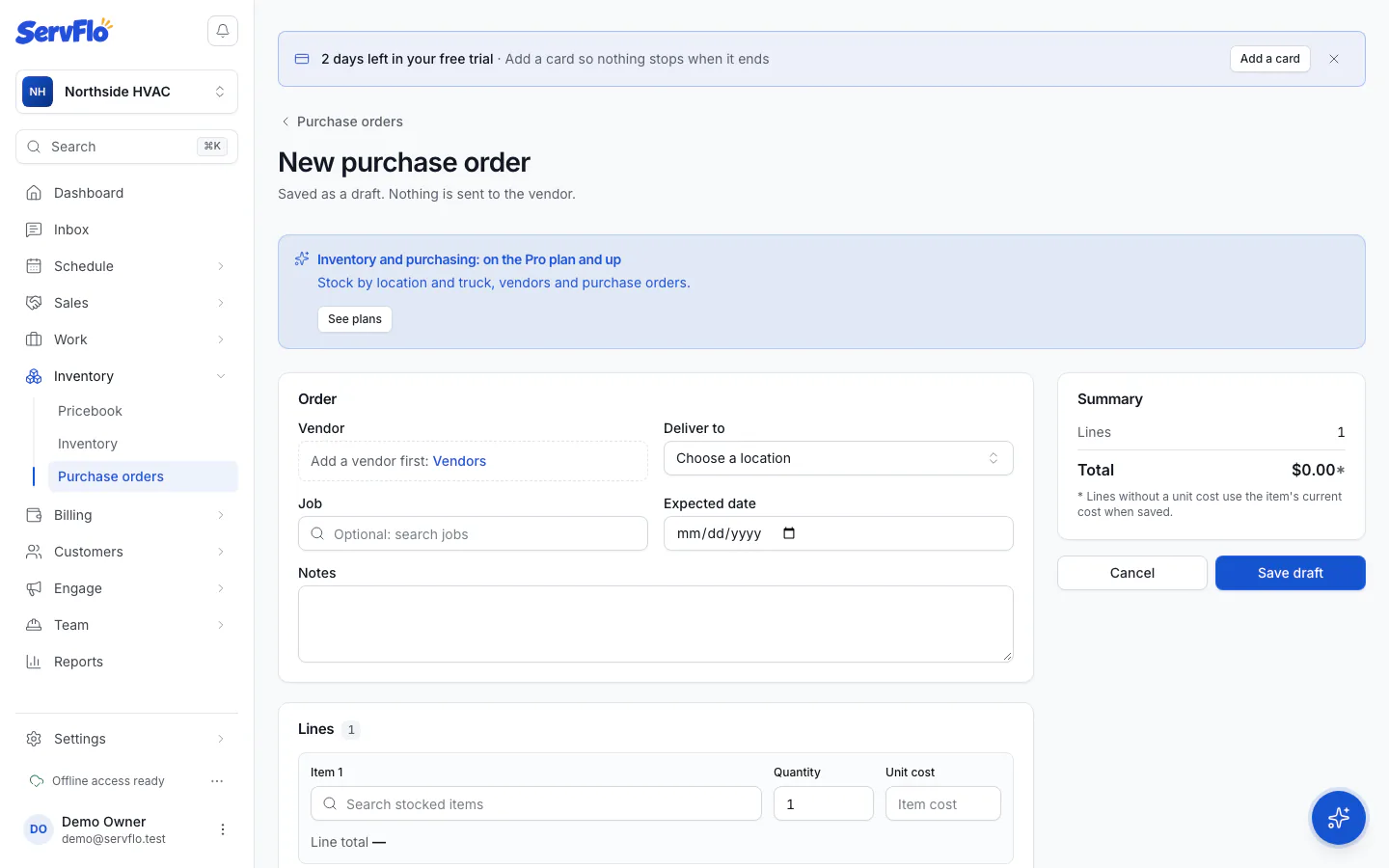
On the Purchase orders page, click New purchase order.
Fill in the order
Choose the Vendor and where it's delivered (Deliver to: a warehouse or truck). If you're buying for a specific job, pick the Job so the cost counts in that job's costing. Add an Expected date and Notes if you like.
Add the lines
For each line, pick a stocked item, the Quantity and the Unit cost. A line without a unit cost uses the item's current cost. Click Add line for more.
Save the draft
Click Save draft. Nothing is sent to the vendor.
Send it
Send the order to your vendor your usual way (Print under More gives you a printable copy), then click Mark sent to record the date.
On the Inventory page, open Low stock and click Create PO. ServFlo makes a draft order for each vendor with the suggested quantities. Items without a vendor are left out.
Receive an order
Open the order
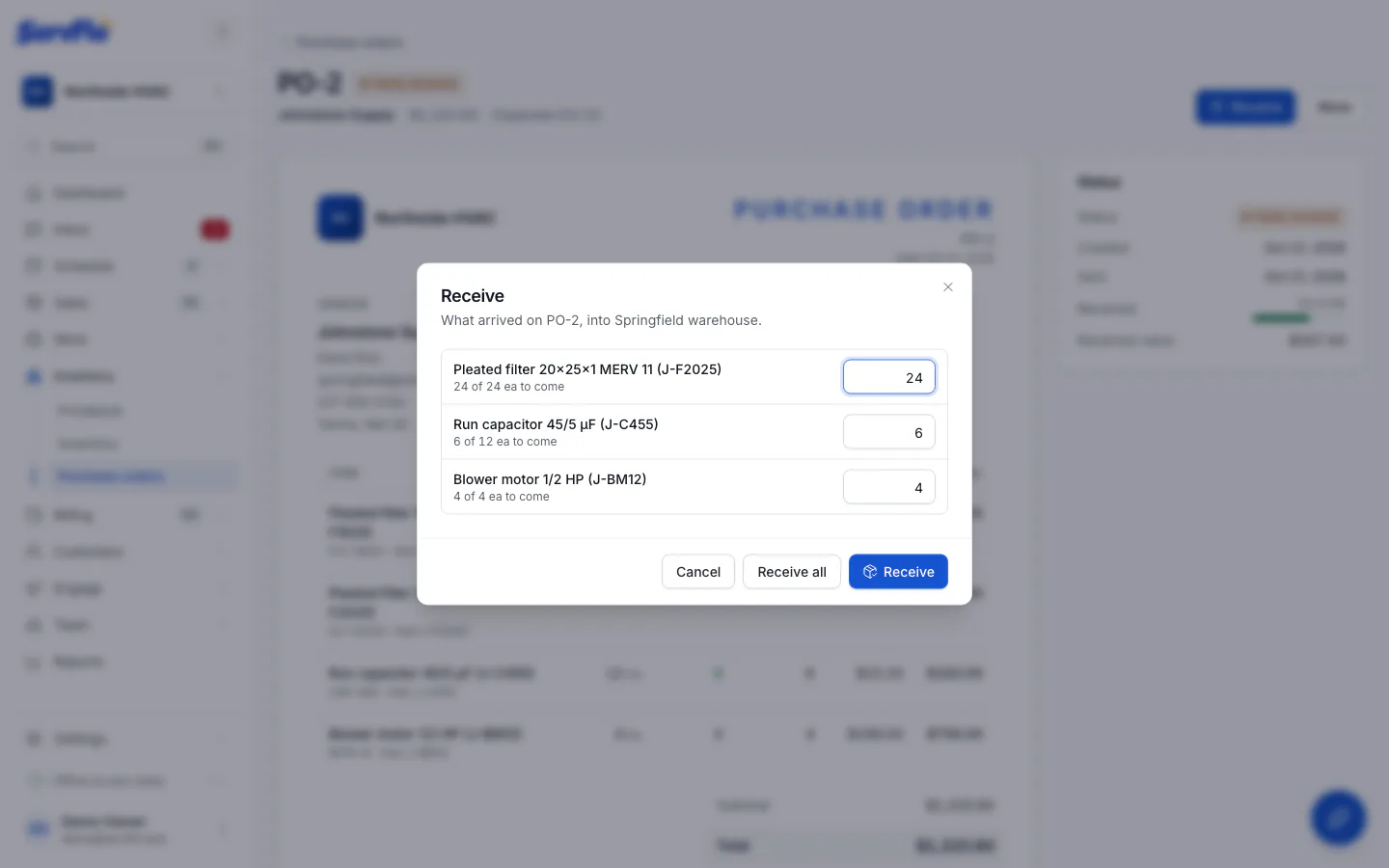
Open the purchase order and click Receive.
Enter what arrived
Click Receive all if everything came, or enter the quantity that arrived on each line. You can't receive more than is still to come.
Receive
Click Receive. The items are added to the order's delivery location, and you see any item costs that changed.
A partly delivered order shows as Partly received until the rest arrives.
How costs update
When you receive items, ServFlo updates each item's cost to the average of what's on hand and what arrived. For example, with 10 filters on hand at $8 and 10 more received at $10, the new cost is $9. Items priced by markup get a new price at the same time. Quotes, invoices and jobs already written don't change.
Change or cancel an order
You can edit a draft or sent order until something on it is received. After that, use Cancel order (under More) instead of deleting it.