
Set up warehouses and trucks
Add the warehouses and technician trucks where you keep stock, so ServFlo knows what's on hand where.
Inventory tracks parts and equipment by location: one or more warehouses, and a truck for each technician who carries stock. Owners, admins and dispatchers can manage locations.
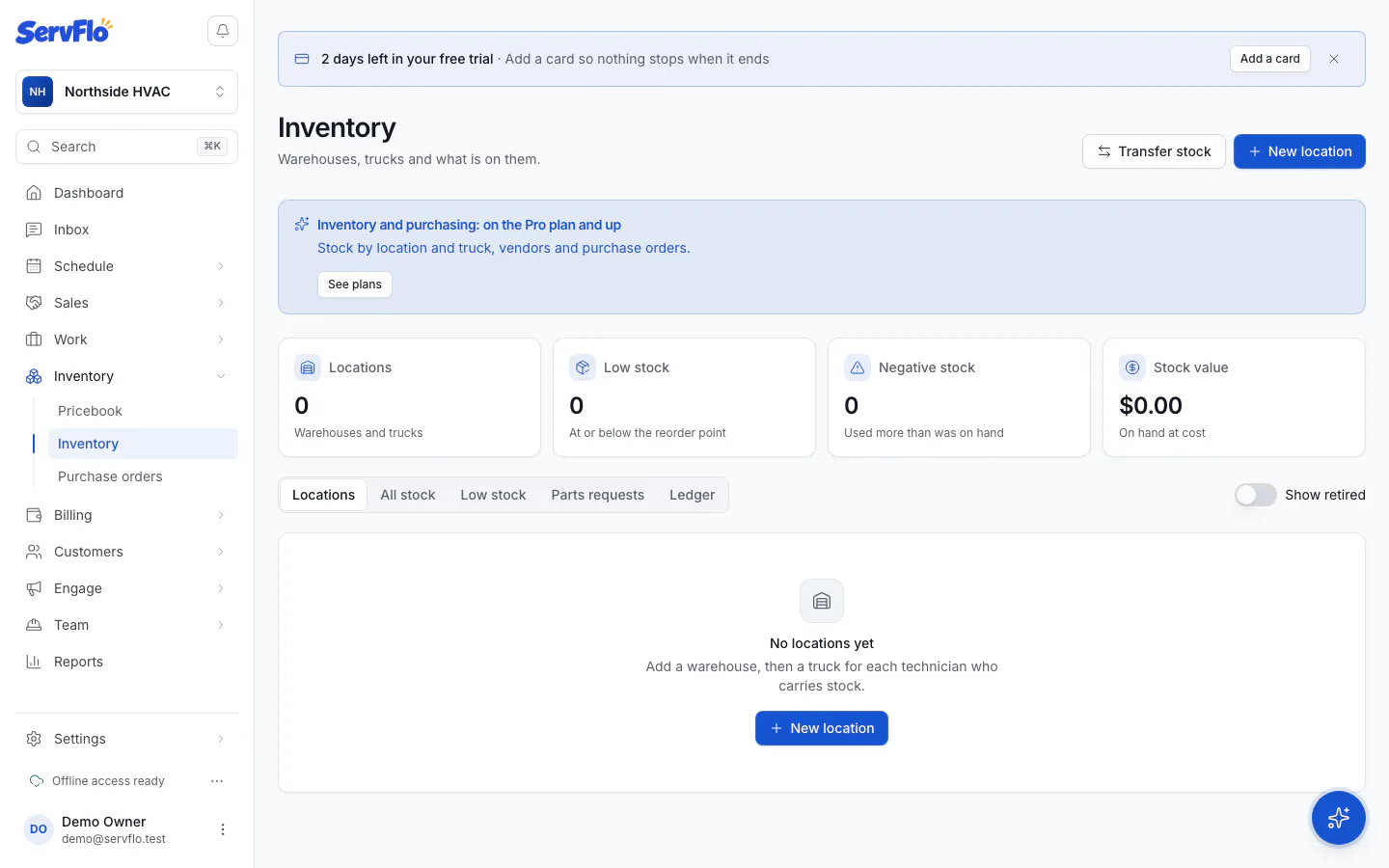
Add your warehouse
Choose Warehouse as the Kind, enter a Name and Address, and click Create location. Your first warehouse becomes the Default warehouse.
Add a truck for each technician
Click New location again, choose Truck, name it (for example, "Van 2") and pick the Technician who drives it. Click Create location.
Stock the truck
Open the truck and click Restock from warehouse to move items onto it. See Move and count stock.
How job materials come off the shelf
When a technician adds a stocked part to a job, ServFlo takes it from the truck of the job's lead technician. If that technician has no truck, it comes from the default warehouse. Removing the part from the job puts it back.
ServFlo never stops a technician from using a part because the count says there are none. The location goes below zero and shows as Negative so you can check the count.
What technicians see
Technicians see only their own truck. In the left menu, they click My truck to see what's on it right now, with low and negative items flagged. They can ask the office for parts from the mobile app; see Parts requests.
Retire a location
To stop using a location, open it, choose Edit (under More) and turn off Active. Retired locations are hidden, but their history is kept.