
Move and count stock
Restock trucks, transfer between locations, adjust and count stock, and set reorder points so you know when to buy.
Every change to your stock is recorded: parts received, moved, used on jobs, returned and adjusted. Owners, admins and dispatchers can move and count stock.
Transfer stock
Use a transfer to restock a truck from the warehouse, or to move items between any two locations.
Start the transfer
On the Inventory page, click Transfer stock. Or open a truck and click Restock from warehouse.
Choose where from and where to
Pick the From and To locations.
Add the items
Search for each item, enter the Quantity, and click Add item for more lines. Add a Note if you like.
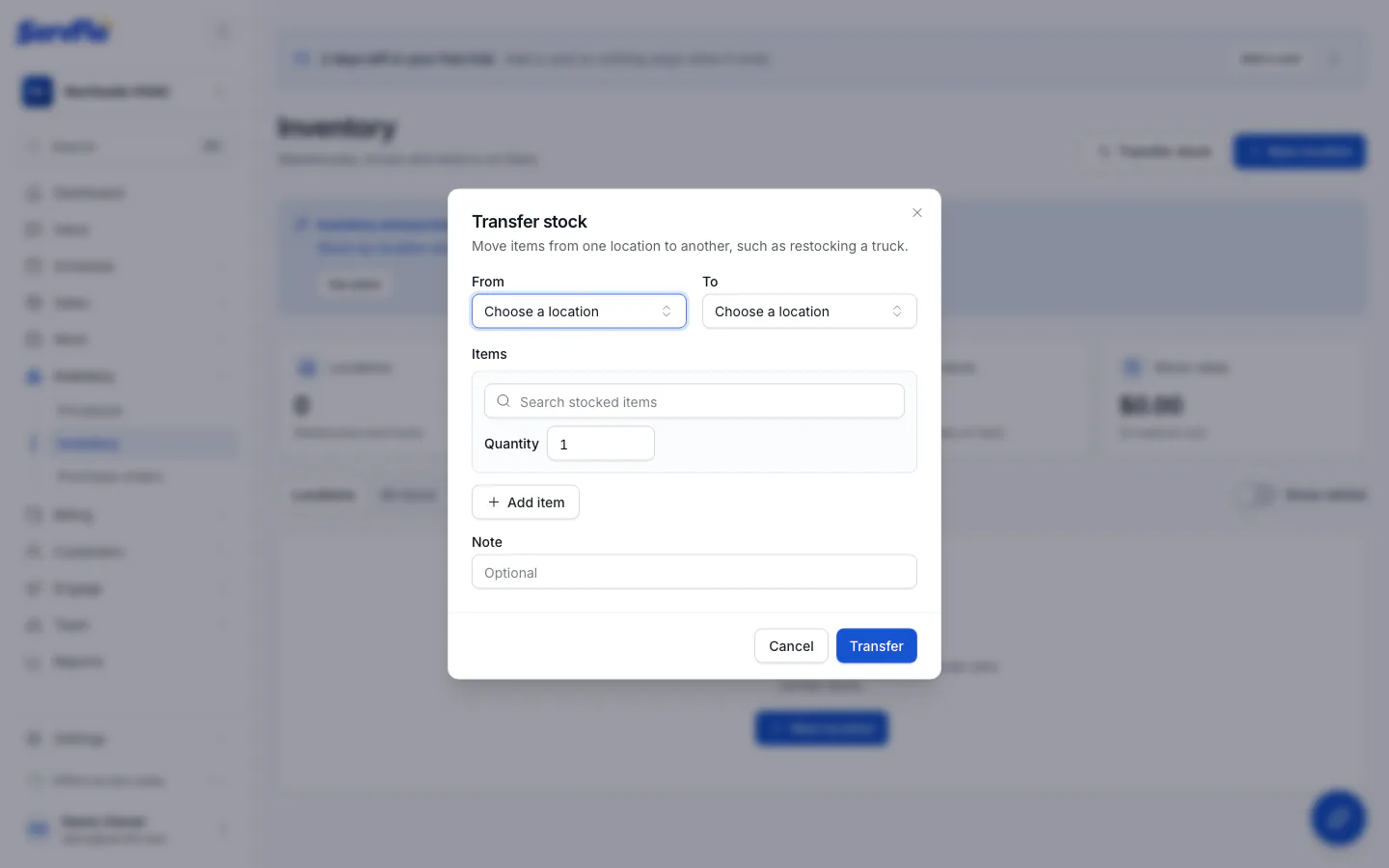
Transfer
Click Transfer.
Adjust stock
When something is damaged, lost or found, open the location and choose Adjust (under More), or click the adjust button on an item's row. Pick the item, choose Add or Remove, enter the Quantity and a Reason, then click Adjust.
Count stock
Open the location and click Count. Enter what you counted for each item; only the rows you fill in change. Click Save count. ServFlo adjusts each item to your count and records the difference.
Set reorder points
A reorder point tells ServFlo when an item is low at a location.
- Open the location and click the reorder button on the item's row.
- Enter the Reorder point (low at or below this) and, optionally, the Reorder quantity you usually buy.
- Click Save.
Items at or below their reorder point appear under Low stock on the Inventory page, with a suggested quantity. Click Create PO there to make draft purchase orders, one per vendor. See Purchase orders and vendors.
See the history
On the Inventory page, open Ledger to see every stock movement: received, transferred, used on a job, returned and adjusted, with the balance after each one. Filter by location or kind of movement.