
Equipment types
Set up the kinds of equipment you service, the details you keep on each, and the word your business uses for them.
Equipment types decide what you record about each piece of equipment. A furnace might ask for AFUE and filter size, an air conditioner for tonnage and SEER, a car for VIN, year and color. ServFlo starts you with your trade's usual types and fields; you can rename them, add your own and archive the ones you don't use. Owners and admins manage them in Settings → Equipment types.
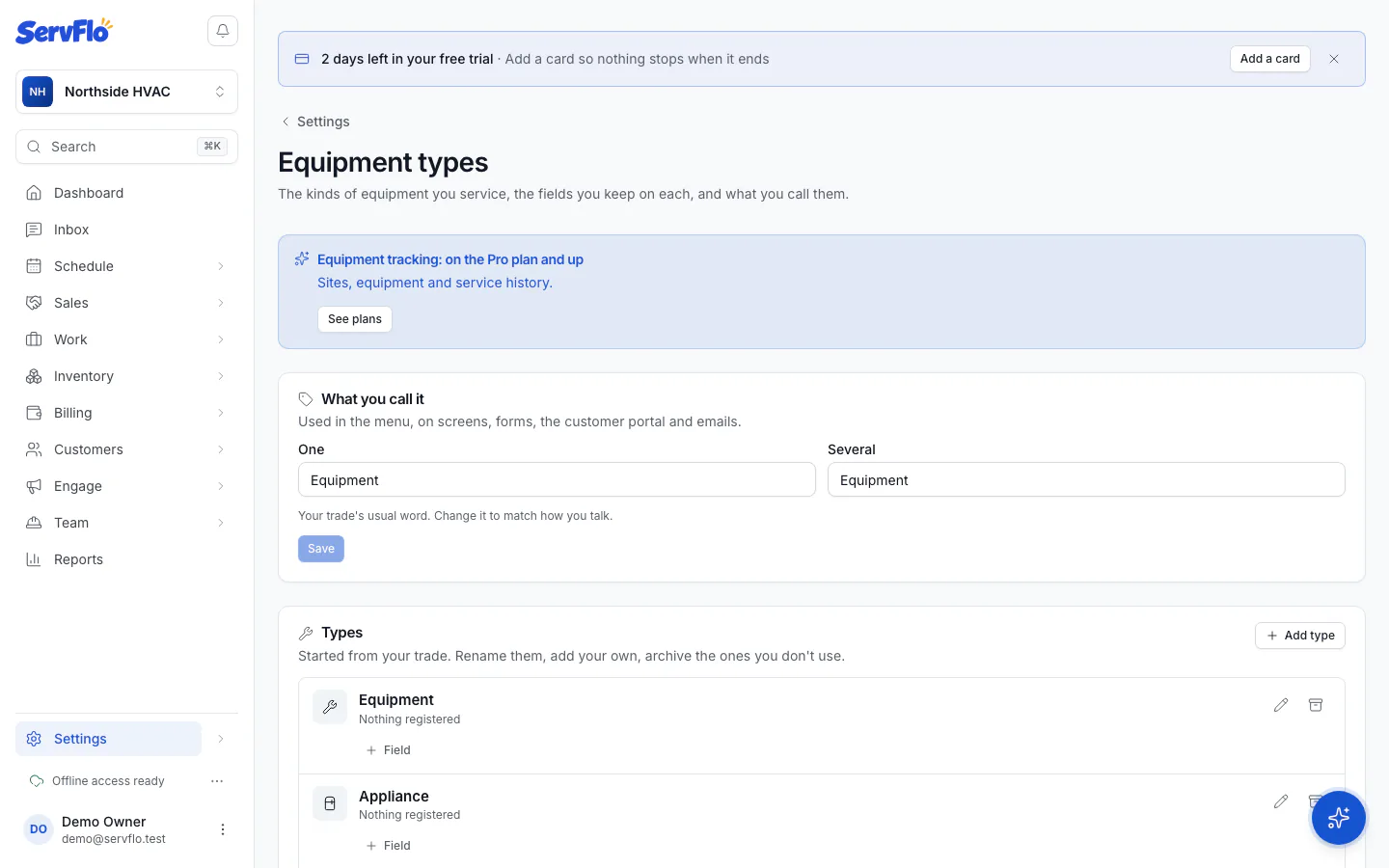
Change what you call equipment
Under What you call it, enter the word for One and Several (for example, Vehicle and Vehicles) and click Save. It's used in the menu, on screens and forms, in the customer portal and in emails. Click Use the trade's default to go back.
Add or edit a type
Open the type
Under Types, click Add type, or the edit button on an existing type.
Name it
Enter a Name and pick an Icon.
Choose who owns new ones
Tick Belongs to the customer for things that go with the customer, such as vehicles and boats. Leave it off for equipment that stays at a property.
Pick the built-in details
Under Built-in details, choose which standard details this type shows: serial number, manufacturer, model, install date, warranty, condition, refrigerant, and lifespan and replacement outlook. Give any of them your own label, such as VIN for the serial number.
Save
Click Save.
Add fields to a type
Click Field on a type to add a detail only for that type, such as "Filter size" for furnaces. Choose the Type of answer (short text, number, date, a list of choices and so on) and whether it's Required.
For details you want on every piece of equipment whatever its type, use Settings → Custom fields, on the Equipment tab.
Required fields are checked when someone registers equipment in the office. Technicians recording equipment on site from the mobile app aren't blocked by them.
Archive a type
Archive a type you no longer use. Equipment already of that type keeps it. Click Show archived to see archived types and restore one.
Add another trade's types
Do more than one kind of work? Under Another trade's types, choose a trade and click Add types. Its types and their fields are added; types you already have are skipped.