
Register equipment
Record the units, vehicles or systems you service, with serial numbers, warranty and full service history.
Equipment tracking keeps a record of every furnace, water heater, pool pump or car you work on: what it is, where it is, who owns it and every job done on it. Technicians see it on their jobs, and your customers can see their own equipment in the customer portal.
ServFlo uses your trade's word for equipment everywhere: Units for HVAC, Vehicles for detailing, Pool equipment for pool service, and so on. The menu item and buttons on this page use that word. You can change it in Equipment types.
Property equipment or the customer's own
When you register equipment, you decide who it belongs to:
- The property: a furnace or water heater stays with the house. If the property changes hands, the equipment stays and belongs to whoever lives there now.
- The customer: a car, a boat or anything that moves goes with the customer. It can be on their jobs at any address, and it leaves with them if they move.
Some types, such as vehicles, belong to the customer by default.
Register equipment
You can register equipment from a customer, from a property, or from the equipment list.
Open the equipment list
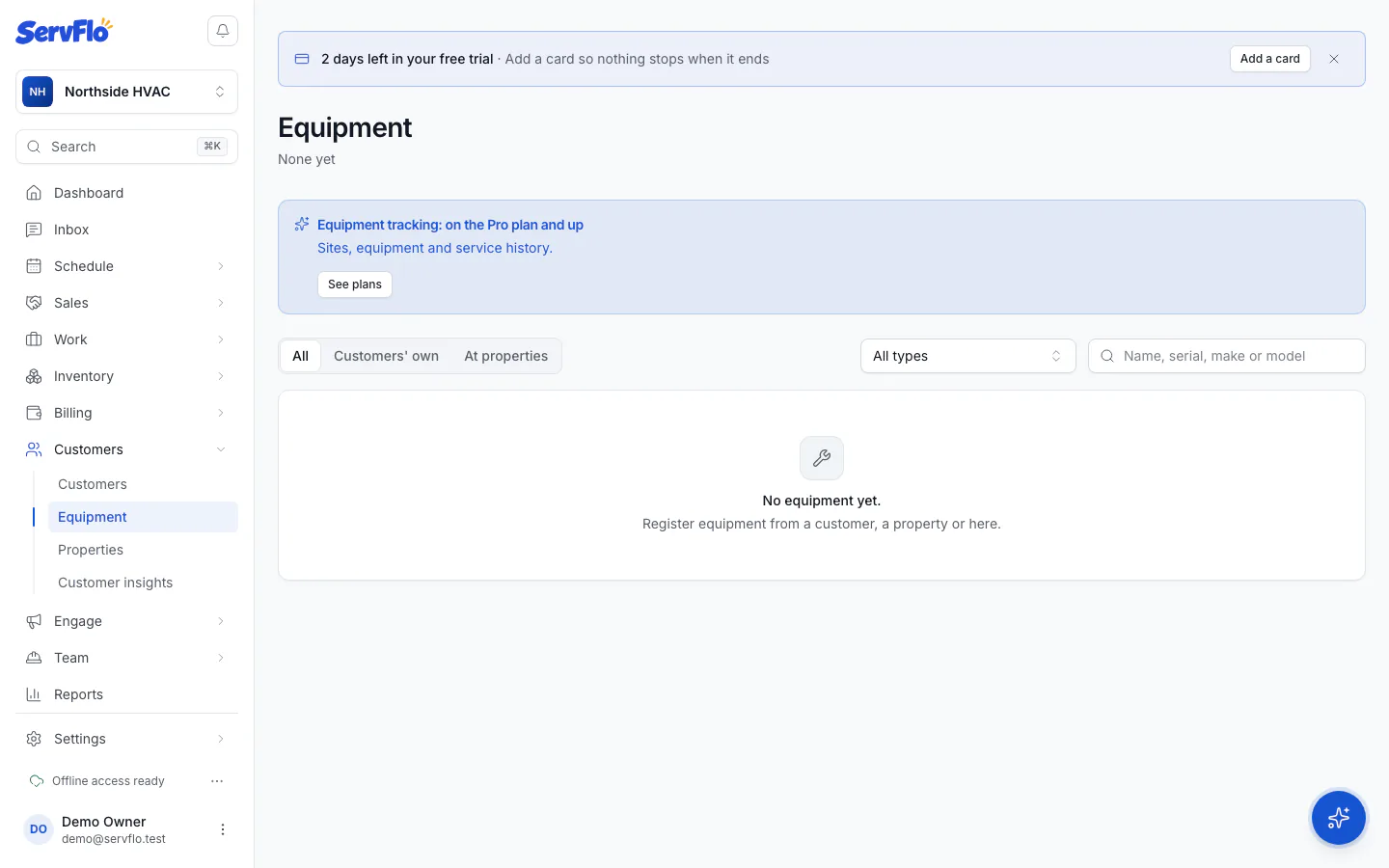
In the left menu, under Customers, click Equipment (or your own word for it, such as Units). Click Register (for example, Register unit).
Choose the customer
Under Whose is it?, pick the customer, or No customer (equipment at a property). Click Next.
Fill in the details
Choose the Type and give it a Name to tell it apart (for example, "Furnace #1"). Under Belongs to, choose The property or The customer, and pick the property where it is (or where it's Usually kept).
Add the Serial number, manufacturer, model, status, install and warranty dates and notes you have. Each type can ask for its own extra details, such as tonnage or VIN.
Save
Click Save (for example, Save unit). The equipment page opens.
Serial numbers are optional, but they can't repeat at the same property or for the same customer, which helps you avoid duplicates.
The equipment page
Each piece of equipment has its own page with its details, its owner and its history: jobs it was on, moves between properties, and changes of owner, type or status. Click Schedule job to book work on it.
To find equipment, filter the list by type or by Belongs to (Customers' own or At properties), or search by name, serial, make or model.
Equipment you no longer service
Equipment is never deleted, so its history is kept. Click Edit equipment and set its status to Out of service or Retired instead (for example, when a unit is replaced).