
Set up online booking
Turn on your booking page so customers can request or book work online, and share the link.
Your booking page lets customers ask for work any time, without calling. Each booking lands in Sales → Requests. Online booking is available on Connect, Grow and Pro.
The same booking form powers the booking section of your ServFlo website. See Websites.
Turn on your booking page
Open the settings
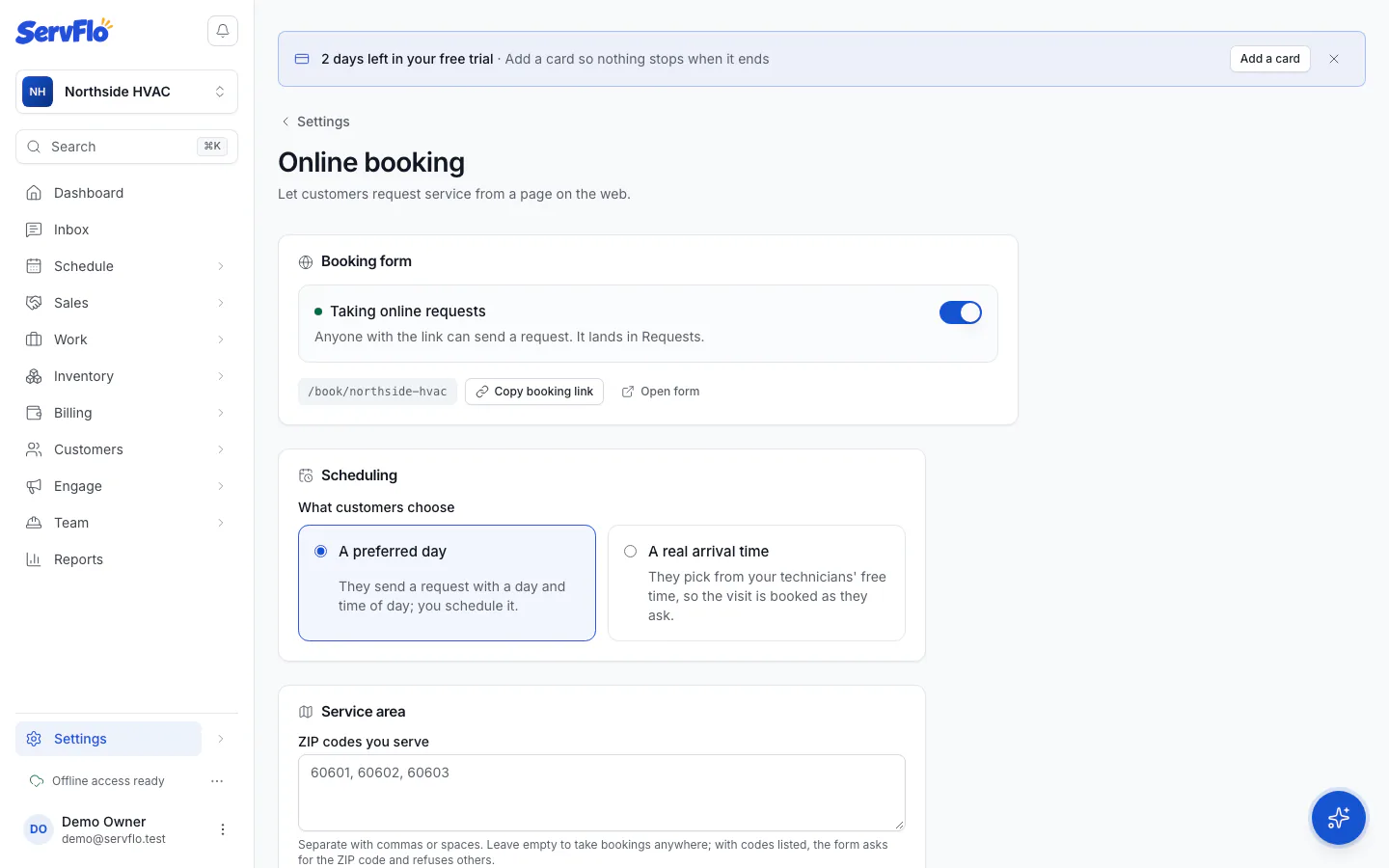
Go to Settings → Online booking.
Switch it on
In the Booking form card, turn on Accept online booking requests. The card shows Taking online requests when it's on.
Share the link
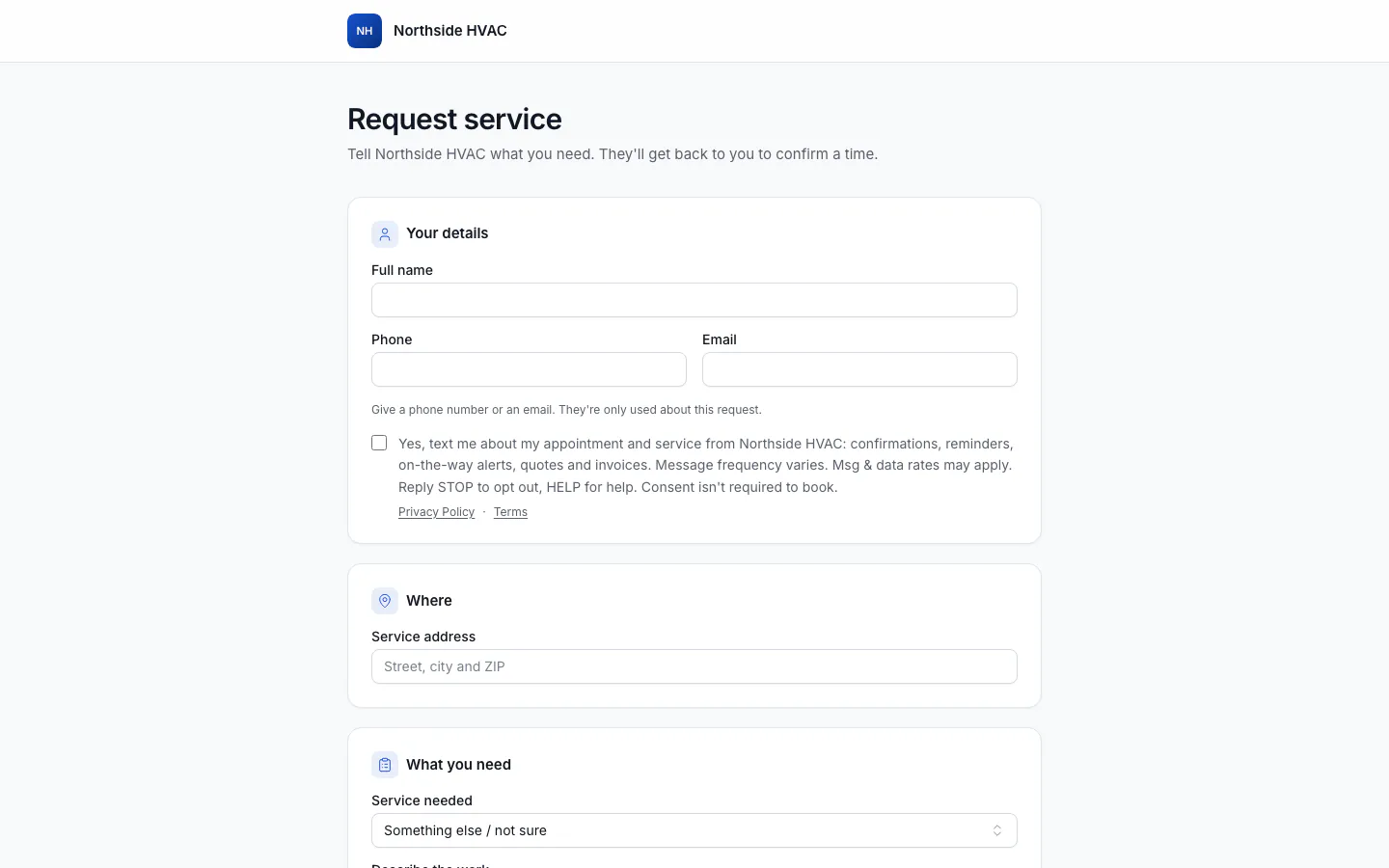
Select Copy booking link and put it on your website, social pages, emails or Google Business Profile. Select Open form to see what customers see.
When booking is off, the link shows a not-found page and takes no requests.
Choose what customers pick
Under Scheduling, choose What customers choose:
- A preferred day (the default) — customers send a request with a preferred date and a time of day (Morning, Afternoon, Evening or Any time). You schedule it yourself.
- A real arrival time — customers pick an open arrival window from your technicians' free time. See Offer arrival windows.
Select Save.
Limit where you work
Under Service area, list the ZIP codes you serve, separated by commas or spaces, and select Save. The form then asks for the ZIP code and turns away addresses outside it. Leave it empty to take bookings from anywhere.
Choose which services can be booked
Go to Settings → Service types and use the Online switch on each service. Only services that are switched on are offered on the booking page.
What customers see
With A preferred day, the page is titled Request service. Customers fill in:
- Your details — name, and a phone number or email
- Where — the service address
- What you need — the service and a description
- When suits you — a preferred date and time of day
They select Send request and get a reference number. You'll find the request in Sales → Requests with the source Online booking. See Handle a work request.
Only owners and admins can change online booking settings. If your plan no longer includes online booking, the page tells customers you're not taking online bookings right now.