
Create a job
Book a job for a customer with a date, a service and a technician.
A job is the work you've agreed to do for a customer. Creating one also creates its first visit, so it shows on the schedule and the dispatch board straight away.
You can start a new job from several places:
- Work → Jobs, then New job
- Schedule → Calendar, then New job, or Add job on a day
- a request, with Convert to job (see Handle a work request)
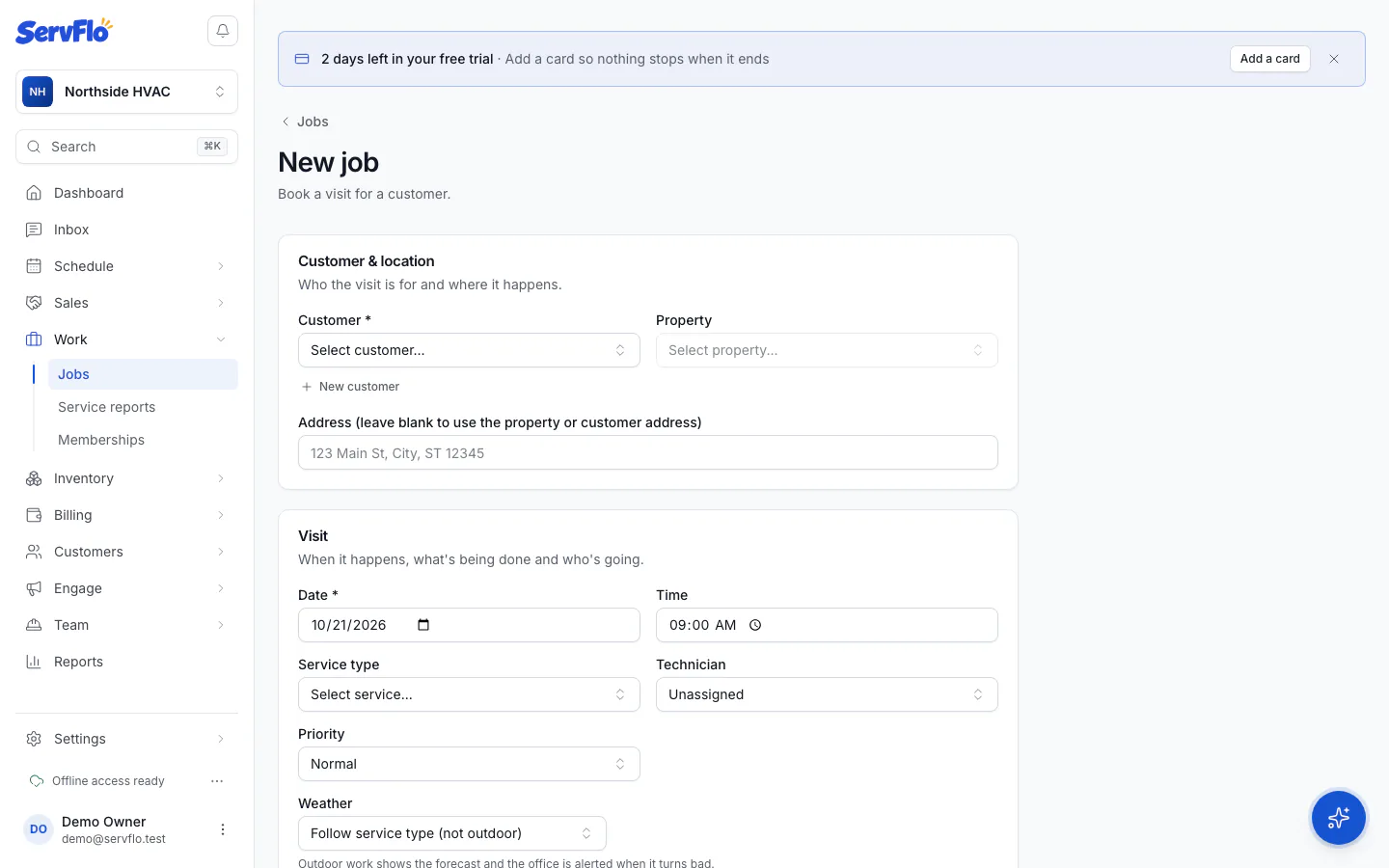
Choose the customer and location
Under Customer & location, pick the Customer. If they're new, select New customer to add them without leaving the form.
Then pick the Property where the work happens, or select New property to add one. If you leave the property empty, the job uses the customer's billing address. You can also type a different Address.
Set the visit details
Under Visit:
- Date (required) and Time. Leave the time empty if any time that day works.
- Service type — this fills in the job's duration and price from the service's defaults.
- Technician — who's going. You can add more people to the crew later.
- Priority — Low, Normal, High or Urgent.
- Notes — anything the technician should know.
Add equipment and custom fields (optional)
If you track equipment (Pro), link the unit being serviced under Equipment. Any custom fields your business keeps on jobs appear at the end of the form.
Save
Select Create job. The job opens so you can add a checklist, more visits, or a recurring schedule.
If the customer is marked Do not service, or is over their credit limit, the form warns you. You can still save the job.
Change the job later
On the job page, select Edit. Editing also lets you change the Status, Duration (minutes), Price and Repeats (see Set up a recurring job).
On Pro, outdoor jobs also show the forecast at the property while you book (weather-aware scheduling, available on Pro).