
Use the schedule
See the week's visits at a glance, filter by technician and book new jobs from the calendar.
The calendar shows a week of visits, one column per day. Go to Schedule → Calendar in the sidebar.
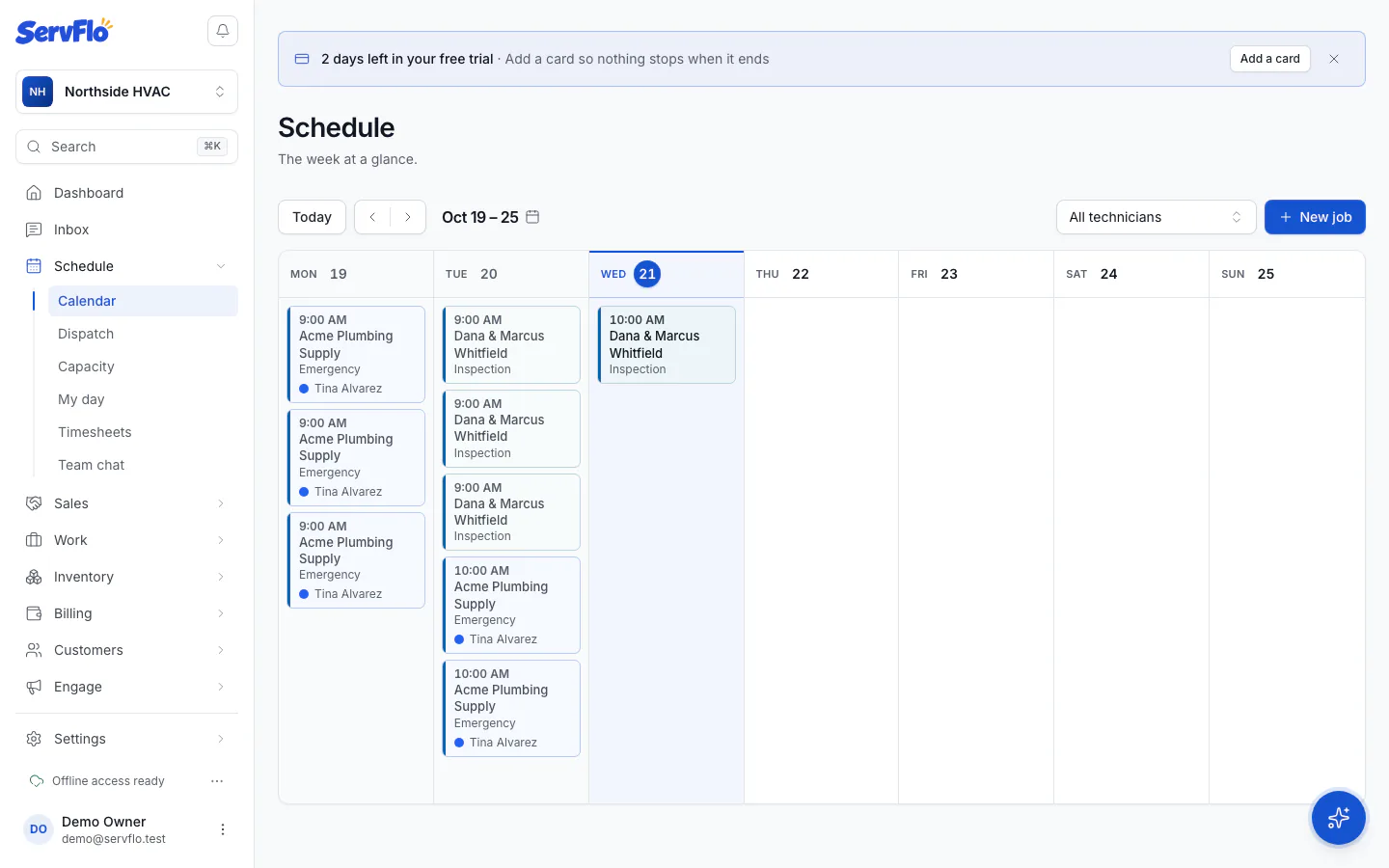
Read the calendar
- Each card is one visit, showing its start time (or Any time), the customer, the property and service, and the technician (with "+1", "+2" when there's a crew). Multi-visit jobs show which visit it is, such as Visit 2 of 3.
- The card's color is the technician's color (or the service type's, when nobody is assigned). The strip down the left edge shows the status: scheduled, confirmed, in progress, completed or canceled.
- Live visits show where the technician is: On the way, Arrived or In progress.
- A visit from a past day that nobody completed is flagged Still open from that date, so it doesn't get forgotten.
- When technicians are on the clock, a Clocked in line above the calendar lists who.
Select any card to open its job.
On phones and narrow screens, the calendar becomes a list of days. Days already past are tucked behind Show earlier days, and runs of empty days collapse into one line.
Move around and filter
- Use the arrows to go to the previous or next week, or select Today to come back.
- Pick a technician from the filter to see only their visits, or choose All technicians.
ServFlo remembers the week and filter you left, so the calendar opens where you were.
Book a job from the calendar
- Select New job at the top, or
- select Add job on a day to start a job on that date.
See Create a job.
Reschedule a visit
The calendar is for viewing and booking. To move a visit to another time or technician, either:
- drag it on the dispatch board (see Dispatch work from the board), or
- open the job and select Edit on the visit in the Visits panel (see Add visits and assign crews).
What technicians see
Technicians see only the visits they're on. Their home screen is My day, a list of today's visits in route order. See Mobile app.
On Pro, each day also shows the forecast, and outdoor visits at risk of bad weather are marked. Weather-aware scheduling is available on Pro.