
Dispatch work from the board
Assign and reschedule visits by dragging them onto technicians and times, plan routes and see who's in the field.
The dispatch board shows each technician's day on a timeline, so you can see gaps and overlaps and move work around by dragging. Go to Schedule → Dispatch.
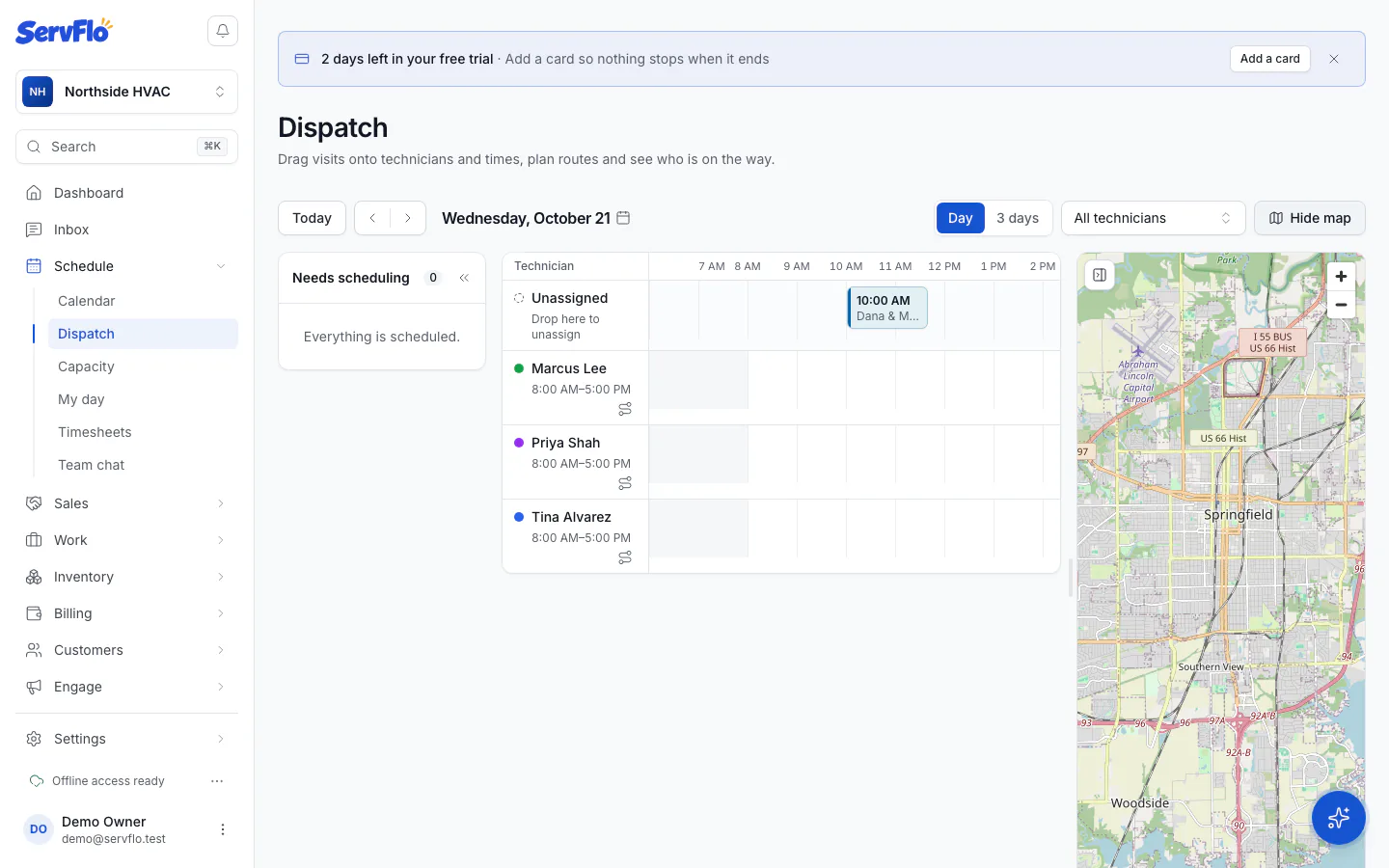
How the board is laid out
- Rows — one per active technician, plus Unassigned at the bottom. A crew visit shows in every crew member's row.
- Timeline — 6 AM to 8 PM. Times snap to 15 minutes. Hours outside a technician's working hours are shaded.
- Blocks — each visit, colored by status, with the customer, time, duration and service. Hover over or focus a block to see the full details, including the address, crew and any conflicts.
- Needs scheduling (left) — visits with no date, visits with no technician, new requests waiting for an assessment, and member visits that are due.
- Map — the day's visits as numbered pins in each technician's color, with a line for each route. Your business shows as a square. Select a pin to select its block, and the other way round.
- In the field now — the header shows who is On the way, Arrived or In progress. It refreshes every 30 seconds.
Use the header to pick a date, jump to Today, step back and forward, switch between Day and 3 days, filter by technician, and Show map or Hide map. Fold Needs scheduling into a slim rail with its « button when you need more room. ServFlo remembers these choices on your device.
Assign and reschedule visits
Drag a visit
- Drag a block to another technician's row or another time to move it.
- Drag a block onto Unassigned to take it off a technician.
- Drag the right edge of a block to make it longer or shorter.
- Drag an item from Needs scheduling onto a row to book it. Dragging a request books its assessment visit.
Press Escape to cancel a drag.
Check the warnings
The move saves straight away. If it overlaps another visit or falls outside the technician's working hours, ServFlo still saves it but tells you, and the block gets a red ring so you can fix it.
Prefer not to drag? Select a block and choose Reschedule to pick the Technician, Date, Start and Duration, then Save. Items in Needs scheduling have their own schedule button. The technician you pick replaces the one in that row; the rest of the crew stays.
On a phone, the board shows a simple list per technician instead of a timeline.
Plan a technician's route
Open Optimize route
Select the route button on a technician's row (Optimize route).
Compare the orders
ServFlo suggests a nearest-next order: from the start of the day, always drive to the closest stop next. You see the Current order and the Optimized order, with the straight-line distance of each. Visits without a map pin go last.
The route starts at the technician's home base, or at your business address if they don't have one.
Apply it
Turn on Re-time the visits if you want ServFlo to set new start times: it keeps each visit's length and adds driving time between them, starting from the time in Leave at.
Select Apply route. The technician's My day follows the new order.
Set working hours and home base
Go to Team → Technicians and select the working hours button on a technician. Set when their day Starts and Ends, and optionally a Home base where their route starts. The board shades hours outside these and warns when a visit falls outside them.
Dispatch settings
Go to Settings → Dispatch to see:
- Business address — where routes start when a technician has no home base. You change it in Settings → General (Company profile). Dispatch shows whether ServFlo found it on the map.
- Average travel speed (km/h) — used for the driving time added between visits when you re-time a route.
Who can use the board
Owners, admins and dispatchers can move, resize and assign visits and apply routes. Anyone else who opens the board sees it read-only. Technicians see only their own row.