
Add visits and assign crews
Split a job into several visits and send one or more technicians on each.
Most jobs are a single visit. When the work takes more than one trip — a two-day install, a return for parts, a follow-up check — add more visits to the same job. Each visit has its own date, time, duration and crew.
A crew is everyone going on that visit. One person is the Lead, who runs the visit; the rest help. Each crew member sees the visit on their My day and in the mobile app, and the visit shows in each of their rows on the dispatch board.
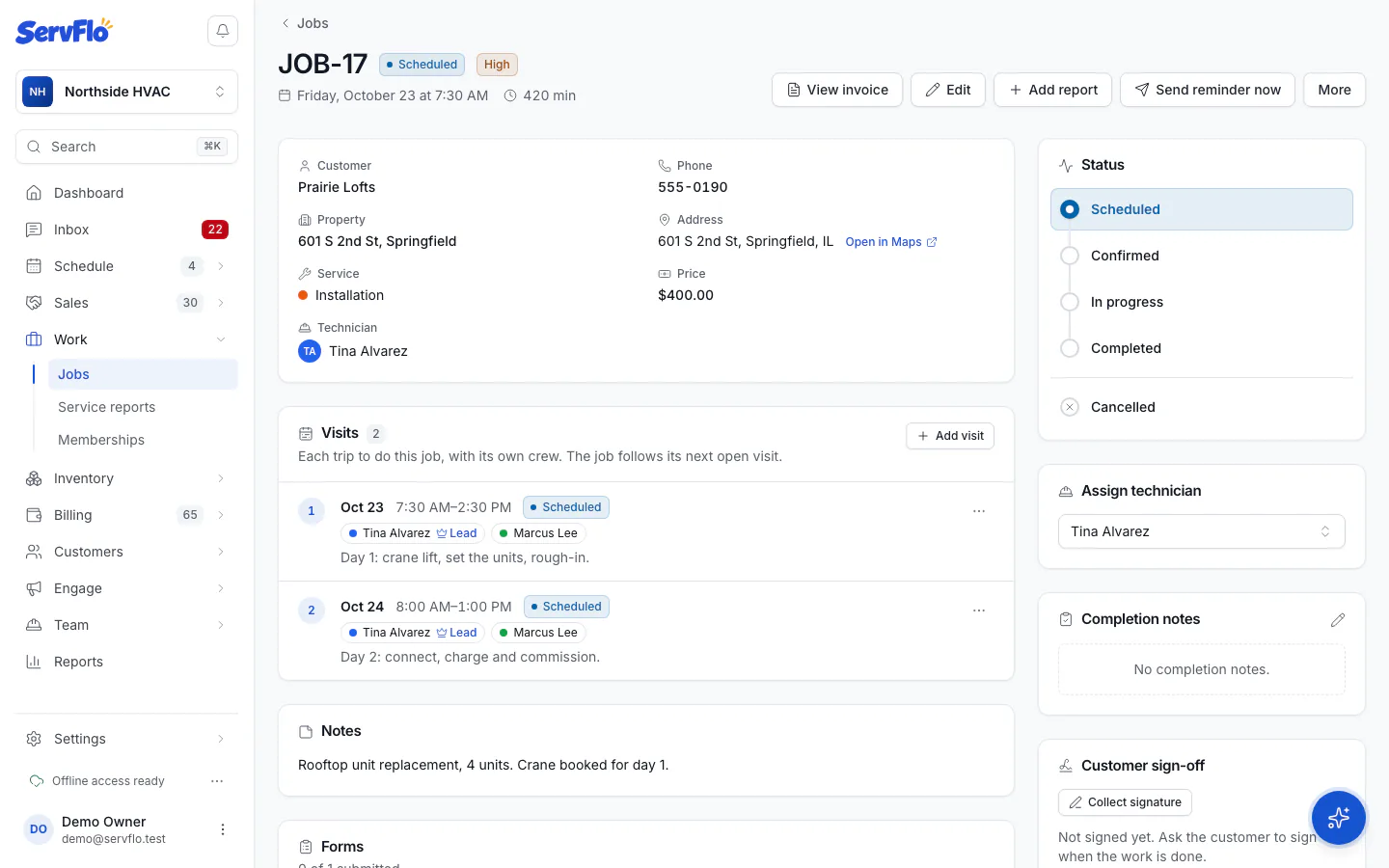
Add a visit
Open the job
Go to Work → Jobs and open the job. Find the Visits panel.
Add the visit
Select Add visit, then fill in the Date, Start, Duration (minutes) and Notes for the crew.
Leave the date empty if you don't know it yet. The visit then waits in Needs scheduling on the dispatch board until someone books it.
Pick the crew
Under Crew, tick everyone going. To choose who leads, select Lead (the crown) next to their name. If you don't choose, the first person you tick leads.
Save
Select Save. The visit appears on the schedule and the dispatch board.
Manage a visit
Each visit in the Visits panel has its own actions menu:
- Edit — change the date, time, duration, notes or crew.
- Complete — mark this visit done.
- Cancel visit — cancel it without affecting the job's other visits.
- Reopen — bring back a completed or canceled visit.
- Send reminder now — send the customer a reminder for this visit.
- Delete visit — only when the job has more than one visit.
Send reminder now texts or emails the customer straight away. Delete visit can't be undone.
How visits drive the job
The job always mirrors one visit: the one in progress, otherwise the next open visit, otherwise the last one. That's where the job's date, technician and status come from.
- The job is Completed when its last open visit is completed, not before.
- If every visit is canceled, the job is Cancelled.
- Setting the whole job to Completed closes it: the current visit is completed and any other open visits are canceled.
See Change a job's status for more.
Job forms belong to the job, not to each visit. Required answers only block the completion that finishes the job, so earlier visits can be completed without them.
Who can do what
Owners, admins and dispatchers can add, edit and cancel visits and change crews. Technicians can work their own visits (on my way, start, complete) but can't reassign them.