
Set up job forms
Build checklists, readings and sign-off forms that attach to jobs automatically, and fill them in on the job.
Job forms are the questions your team answers on every job of a certain kind: an AC maintenance checklist, a backflow test, a safety sign-off. You build a form once, attach it to service types, and ServFlo adds it to each matching job.
Owners and admins build forms. Anyone who works a job can fill them in.
Build a form
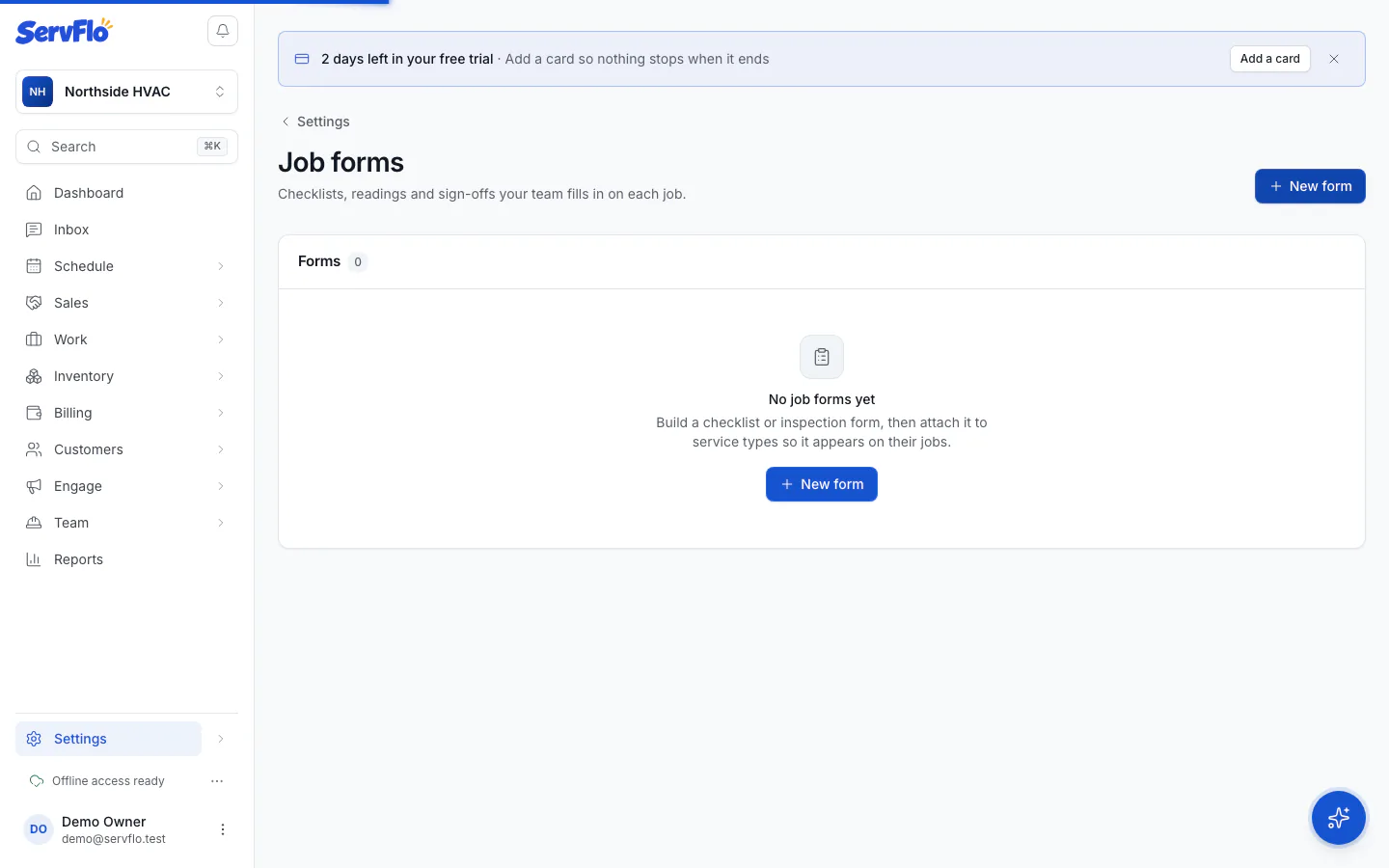
Start a new form
Go to Settings → Job forms and select New form.
Fill in the details
- Name — for example "AC maintenance checklist".
- Description — what the technician should know before filling it in.
- Active — inactive forms aren't attached to new jobs.
Choose which jobs get it
- Under Service types, tick the services whose new jobs should get this form, or
- turn on Attach to every job so every new job gets it, whatever its service type.
Add fields
Select Add field and choose a type:
| Field type | Use it for |
|---|---|
| Section heading | Splitting the form into parts, like "Outdoor unit" |
| Checkbox | Yes/no checks, like "Filter replaced" |
| Short text / Long text | Notes and observations |
| Number | Readings, with an optional Minimum, Maximum and Unit (like psi) |
| Single choice / Multiple choice | Pick from your own Choices, like Pass / Fail |
| Date | Dates such as the next service due |
| Photos | Photos taken on the job |
| Signature | A signed name, such as the customer's |
For each field, give it a Label, optional Help text, and turn on Required if the job can't be completed without it. Use the arrows to reorder fields.
Preview and save
The Preview shows how your team sees the form on a job. Select Save.
When forms attach
A matching active form is added when a job is created, when its service type changes, and when a recurring job books its next job.
To stop using a form but keep its history, turn off Active. Deleting a form stops new jobs getting it; forms already on jobs keep their answers.
Fill in a form on a job
- Open the job. Its forms are in the Forms panel, with progress such as 1 of 2 submitted.
- Answer the fields. For a Photos field, tap photos already on the job to include them, or take a new one.
- Select Save to keep a draft, or Submit when you're done.
Technicians also fill in forms during the Complete steps, in the browser or the mobile app.
A job can't be completed while a form is missing a required answer. ServFlo highlights the missing fields. On jobs with several visits, this only applies to the visit that finishes the job.
For full inspection or service reports with a branded PDF, see Service reports.