
Plan capacity
See how full each day and arrival window is, book callers into windows with room, and stop online booking before you're overbooked.
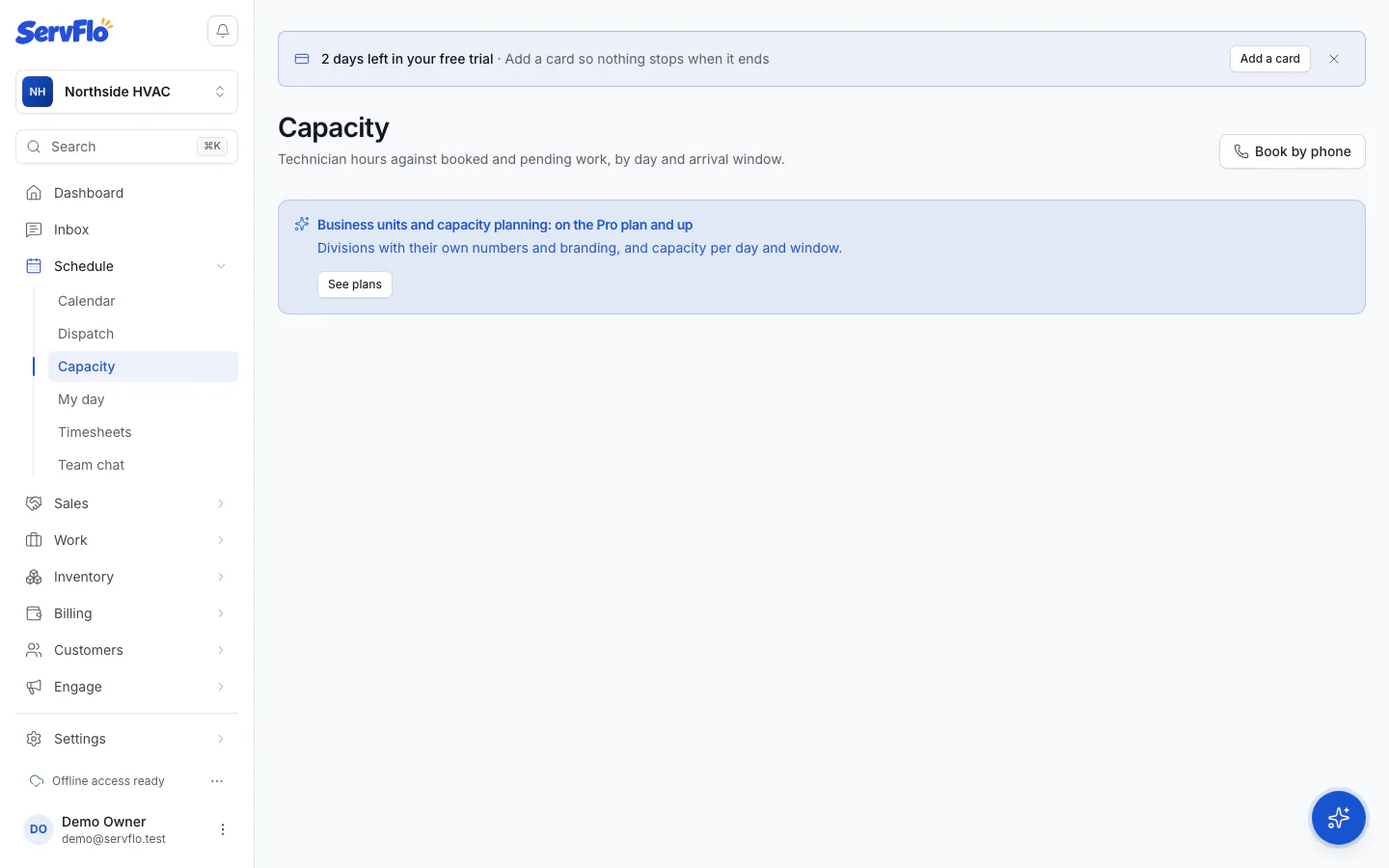
Capacity planning compares the hours your technicians have with the work that's booked and pending, for each day and planning window. Use it to spot full days early, book callers into windows with room, and keep online booking from overfilling your schedule. Available on Pro.
Go to Schedule → Capacity.
Read the planning board
The Planning board shows a week. Each cell is a day and planning window, colored by how full it is:
- Room to book (green)
- Filling up (amber), from the level you set
- Over capacity (red), past 100%
- No hours, when no technician works then
Pending requests count as booked. Visits count each crew member's time, so a two-person, two-hour visit uses four hours.
Use Business unit and Service type to narrow the board. Open a cell to see its technicians and their hours, the visits booked and the new requests.
The Forecast tab looks ahead several weeks with booked work, pending requests and the hours available. It also shows predicted work — customers who are due for service but not booked yet — shown separately and never counted as booked.
Book a caller by phone
- Select Book by phone.
- Choose the Service the caller needs (and the Business unit if it isn't the service's own).
- Pick an open window from the Next 7 days. Each shows how full it would be after this job.
- ServFlo opens a new job at that time.
You can book a window that's over capacity: ServFlo asks you to confirm with Book anyway.
Set planning windows and limits
Go to Settings → Online booking and find the Capacity card.
| Setting | What it does |
|---|---|
| Planning windows | The arrival windows the board plans by. Select Add window to add one. |
| Online booking honours capacity | Hides windows past the stop point on your booking page and marks filling ones Limited. |
| Stop online booking at | How full a window may get before online booking stops offering it (100% is full). Each window can have its own stop point. |
| Filling up from | When a window turns amber on the board and shows Limited online. |
| Non-job time per day | Time per technician for the shop, meetings and so on, taken out of their available hours. |
Select Save capacity. Only owners and admins can change these.
By default, online booking doesn't honor capacity until you turn it on. With it off, the booking page works exactly as described in Offer arrival windows.