
Set up a recurring job
Make a job repeat every week, month, quarter or year, so the next one is booked when this one is done.
For regular work — weekly lawn care, a monthly pool service, a yearly tune-up — set the job to repeat. When you complete it, ServFlo books the next one for you.
Make a job repeat
Open the job
Create the first job as usual (see Create a job), then open it.
Choose how often
Select Edit and set Repeats to one of:
- Every week
- Every 2 weeks
- Every month
- Every 3 months
- Every year
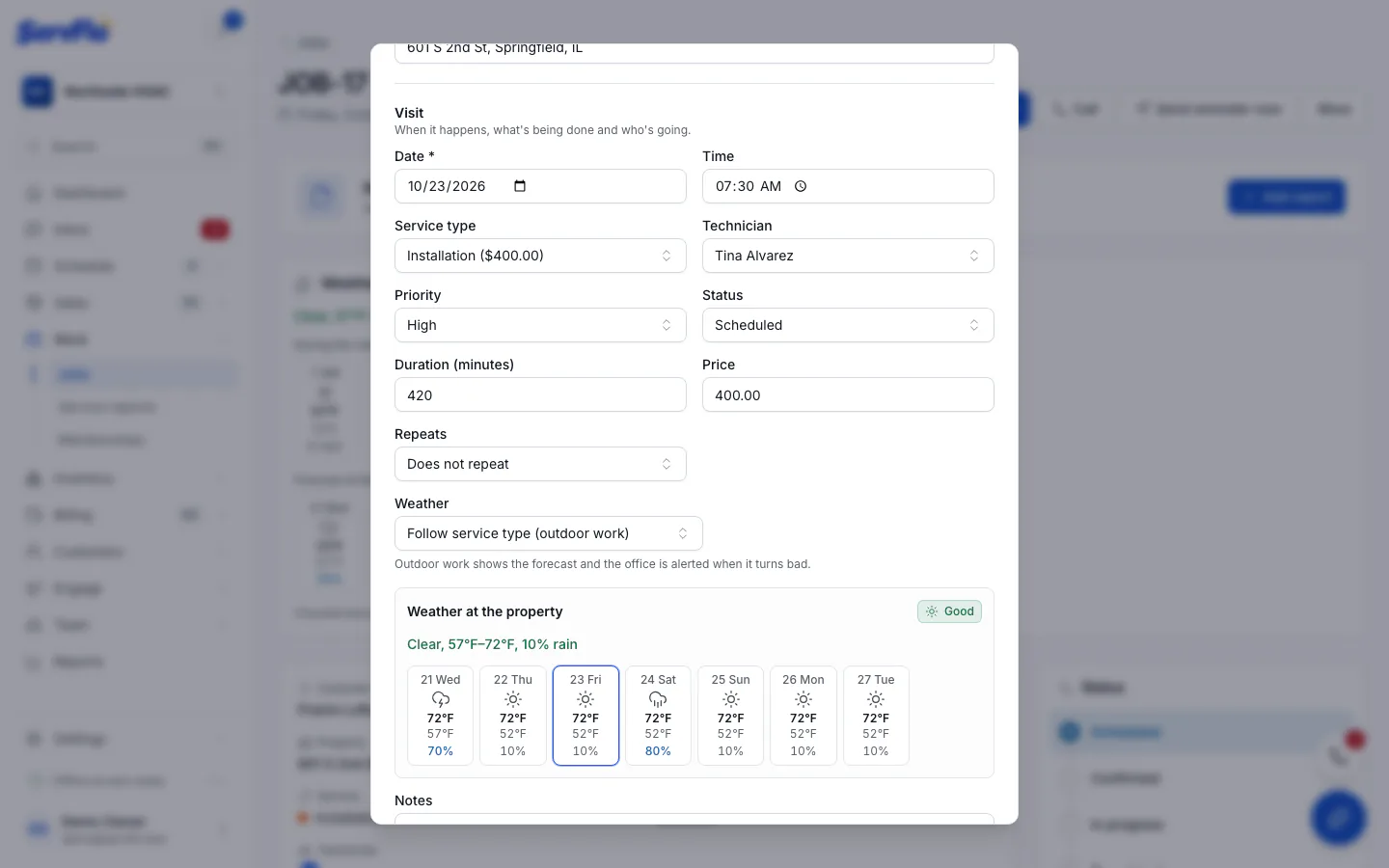
Save
Select Save changes. The job's Recurring line shows the schedule.
What happens when you complete it
When the job is completed, ServFlo books the next job one interval after this job's date (not the day you completed it). You'll see Next visit scheduled with a View link.
The next job copies this one: the customer, property, equipment, service, crew, start time, duration, price, priority, notes and custom fields. The checklist comes across with every item unticked, and matching job forms are attached fresh.
Each occurrence is its own job, with its own invoice, forms, photos and history. The next job is booked only once, even if you reopen and complete the job again.
Stop or change a recurring job
The schedule carries forward from job to job. To stop it, open the next upcoming job, select Edit, and set Repeats to Does not repeat. To change how often, pick a different option there.
For maintenance plans that customers pay for, with included visits and member pricing, use memberships instead. They're available on Grow and Pro.